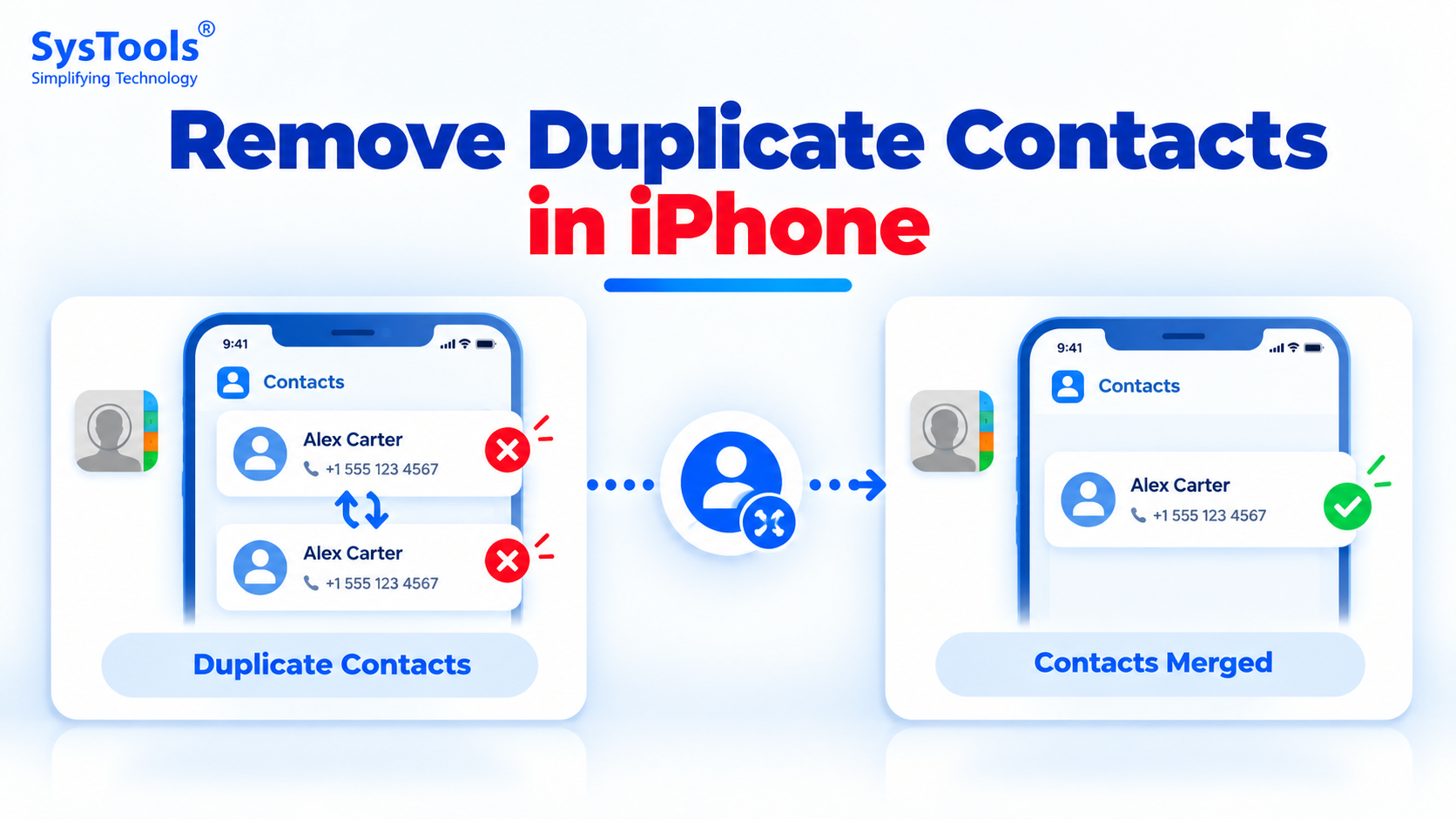
Duplicate contacts on an iPhone can make your address book confusing and difficult to manage. You might see the same person listed multiple times with identical phone numbers, different email addresses, or slightly different names. These duplicates often appear when you sync contacts from iCloud, Gmail, Outlook, or other accounts, or import contacts from an old phone.
Fortunately, you can remove duplicate contacts in iPhone using the built-in Contacts app, manually delete unwanted entries, manage synced accounts, or organize contacts through iCloud. This guide explains five practical methods to help you clean up your iPhone address book while keeping important contact information safe.
Why Do Duplicate Contacts Appear on iPhone?
Before removing duplicates, it helps to understand why they occur. Common reasons include:
Multiple contact accounts: The same person may be saved in iCloud, Gmail, and Outlook.
Contact synchronization: Syncing contacts across multiple devices or services can create repeated entries.
Importing contacts: Importing contacts from a SIM card, VCF file, or an old phone may add existing entries again.
Manual saving: You may accidentally save the same person's details more than once.
Different contact details: A person's name, phone number, or email address may be saved differently across multiple contact cards.
Identifying the cause helps you choose the right method and prevent the same problem from returning.
Method 1: Merge Duplicate Contacts Using the iPhone Contacts App
The easiest way to remove duplicate contacts in iPhone is to use Apple's built-in duplicate detection feature. On supported iOS versions, the Contacts app identifies matching contact cards and lets you merge them.
Steps to Merge Duplicate Contacts
Open the Contacts app on your iPhone.
Look for View Duplicates below your My Card section.
Tap View Duplicates to review the duplicate entries detected by your iPhone.
Review the contact details to ensure the entries belong to the same person.
Tap Merge for individual duplicates or Merge All to merge all detected duplicates.
Confirm the action if prompted.
Your iPhone combines the matching contact information so that duplicate entries no longer appear as separate contacts in the same way.
Important: The iPhone may not identify every duplicate, especially when names differ or contact details are incomplete. Review the suggested matches before merging them. If View Duplicates does not appear, your iPhone may not have detected any matches, or the feature may not be available in your current software version.
Method 2: Manually Delete Duplicate Contacts on iPhone
If your iPhone does not detect a duplicate, you can manually review and delete unwanted contact cards. This method is useful when the same person is saved under different names or with different phone numbers.
Steps to Delete Duplicate Contacts Manually
Open the Contacts app.
Search for the person's name or phone number.
Open the duplicate contact you want to remove.
Tap Edit in the upper-right corner.
Scroll down and tap Delete Contact.
Confirm by tapping Delete Contact again.
Repeat these steps for other duplicate entries.
When Should You Use This Method?
Manual deletion is suitable when you have only a few duplicate contacts and want complete control over which entries to keep.
Before deleting a contact, compare its phone numbers, email addresses, and other information with the entry you plan to retain. If one contact contains additional details, update the main contact first so you do not lose useful information.
Note: Deleting a contact associated with a synchronized account may also remove it from that account and other devices using the same account.
Read More: Remove Duplicate Contacts Gmail
Method 3: Remove Duplicate Contacts by Managing Synced Accounts
Sometimes, duplicate contacts appear because the same address book is synchronized from multiple services. For example, you might have a person's contact saved in both iCloud and Gmail.
Instead of deleting contacts individually, check which accounts are displaying contacts on your iPhone.
Steps to Check Contact Accounts
Open Settings on your iPhone.
Go to Apps > Contacts.
Tap Contacts Accounts. The exact menu wording may vary by iOS version.
Review the accounts listed, such as iCloud, Google, or Outlook.
Select an account to check whether Contacts synchronization is enabled.
If you no longer want contacts from a particular account to appear on your iPhone, turn off its Contacts option after checking where those contacts are stored.
This can help you identify whether repeated entries are coming from different accounts rather than from separate copies within one address book.
Important: Turning off Contacts synchronization is not the same as merging or permanently deleting duplicate contacts. It may simply hide contacts supplied by that account. Check your account settings carefully before changing synchronization options.
Method 4: Manage Duplicate Contacts Through iCloud
If your contacts are synchronized with iCloud, you can manage them on a computer or tablet via the iCloud website. This approach is useful when you need a larger screen to review your address book.
Steps to Manage Contacts on iCloud
Open a web browser and visit iCloud.com/contacts.
Sign in with your Apple Account.
Open the All Contacts list.
Review the contact entries and identify duplicates.
Select a duplicate contact that you no longer need.
Use the available actions to delete the selected contact.
Repeat for other unwanted entries.
When iCloud Contacts synchronization is enabled, changes can sync to your iPhone and other connected devices.
What Should You Check Before Deleting?
Make sure you select the correct contact. Deleting a contact from iCloud can remove it from every device using that iCloud contact list.
If you want to retain information from multiple entries, combine the details into the contact you intend to keep before deleting the extra entry. You can also make an appropriate backup or export of your contacts before making bulk changes.
Method 5: Use a Contact Management Tool for Large Address Books
If you have hundreds or thousands of contacts, reviewing each duplicate manually can take considerable time. A contact management or duplicate-removal tool may help you identify repeated entries based on available contact fields.
Depending on the tool, you may be able to compare contacts using details such as:
First and last names
Phone numbers
Email addresses
Company names
Other available contact fields
Before using any third-party tool, check its supported formats, compatibility, privacy policy, and whether it can work with your iPhone contacts directly or requires an exported contact file.
For example, if you export your contacts into a VCF/vCard file, a SysTools Duplicate Contact Remover Tool may help you review repeated entries before importing a cleaned contact list back into your account.
How to Prevent Duplicate Contacts on iPhone
After cleaning your address book, follow these practices to reduce the chance of duplicates appearing again.
1. Choose a Default Account
If you use multiple contact accounts, choose a default account for saving new contacts.
Go to Settings > Apps > Contacts > Default Account, then select your preferred account if the option is available.
2. Review Contact Synchronization
Check whether the same contacts are being supplied by multiple services. Keep only the accounts you need, and avoid disabling synchronization without understanding where your contacts are stored.
3. Update Existing Contacts Instead of Creating New Ones
When you need to add a new phone number or email address for an existing person, edit the existing contact rather than creating another entry.
4. Check Contacts After Importing
After importing contacts from another device, SIM card, or VCF file, review the address book for repeated entries before importing another copy.
5. Back Up Contacts Before Bulk Changes
Create a suitable backup or export before merging, deleting, or importing large numbers of contacts. This gives you a recovery option if you accidentally remove important information.
Conclusion
Removing duplicate contacts in iPhone is easier when you identify why the duplicates appeared in the first place. For most users, the built-in Contacts app is the best starting point because it can detect and merge matching entries. Manual deletion works for a small number of duplicates, while checking synchronized accounts can help address recurring problems.
If you maintain a large contact list, consider a compatible contact management tool for reviewing exported contacts. Whichever method you choose, review contact details and create a backup before making significant changes. This helps you maintain a clean, organized address book without unnecessarily losing important contact information.