Microsoft Outlook stores your emails, contacts, calendars, and tasks in files known as PST files. Many people password-protect these files to protect this personal or corporate information. But if you forget or lose the password you will not be able to access your emails and archives.
If you have been locked out of your PST files, this straightforward instruction will teach you how to unlock them manually and with the help of an automatic program, and get access to them fast.
Why Are Outlook PST Files Locked?
PST files are password-secured; nevertheless, there are a few typical reasons why you can lose access to them:
Lost Passwords: Strong passwords contain complicated characters and numbers, yet they might be simple to forget.
Changing Jobs: When an employee quits a firm, they may leave password-protected archive files without leaving the password.
File Corruption: Sudden computer shutdowns might result in file issues, causing Outlook to suddenly ask for a password.
Managing many files: If you have several old PST files preserved over many years, it is hard to remember every password.
Method 1: Manually Remove or Reset Outlook PST Passwords
If you know the current password or wish to attempt basic features inside Outlook, manual techniques are ideal.
Option A: Remove Password in MS Outlook
(Note: you need to know the current password for this option.)
If you know your current password and wish to clear it so that Outlook will no longer prompt you for it, do the following:
Open Microsoft Outlook.
Click File > Account Settings > Account Settings.
Go to the Data Files Tab
Choose your locked PST file from the list and click Settings.
Click Change Password button.
In the Old Password box, type your current password.
Leave the New Password and Verify Password fields empty.
Click OK to save adjustments.
Option B: Using an Old Command Tool (pst19upg)
(Note: This only works on extremely old PST files written with Outlook 2002 or earlier versions.)
Microsoft used to have a little utility called pst19upg.exe that would update older files and delete passwords in the process.
Exit Microsoft Outlook fully and copy your PST file to a secure place for backup.
Use the built-in repair tool (scanpst.exe) to rectify tiny mistakes in the file.
Open your computer's Command Prompt.
Run the command: pst19upg.exe -x outlook.pst
This will produce a temporary .psx file.
Enter the second command: pst19upg.exe -i filename.psx
This will create a fresh PST file without a password. This may now be opened in Outlook.
Limitations of human methods:
Requires Current Password: If you totally forget your password, Outlook will not be able to erase it.
One file at a time: You can't unlock more than one file at a time, which is quite time-consuming.
Not Compatible with Newer Outlook Versions: The old command tools cannot function with the PST files of Outlook 2007, 2010, 2013, 2016, 2019, and Office 365.
File destruction risk: Command prompt errors might destroy your file.
Method 2: Instant PST Files Unlock using Automated Software
If you forget your password or you need to unlock numerous files at one time, the manual instructions will not work. Automated programs allow you to unlock PST files without the original password.
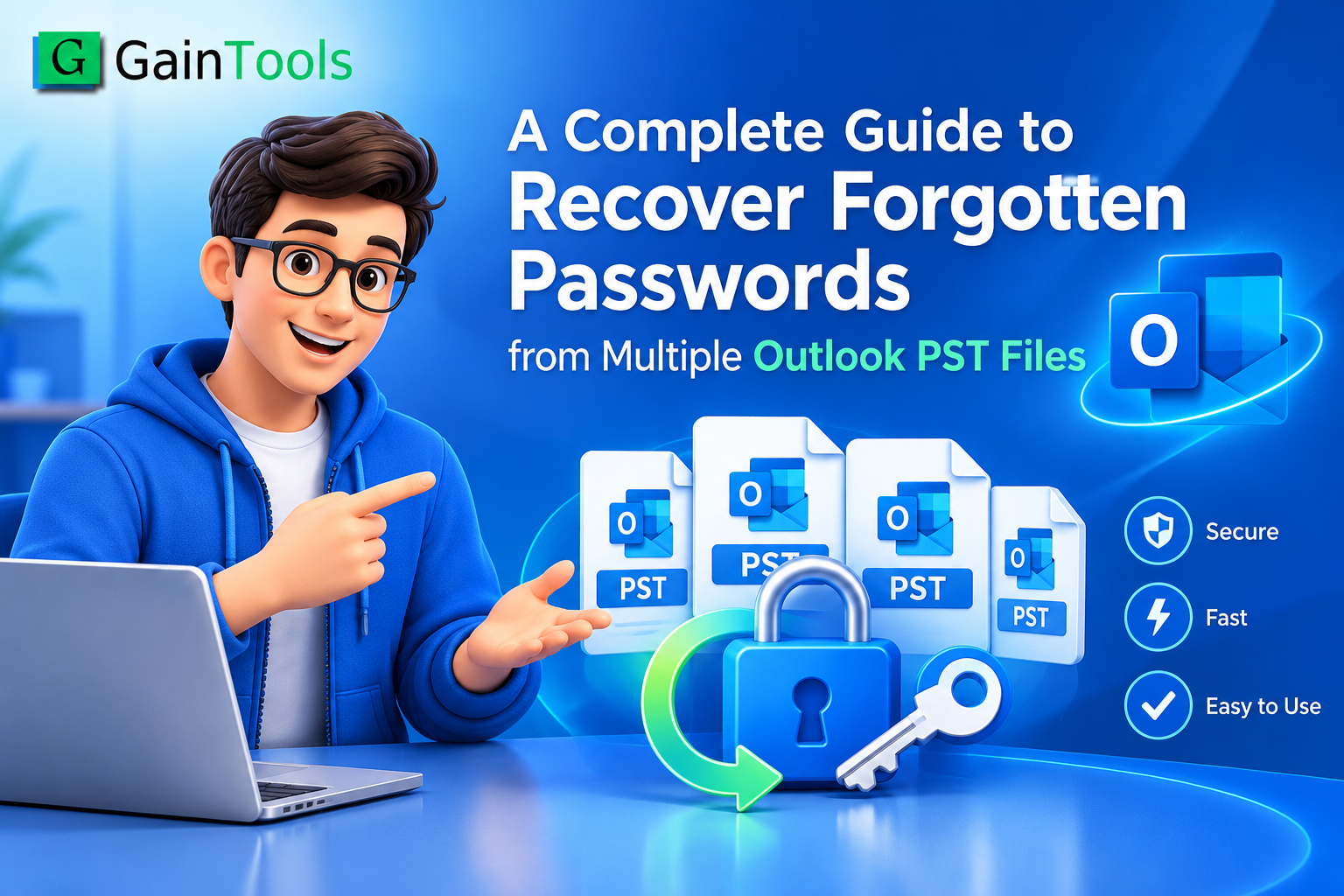
With the help of a professional application like GainTools PST Password Recovery Software, this procedure becomes straightforward and quick, as it runs smoothly on all new and old Outlook file formats without losing any data.
Key Advantages of Utilizing an Automated Tool:
Supports opening multiple files. You may open and work with several PST files at the same time.
Does not require Microsoft Outlook to be installed and configured on your machine.
Removes Complex Passwords: Unlocks files with long complex passwords instantly.
Secures Your Data – Removes password protection without damaging your emails, attachments, ts and files.
Steps to Recover Password of Multiple PST Files
Launch the recovery program on your PC.
Click Browse or Add Folder to choose one or more PST files.
Choose Remove Password or Reset Password.
Click the Process button and get your files quickly and delete the passwords.
Conclusion
If you know your password, you may deactivate it quickly with the Outlook settings. But if you have forgotten your password or have several locked PST files, then the quickest and safest approach to recover your data is to use a professional software application.
Visit Website: https://www.gaintools.com/pst/password/