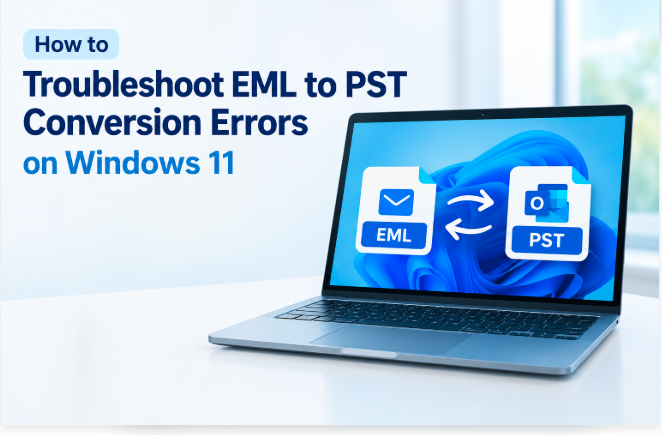
You can convert EML files to PST format, which enables users to import email messages into Microsoft Outlook for faster access and management. However, sometimes the process can fail due to corrupted email files, permission restrictions, incompatible software or lack of storage. If you are facing EML to PST conversion error on Windows 11, a few basic checks can help you uncover the problem and get the migration back on track.
Common Reasons for EML to PST Conversion Errors
There are a number of reasons that can prevent email conversion. When you know the problem, it’s easier to troubleshoot.
Corrupted EML files: Damaged or partial messages cannot convert.
Permission Issues: Windows security settings can prevent the software from accessing source or destination directories.
Insufficient Storage: Large mailboxes require adequate free disk space to create a PST file.
Outlook compatibility: Some older programs cannot work correctly with certain Outlook installations.
Large email collections: Handling a large number of messages simultaneously can increase memory and processing demands.
How to Fix EML to PST Conversion Issues?
1. Check the EML files
Open some of the EML files with a compatible email client, such as Mozilla Thunderbird or Windows Mail. The source files could be corrupted if the messages cannot be opened. Test with a few legible emails before doing the whole collection.
2. Run the software with the right permissions
If you require elevated access, right-click the converter and select Run as administrator. Also, confirm that access to your files is not being blocked by Windows Security or another security application.
3. Check available disk space
Ensure that the target drive has sufficient free space for the converted PST file. Save the output to a local folder such as documents instead of a limited network destination or protected system directory.
4. Confirm Outlook compatibility
Install any Windows updates available and check that your Outlook installation is working properly. If the converter requires Outlook, confirm that the installed version meets its requirements. Some of the conversion tools operate without having Outlook installed.
5. Convert Emails in Small Batches
If the conversion stops suddenly, break large EML collections into smaller batches. This helps in identifying of incorrect messages and also reduces the requirement of resources during processing.
6. Use a Dedicated Converter Tool
WholeClear EML to PST Converter is a software that provides an alternate way to convert EML messages to PST. Before you can go to a larger migration, check out the available capabilities and test a small batch of emails.
Frequently Asked Question
Q. 1 Why does the EML to PST conversion fail on Windows 11?
Some common causes are corrupted source files, restricted folder access, insufficient storage space and program compatibility concerns.
Q. 2 Can I convert EML files without Outlook?
Yes. Some standalone converters can generate PST files without the need of Outlook installation. Before starting, make sure you understand the needs of the tool.
Q. 3 How to avoid losing email attachments?
Process some emails with attachments and confirm the conversion results before processing the complete collection.
Final Thoughts
To troubleshoot EML to PST conversion issues on Windows 11,, start examining from the source files, storage location, and compatibility of the software. Smaller batch testing can also help discover problematic emails. Users can take advantage of these techniques to facilitate email migration and prepare their messages for use in Microsoft Outlook.