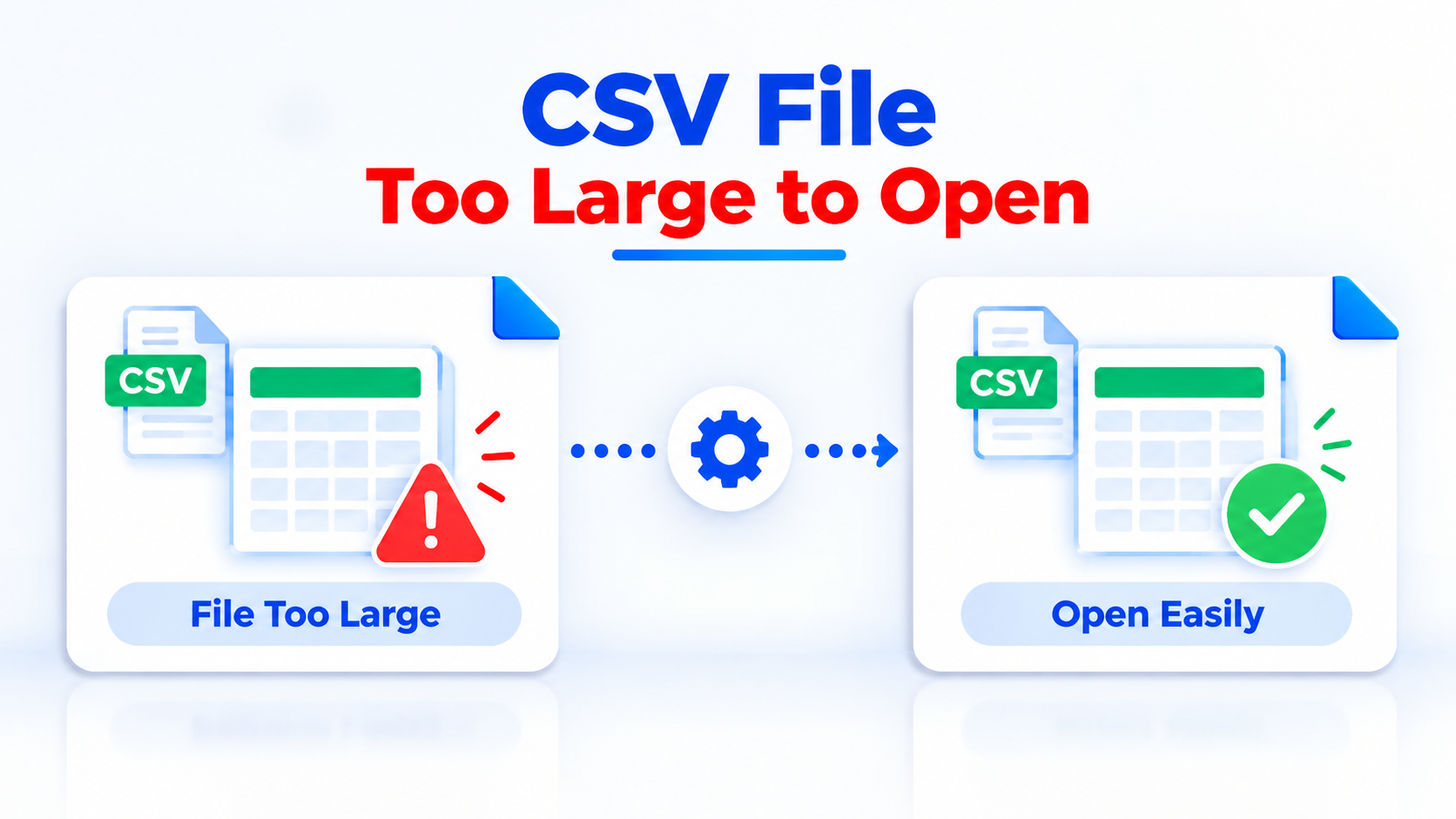
A CSV file may become too large to open when it contains millions of rows, thousands of columns, or large amounts of data. When you try to open it in Microsoft Excel or another spreadsheet application, the program may freeze, display an error, load only part of the data, or fail to respond.
This problem commonly occurs when working with database exports, transaction reports, website logs, customer records, analytics data, or other large datasets. The good news is that you do not always need to reduce or delete your data to access the file.
In this guide, we will explain why a CSV file is too large to open and discuss seven practical methods to open, inspect, or split large CSV files on Windows.
Read This Blog: CSV File Too Large to Open
Why Is a CSV File Too Large to Open?
A CSV (Comma-Separated Values) file stores tabular data in plain text, with commas or other delimiters separating individual values. Although the format is lightweight, a CSV file containing millions of records can consume significant memory when loaded into a spreadsheet application.
Here are some common reasons a large CSV file will not open:
Excel row limit: A worksheet supports a maximum of 1,048,576 rows and 16,384 columns. A CSV file exceeding these limits cannot be displayed completely in a single worksheet.
Insufficient RAM: Large datasets require substantial memory when a program loads and processes their contents.
Large file size: CSV files containing hundreds of megabytes or several gigabytes may be slow to process.
Complex data: Long text fields, numerous columns, and large numbers of records can increase processing time.
Application limitations: Basic text editors and spreadsheet programs may struggle with very large files.
Encoding or formatting issues: Unsupported encodings, inconsistent delimiters, or malformed rows may prevent the file from opening correctly.
Understanding the cause helps you choose the right method without risking data loss.
Method 1: Open the CSV File Using Excel Power Query
Microsoft Excel Power Query can import large CSV files and load their data into Excel or the Data Model. It is particularly useful when you need to filter, transform, or analyze data without immediately loading every row into a worksheet.
However, loading the entire dataset into a worksheet will still be subject to Excel's row limit.
Steps to import a large CSV file using Power Query:
Open Microsoft Excel and create a blank workbook.
Go to the Data tab.
Select Get Data → From File → From Text/CSV. The exact menu wording may vary by Excel version.
Browse to your large CSV file and select it.
Review the data preview, delimiter, and file origin settings.
Select Transform Data to open the Power Query Editor.
Apply filters or remove unnecessary columns if needed.
Select Close & Load To and choose an appropriate destination, such as a worksheet or the Data Model.
Advantages:
Supports data cleaning and transformation.
Allows you to filter records before loading them.
Can work with datasets larger than a single worksheet when using suitable destinations and sufficient system resources.
Limitations:
Processing may still be slow for very large files.
The Excel worksheet row limit remains applicable.
The Data Model has its own memory and capacity constraints.
Best for: Users who need to analyze, filter, or transform a large CSV dataset in Excel.
Method 2: Use a Large-File Text Editor
If you only need to inspect the contents of a CSV file rather than analyze every row, a text editor designed for large files may be a better choice.
Basic applications such as Notepad can struggle with very large files. Specialized large-file editors may provide faster loading, search, and navigation.
Steps:
Choose a text editor that explicitly supports files of your CSV's size.
Install the application from its official source.
Open the application and select the large CSV file.
Use search or navigation features to locate the records you need.
Avoid editing or saving the original file unless you understand how the application handles large files and CSV formatting.
Advantages:
Useful for quickly inspecting raw CSV data.
Does not require loading the dataset into a spreadsheet.
Can be suitable for troubleshooting malformed rows or checking delimiters.
Limitations:
Large files may still consume considerable memory.
Editing tabular data is less convenient than using a spreadsheet.
Not all text editors support multi-gigabyte files.
Best for: Users who need to inspect or search a large CSV file without performing spreadsheet calculations.
Method 3: Open the CSV File Using Python
Python is a practical option for developers and data analysts who need to read, filter, or process large CSV files programmatically.
Instead of loading the entire file into memory, you can read it in smaller chunks with the pandas library.
Steps to read a large CSV file in chunks:
Install Python if it is not already available.
Install pandas by running the following command:
pip install pandas
3. Create a Python script and use the following code:
import pandas as pdfile_path = "large_file.csv"for chunk in pd.read_csv(file_path, chunksize=100000): print(chunk.head())
This example reads the CSV file in batches of 100,000 rows and displays the first few rows of each batch. You can modify the code to filter records, calculate statistics, or write selected data to another file.
Advantages:
Processes large files in manageable chunks.
Supports data filtering, transformation, and analysis.
Can automate repetitive CSV-processing tasks.
Limitations:
Requires basic Python knowledge.
Incorrect processing logic can omit or modify records.
Memory use still depends on chunk size, column types, and the operations performed.
Best for: Technical users who need to process large CSV datasets without loading the entire file into memory at once.
Method 4: Import the CSV File into a Database
When a CSV file contains millions of records and you need to run repeated queries, a database may be more suitable than a spreadsheet.
Tools such as SQLite, PostgreSQL, and Microsoft SQL Server can store structured data and allow you to retrieve specific records without opening the entire dataset in a spreadsheet.
General steps:
Select a database suitable for your data volume and requirements.
Create a database table with an appropriate schema.
Import the CSV file using the database's supported import functionality.
Validate the imported row count and column mapping.
Run SQL queries to filter, search, and analyze the records.
For example, after importing the CSV data into a table, you could retrieve only the first 100 records using a query such as:
SELECT *
FROM large_csv_data
LIMIT 100;
The syntax varies by database; SQL Server, for example, uses TOP rather than LIMIT in its standard query form.
Advantages:
Suitable for structured data and repeated queries.
Supports filtering and sorting without opening every row in a spreadsheet.
Can be more manageable for large datasets.
Limitations:
Requires database setup and import knowledge.
The import process may take time.
Column types and data formatting must be handled carefully.
Best for: Businesses, developers, and analysts who regularly work with millions of CSV records.
Method 5: Split the Large CSV File into Smaller Files
If the problem occurs because your CSV file exceeds Excel's row limit or your computer cannot comfortably process the entire file, splitting it into smaller files can be an effective solution.
For example, a CSV file containing 3 million data rows could be divided into three files with approximately 1 million data rows each. If the files are intended for Excel, remember that each worksheet must also accommodate the header row.
You can split a large CSV file manually using scripts or use a dedicated CSV splitting tool.
General steps using a CSV splitter:
Back up the original CSV file.
Choose a CSV splitting tool that supports your file size and delimiter.
Load the source CSV file into the application.
Select a splitting option, such as splitting by row count or file size.
Specify the required output settings.
Start the splitting process.
Verify that the output files contain the expected headers and records.
A dedicated utility such as the SysTools CSV Splitter is an option to consider when you want to divide large CSV files into smaller parts without writing a script. Check the current version's file-size limits and supported splitting options before use.
Best for: Users who want to open large CSV files in Excel or another application with file-size or row-count limitations.
Conclusion
A CSV file that is too large to open does not necessarily need to be deleted, reduced, or converted to another format. If you need to open the file in Excel and it exceeds the worksheet row limit, splitting it into smaller CSV files is often a practical solution. Choose a method that matches your file size, technical experience, and intended use, and always validate the output to preserve data integrity.