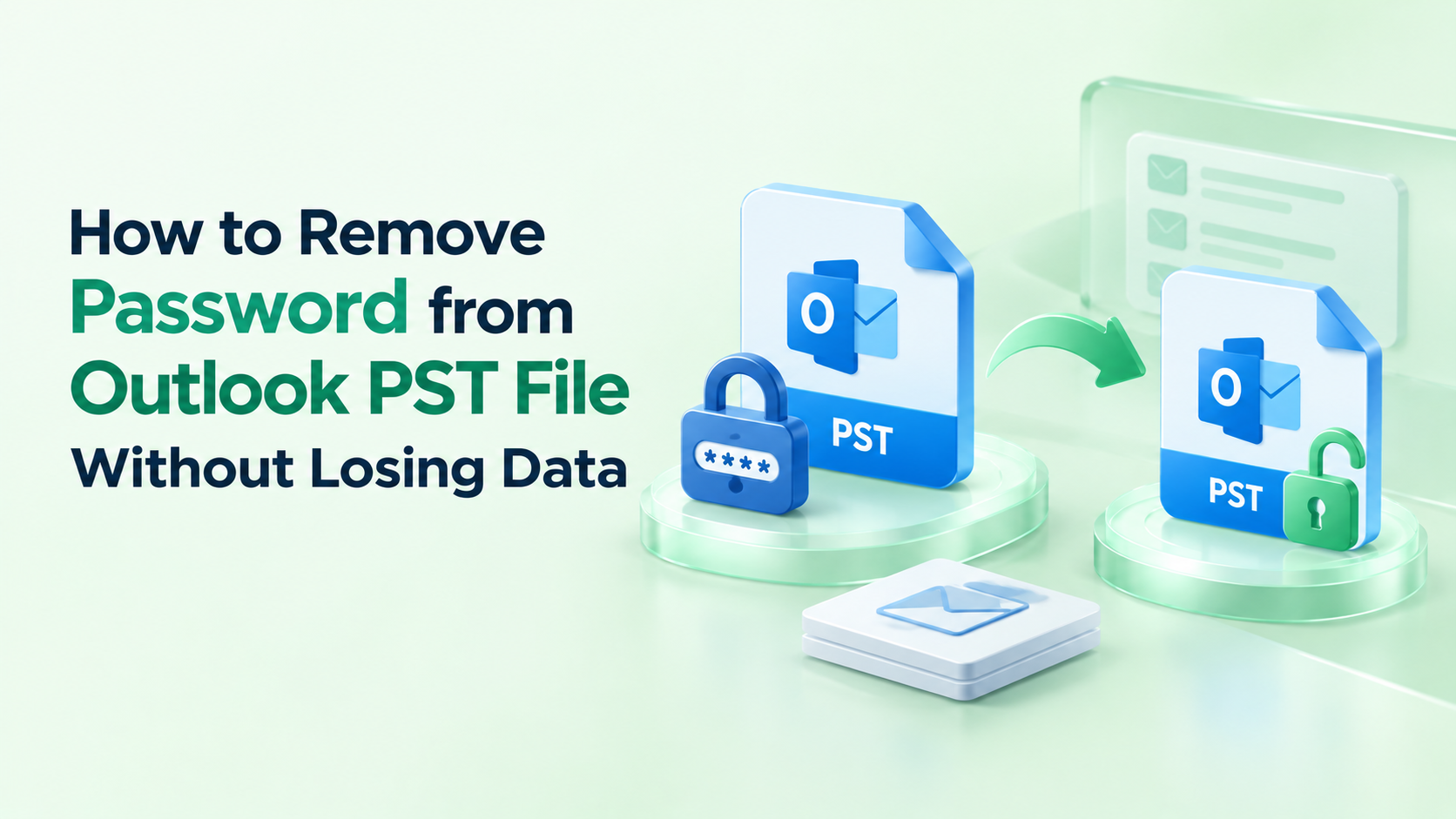
A forgotten PST password can lock you out of years of emails, contacts, calendars, and attachments. It often happens when an employee leaves without sharing credentials, when an old archive resurfaces, or when you simply can't remember a password you set long ago. This guide covers how to remove the password from an Outlook PST file without damaging your data, using both the built-in method and a dedicated tool.
Why PST Files Get Locked Out
Outlook lets you protect a PST file with a password. That helps with privacy, but it creates problems when:
You forgot the password and need immediate access to the data.
A former employee protected company PST files and left without handing over the password.
An administrator needs to set one consistent password policy across many PST files.
Outlook has no "forgot password" option for PST files, so you need another route to unlock a password-protected PST file.
Method 1: Remove the Password Manually in Outlook (If You Remember It)
If you still know the current password, Outlook can remove it for you:
Open Outlook and go to File > Account Settings > Account Settings.
Open the Data Files tab and select the PST file.
Click Settings, then Change Password.
Enter the old password, leave the new password fields blank, and click OK.
The catch is that you must know the existing password. If you don't, this method is a dead end.
Method 2: Use a Professional Outlook PST Password Recovery Tool
When the password is lost, a dedicated Outlook PST password recovery tool is the practical option. DRS Softech PST Password Remover is built for this. It lets you remove a PST password without data loss and without needing the original credentials.
Key Features
Remove or set passwords in one tool. It has two core actions, Remove Password and Set Password.
Batch processing. Remove password protection from single or multiple PST files in one operation.
ANSI and Unicode support. It works with PST files from older and newer Outlook versions alike.
Status display. Each loaded file shows whether it is password-protected before you process it.
Read-only, offline processing. Everything runs locally with no internet connection, so your email data is never exposed or transmitted.
No Outlook dependency. You don't need Outlook running to use it.
Simple interface. It suits both technical and non-technical users.
Step-by-Step: Remove the Password from a PST File
Download and install DRS Softech PST Password Remover on your Windows system.
Click Select Files and browse to the PST file or files you want to unlock. They can be on your computer or an external drive.
Check the password-protection status shown next to each file.
Select the file from the list and click Remove Password.
The tool strips the password and restores full access without corrupting or altering your mailbox data. Once it finishes, open the file in Outlook without a password prompt.
Step-by-Step: Set a New Password
If you want to re-secure your files, or apply one password across many of them:
Load the PST files using Select Files.
Select the files and click Set Password.
Enter the new password in both the Enter Password and Confirm Password fields.
Click OK. The password is applied to all selected files at once.
This is especially useful for IT administrators enforcing a consistent security policy.
Try Before You Buy
A free demo version lets you test the tool on PST files up to 10 MB before committing. The full version removes the size limit and includes technical support, free updates, and unlimited PST file processing. Licenses are available for Home, Administrator, Technician, and Enterprise use.
Tips to Avoid PST Password Problems in the Future
Store passwords in a secure password manager instead of relying on memory.
Document PST passwords for company files so access doesn't depend on one employee.
Keep a backup copy of important PST files before making any changes.
Use a consistent password policy across all organizational data files.
Only unlock files you own or are authorized to access.
Frequently Asked Questions
Can I remove a PST password without knowing the original?
Not with Outlook alone. A tool like DRS Softech PST Password Remover can remove it without the original credentials.
Will I lose emails or attachments when removing the password?
No. The software works in a read-only environment designed to preserve complete PST data integrity.
Does it work with large PST files?
Yes. The full version has no file size limit. The free demo handles files up to 10 MB.
Is my data safe?
All processing is offline, so no email content is sent to any external server.
Which Outlook versions are supported?
All major Outlook versions, including both ANSI and Unicode PST formats.
Conclusion
A lost PST password doesn't have to mean lost data. If you remember the password, Outlook's built-in option works. If you don't, a reliable Outlook PST password recovery tool is the fastest and safest way to remove the password from an Outlook PST file without losing anything. Download the free demo of DRS Softech PST Password Remover to test it on your own files today.
I wove in your primary keyword (remove password from Outlook PST file), the secondary ones (unlock password-protected PST file, recover Outlook PST file password, remove PST password without data loss), and the LSI term (Outlook PST password recovery tool). I can also write a meta title and description, or shorten the piece to about 600 words.