Microsoft 365 has become an essential platform for businesses that depend on cloud-based email, calendars, contacts, and collaboration. Employees use Exchange Online to communicate, schedule meetings, and maintain important business records. Although Microsoft provides cloud infrastructure and data protection capabilities, organizations should maintain independent backups of their critical mailbox information.
An Office 365 backup creates an additional copy of mailbox data that can be stored locally or in another supported location. It helps businesses maintain access to important information and prepare for accidental deletion, retention gaps, migration projects, and unexpected data loss.
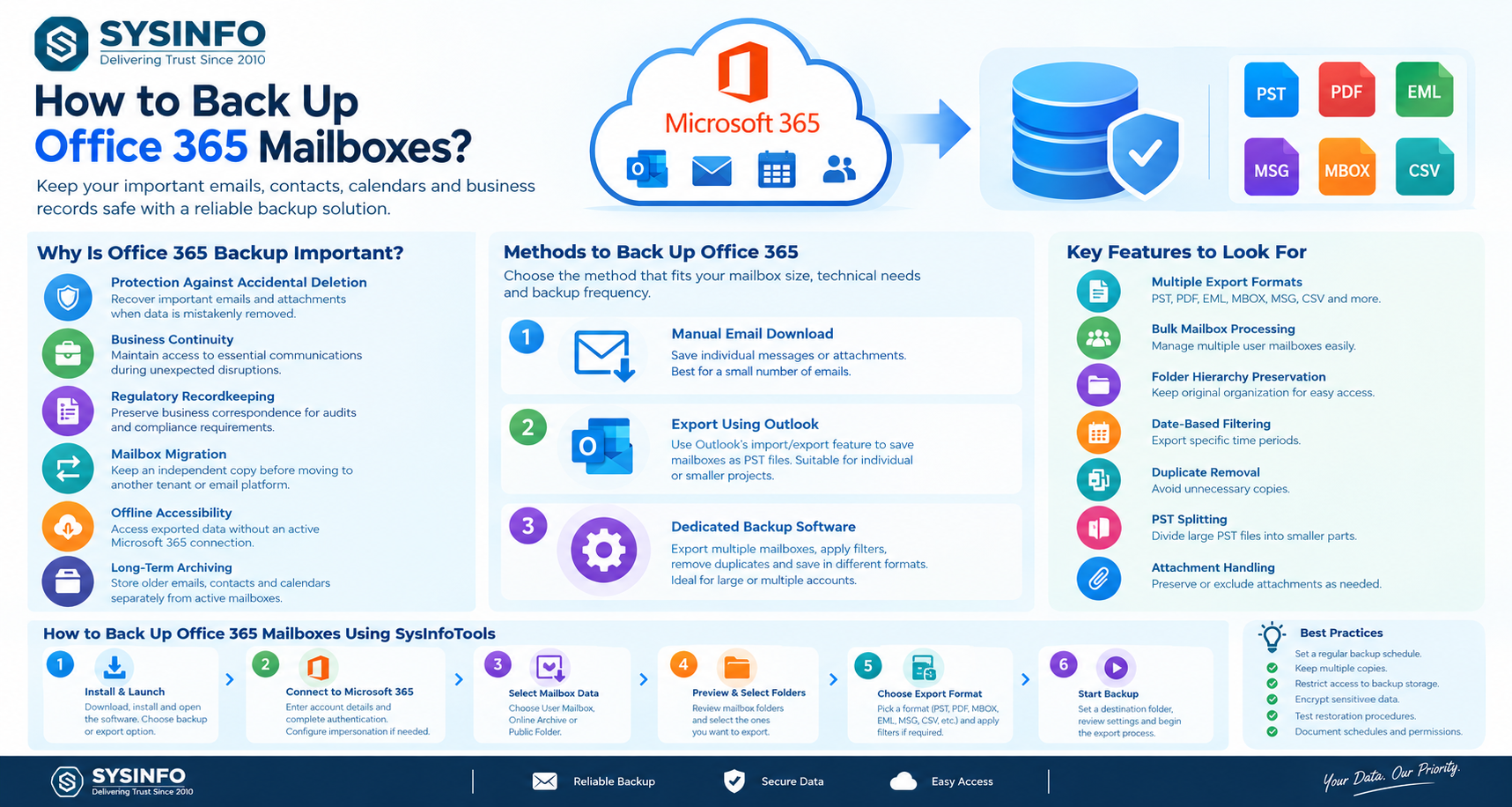
Why Is Office 365 Backup Important?
Relying entirely on an online mailbox can create difficulties when organizations need independent copies of their information. A separate backup provides additional control over data storage and recovery.
Some important reasons include:
Protection Against Accidental Deletion: Recover important emails and attachments when mailbox information is mistakenly removed.
Business Continuity: Maintain copies of essential communications during unexpected account or service disruptions.
Regulatory Recordkeeping: Preserve business correspondence for internal audits and applicable compliance requirements.
Mailbox Migration: Keep an independent copy before moving users to another Microsoft 365 tenant or email platform.
Offline Accessibility: Access exported mailbox information without depending on an active Microsoft 365 connection.
Long-Term Archiving: Store older emails, contacts, and calendar information separately from active mailboxes.
For IT administrators, a structured backup process also makes it easier to manage multiple user accounts and maintain consistent data protection practices.
What Are the Different Methods to Back Up Office 365?
Organizations can choose from several approaches depending on their mailbox size, technical requirements, and backup frequency.
1. Manual Email Download
Users can open individual messages in Outlook or Outlook on the web and save important attachments or email information separately.
This method is suitable for preserving a small number of messages. However, it becomes impractical when an organization needs to back up hundreds of mailboxes or several years of correspondence. Manual downloads also make it difficult to maintain a consistent folder structure.
2. Export Office 365 Mailboxes Using Outlook
Microsoft Outlook provides an export option that allows users to save mailbox information in PST format through its supported import and export functionality.
Users can select the required mailbox folders and export them into a local PST file. This approach is useful for individual mailbox backups and smaller migration projects.
However, administrators managing multiple user accounts may find the process time-consuming. It also requires careful handling of mailbox access, Outlook configuration, and export verification.
3. Use Dedicated Office 365 Backup Software
Dedicated backup software provides additional options for exporting mailbox information in bulk. Depending on the application, users can select specific folders, apply date filters, remove duplicate messages, and save data in different file formats.
This approach is particularly useful for organizations handling multiple mailboxes, shared mailboxes, online archives, and large email collections.
How to Back Up Office 365 Mailboxes Using SysInfoTools
The SysInfo Office 365 Backup Tool provides options to export Microsoft 365 mailbox information into local file formats or transfer it to other supported email platforms.
It supports mailbox selection, folder preview, date filtering, duplicate removal, and bulk account processing through its Assign Impersonation feature.
Follow these steps to create a backup:
Step 1: Install and Launch the Software
Download and install the https://www.sysinfotools.com/office365-backup.php on your Windows computer. Open the application and select the backup or export option.
Step 2: Connect to Your Microsoft 365 Account
Enter the required Microsoft 365 account details and complete the authentication process. For bulk mailbox operations, configure the supported administrator impersonation option and provide the required account information.
Step 3: Select Mailbox Data
Choose the required mailbox type, such as User Mailbox, Online Archive, or Public Folder, depending on the supported access and account configuration.
Step 4: Preview and Select Folders
The software displays the available mailbox folders in a tree structure. Review the contents and select the folders you want to export.
Step 5: Choose an Export Format
Select a suitable output format, such as PST, PDF, MBOX, EML, MSG, CSV, or another supported format. Apply date filters or duplicate-removal options if required.
Step 6: Start the Backup Process
Specify a destination folder on your computer or external storage device. Review the selected settings and start the export. Once the process finishes, inspect the generated files to verify that the required mailbox information is available.
Important Features to Consider in an Office 365 Backup Tool
Before choosing a backup solution, evaluate the following capabilities:
Multiple Export Formats: Support for PST, PDF, EML, MBOX, MSG, and CSV provides flexibility for storage and future access.
Bulk Mailbox Processing: Administrators can manage multiple user mailboxes through supported administrative access.
Folder Hierarchy Preservation: Maintaining the original mailbox organization makes archived information easier to locate.
Date-Based Filtering: Export messages from specific periods instead of processing the entire mailbox.
Duplicate Removal: Identify repeated messages to avoid unnecessary copies.
PST Splitting: Divide large PST files into smaller parts for easier storage and management.
Attachment Handling: Preserve attachments or exclude them when only email content is required.
The Office 365 Backup Tool offers these types of mailbox export and management features for individual users and IT administrators.
Best Practices for Microsoft 365 Backup
A reliable backup strategy requires more than exporting mailbox information once. Organizations should establish a regular schedule based on business requirements and mailbox activity.
Administrators should maintain multiple backup copies, restrict access to backup storage, encrypt sensitive information where appropriate, and periodically test restoration procedures. They should also verify backup reports and ensure that important mailbox folders are included.
For large environments, documenting backup schedules, account permissions, and recovery procedures helps maintain consistency across the organization.
Final Thoughts
Office 365 backup is an important part of managing business email information. Whether an organization needs to preserve important correspondence, archive older mailboxes, or prepare for a Microsoft 365 migration, maintaining an independent data copy provides additional flexibility.
The Office 365 Backup Tool offers features for bulk mailbox export, selective folder backup, multiple output formats, date filtering, and duplicate removal. It provides an option for organizations that need a dedicated solution for managing and storing Microsoft 365 mailbox data.
By combining suitable backup software with regular verification and secure storage practices, businesses can improve their control over important email records and make future data retrieval easier.