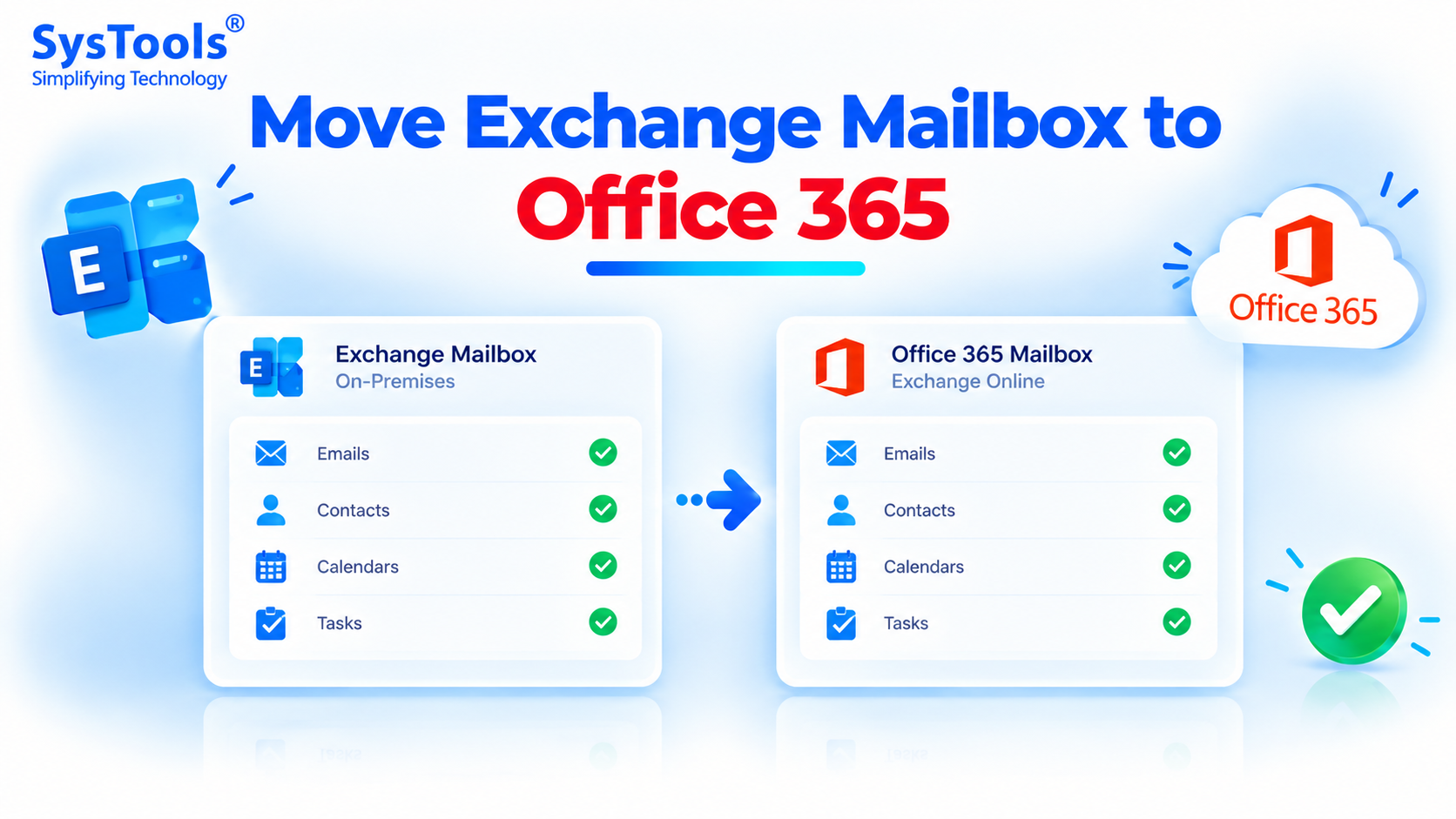
Moving an Exchange mailbox to Office 365 (Microsoft 365) allows organizations to access emails, contacts, calendars, and other mailbox data through Exchange Online. Businesses often migrate from an on-premises Exchange Server to Office 365 to simplify email management, support remote work, and reduce their dependence on local server infrastructure.
However, the migration process depends on the Exchange Server version, the number of mailboxes, mailbox size, and whether the organization wants to move all users at once or in batches. Choosing the wrong migration method can lead to delays, incomplete data transfers, or email delivery problems.
In this guide, we will explain how to move Exchange mailboxes to Office 365 using native Microsoft migration methods, manual PST import, and an automated solution like SysTools Exchange to Office 365 Migrator.
Why Move Exchange Mailbox to Office 365?
Organizations migrate Exchange mailboxes to Office 365 for several reasons:
Cloud accessibility: Access emails and other mailbox data through supported web browsers and email applications.
Reduced server maintenance: Reduce dependence on on-premises Exchange infrastructure after a properly planned migration.
Better collaboration: Integrate email with other Microsoft 365 applications and services.
Flexible mailbox management: Manage users and mailbox access through Microsoft 365 administration tools.
Business continuity: Reduce reliance on local server availability, subject to the organization's cloud configuration and backup strategy.
Scalability: Manage users and services as business requirements change.
What Data Can You Migrate from Exchange to Office 365?
Depending on the selected migration method and source configuration, you can migrate different types of Exchange data.
Exchange dataMigration supportEmails and attachmentsSupportedContactsSupported by appropriate mailbox migration methodsCalendars and meetingsSupported by appropriate mailbox migration methodsTasksSupported by appropriate mailbox migration methodsArchive mailboxesDepends on the migration method and toolPublic foldersRequires a suitable public-folder migration workflowDistribution listsMay require separate recipient provisioning or migration steps
Note: Not every method migrates all these items. For example, an IMAP migration transfers email messages but does not migrate calendars, contacts, or tasks. Check the requirements of your chosen method before starting.
Prerequisites to Move Exchange Mailbox to Office 365
Before starting the migration, prepare the source Exchange environment and Microsoft 365 tenant.
Microsoft 365 subscription: Ensure that the target subscription includes the required Exchange Online services.
Verified domain: Add and verify your organization's email domain in Microsoft 365.
Target user accounts: Create or synchronize the necessary user identities, depending on the migration method.
Administrator permissions: Confirm that the migration account has the permissions required to access the source mailboxes and target environment.
Mailbox inventory: Record the mailbox addresses, sizes, archive requirements, and other relevant information.
Connectivity and configuration: Verify the necessary Exchange endpoints, firewall rules, DNS settings, and hybrid configuration where applicable.
Backup and recovery plan: Keep an appropriate backup or recoverable copy of important mailbox data.
Migration testing: Test the process with a small number of mailboxes before migrating the entire organization.
Method 1: Move Exchange Mailbox to Office 365 Using Hybrid Migration
A hybrid migration connects an on-premises Exchange organization with Exchange Online. It is suitable for organizations that want to move mailboxes gradually while maintaining a relationship between their local Exchange environment and Microsoft 365.
This approach is particularly useful for organizations running supported modern Exchange Server versions or managing a large number of mailboxes.
Steps to migrate Exchange mailboxes using a hybrid configuration
Step 1: Prepare your Microsoft 365 tenant and verify your email domain.
Step 2: Check that your on-premises Exchange Server version and organization meet Microsoft's hybrid deployment requirements.
Step 3: Configure directory synchronization and the Exchange hybrid environment using the supported Microsoft setup process.
Step 4: Verify that the required Exchange connectivity, certificates, permissions, and migration endpoints are working.
Step 5: Open the Exchange admin center and navigate to the mailbox migration section.
Step 6: Create a migration batch and select the appropriate remote-move or hybrid migration workflow.
Step 7: Select the mailboxes you want to migrate and start the batch.
Step 8: Monitor migration progress and review any failed or skipped items.
Step 9: Complete the mailbox moves, verify the migrated data, and confirm that users can access their mailboxes in Exchange Online.
Step 10: Complete the required post-migration configuration, including email routing and Outlook connectivity.
Advantages
Supports moving mailboxes in batches.
Allows organizations to maintain an integrated Exchange environment during migration.
Supports a controlled transition for larger deployments.
Can reduce disruption when properly planned.
Limitations
Requires appropriate Exchange and hybrid configuration expertise.
Requires careful planning of directory synchronization and mail routing.
Troubleshooting may involve certificates, endpoints, permissions, and connectivity.
Method 2: Move Exchange Mailbox to Office 365 Using Cutover Migration
A cutover migration transfers an organization's mailboxes to Exchange Online in one main migration operation. It is intended for organizations that want to transition away from their on-premises email system rather than maintain a long-term hybrid arrangement.
Microsoft documents cutover migration for eligible on-premises Exchange organizations and recommends planning carefully around the number of mailboxes. Although the documented limit is up to 2,000 mailboxes, Microsoft recommends considering 150 or fewer for a more practical deployment.
Steps to perform a cutover migration
Step 1: Verify your domain in the Microsoft 365 admin center.
Step 2: Prepare the source Exchange environment and confirm that the necessary remote connectivity and permissions are available.
Step 3: Open the Exchange admin center and navigate to Migration.
Step 4: Create a migration endpoint that connects Microsoft 365 to the source Exchange environment.
Step 5: Create a migration batch and choose the cutover migration option.
Step 6: Select the mailboxes to migrate and start the batch.
Step 7: Monitor the batch and verify that the mailbox data has been transferred successfully.
Step 8: Assign the appropriate Microsoft 365 licenses to the migrated users.
Step 9: Update the required DNS and mail-routing settings when you are ready to direct incoming email to Microsoft 365.
Step 10: Test email delivery, Outlook connectivity, contacts, calendars, and other relevant mailbox functions.
Advantages
Suitable for an organization transitioning all eligible mailboxes together.
Uses Microsoft's built-in migration functionality.
Can simplify the overall transition when the source environment meets the requirements.
Limitations
Requires careful coordination of the migration and email-routing changes.
May require users to update their Outlook configuration.
Can be unsuitable for organizations that need a prolonged coexistence period.
Method 3: Import Exchange Mailbox Data into Office 365 Using PST Files
Another option is to export Exchange mailbox data into PST files and import those files into Microsoft 365. This method is useful when you have existing mailbox exports, archived data, or a requirement to transfer data from supported PST files.
However, a PST import is different from a direct Exchange mailbox migration. It does not automatically reproduce every Exchange configuration, permission, delegation, or mail-flow setting.
Step 1: Export Exchange mailbox data to PST
Use an authorized export workflow supported by your Exchange environment. For example, an administrator can use the appropriate Exchange mailbox export process to create PST files.
Ensure that you have the required permissions and that the export includes the folders and data you need.
Step 2: Prepare the PST files
Organize the exported files by user and mailbox. Check that the files are readable and that the exported data contains the required emails, attachments, contacts, and calendars.
Step 3: Choose an Office 365 import method
Microsoft provides a PST Import service for eligible Microsoft 365 organizations. Depending on your organization's requirements, you can use Microsoft's network upload workflow or another supported import approach.
Step 4: Map the PST files to target mailboxes
Prepare the required mapping information so that each PST file is associated with the correct Microsoft 365 user and target folder configuration.
Step 5: Import and verify the data
Run the import process, monitor its status, and check the destination mailboxes for missing folders, attachments, or incomplete data.
Advantages
Useful for transferring existing PST archives.
Allows mailbox data to be organized and checked before import.
Can help consolidate data from exported mailboxes.
Limitations
Requires an export and import workflow.
May involve additional staging and storage.
Does not automatically recreate all source Exchange settings.
Can be time-consuming when dealing with numerous large PST files.
Method 4: Move Exchange Mailbox to Office 365 Using SysTools Exchange to Office 365 Migrator
If you need to migrate multiple Exchange mailboxes and want a more guided process, you can consider an automated migration utility such as SysTools Exchange to Office 365 Migrator.
The tool is designed to transfer Exchange mailbox data to Office 365 and can be useful for administrators who need to process multiple mailboxes without manually exporting and importing each mailbox separately.
Explore the SysTools Exchange to Office 365 Migrator to review its current features and requirements.
Steps to move Exchange mailboxes using SysTools
Step 1: Install the migration tool
Download the software from the official SysTools website and install it on a supported Windows computer.
Step 2: Connect to the source Exchange environment
Provide the required Exchange Server connection details and authentication information. Confirm that the account has the permissions needed to access the selected mailboxes.
Step 3: Connect the Office 365 destination
Authenticate with the target Microsoft 365 environment using the supported sign-in method and required permissions.
Step 4: Select the mailboxes
Choose the Exchange mailboxes that need to be migrated. If you are migrating several users, verify that each source mailbox is mapped to the correct destination account.
Step 5: Select the required mailbox data
Choose the data and migration options supported by the application. Depending on the workflow, this may include emails, contacts, calendars, and other supported mailbox items.
Step 6: Configure filters if required
Use available date-based or category-based filtering options to narrow the data being migrated, where appropriate.
Step 7: Start the migration
Begin the transfer and monitor the progress dashboard. Review any failed, skipped, or incomplete items.
Step 8: Re-run or verify the migration
Use supported retry or delta-migration options when required. After the transfer, check the destination mailbox to confirm that the expected data is present.
Key benefits of the automated approach
Multiple mailbox migration: Designed to migrate multiple Exchange mailboxes to Office 365.
Concurrent processing: The vendor advertises support for processing multiple mailboxes simultaneously; confirm the current edition's limits.
Data filtering: Available filtering options can help restrict the data selected for migration.
Migration monitoring: A status dashboard helps administrators track the process.
Retry support: Supported retry options can help address failed or skipped items.
Delta migration: Where supported, this can transfer newly arrived data during a subsequent migration pass.
Why choose SysTools Exchange to Office 365 Migrator?
The automated approach may be appropriate when you need a guided migration process, have many mailboxes to transfer, or want to reduce repetitive manual export and import tasks.
Before purchasing or deploying the tool, verify the supported Exchange Server versions, Microsoft 365 authentication requirements, mailbox types, archive support, public-folder support, and the licensing limits applicable to your specific migration project.
Important: Automated migration software does not eliminate the need for migration planning. Test a small mailbox set, confirm permissions, and verify the destination data before moving the rest of the organization.
Method 5: Migrate Exchange Mailboxes Using Microsoft Migration Tools and PowerShell
Administrators can also use supported Microsoft migration tools and PowerShell commands to configure and manage migration tasks. This approach is most suitable for IT professionals who are comfortable managing Exchange and Microsoft 365 environments.
The exact commands and workflow depend on the Exchange Server version, migration type, and whether the organization uses a hybrid deployment.
General workflow
Prepare the source Exchange environment and target Microsoft 365 tenant.
Verify user identities, mailbox permissions, and required licenses.
Configure the appropriate migration endpoint and connectivity.
Create and start a migration batch using the supported Exchange admin center or PowerShell workflow.
Monitor migration status and investigate failed or skipped items.
Complete the mailbox move and verify the target data.
Configure mail routing and Outlook connectivity as required.
Avoid copying commands from an unrelated Exchange version or migration type. Use Microsoft's current documentation for the precise syntax and prerequisites applicable to your environment.
Best Practices for a Successful Exchange to Office 365 Migration
Inventory all mailboxes and identify large or special-purpose mailboxes.
Select a migration method that matches the Exchange Server version and organizational requirements.
Test the migration using a small group of users.
Confirm that the required licenses and permissions are in place.
Communicate expected changes to users before the migration.
Monitor migration reports and investigate failed or skipped items.
Validate emails, attachments, contacts, calendars, and any required archives.
Verify mail flow and Outlook connectivity after migration.
Keep the source environment available until the migration and validation are complete.
Follow Microsoft's supported procedures before decommissioning on-premises Exchange.
Conclusion
Moving an Exchange mailbox to Office 365 requires selecting the right migration method and preparing both the source and destination environments. Hybrid migration is suitable for organizations that need a gradual transition, while cutover migration can work for eligible organizations that want to move their mailboxes together. PST import is another option for transferring existing mailbox archives.
For organizations looking for a guided process to migrate multiple mailboxes, this is an alternative worth evaluating. Choose the method that matches your Exchange version, mailbox count, data requirements, and technical resources, then verify the results before completing the transition.