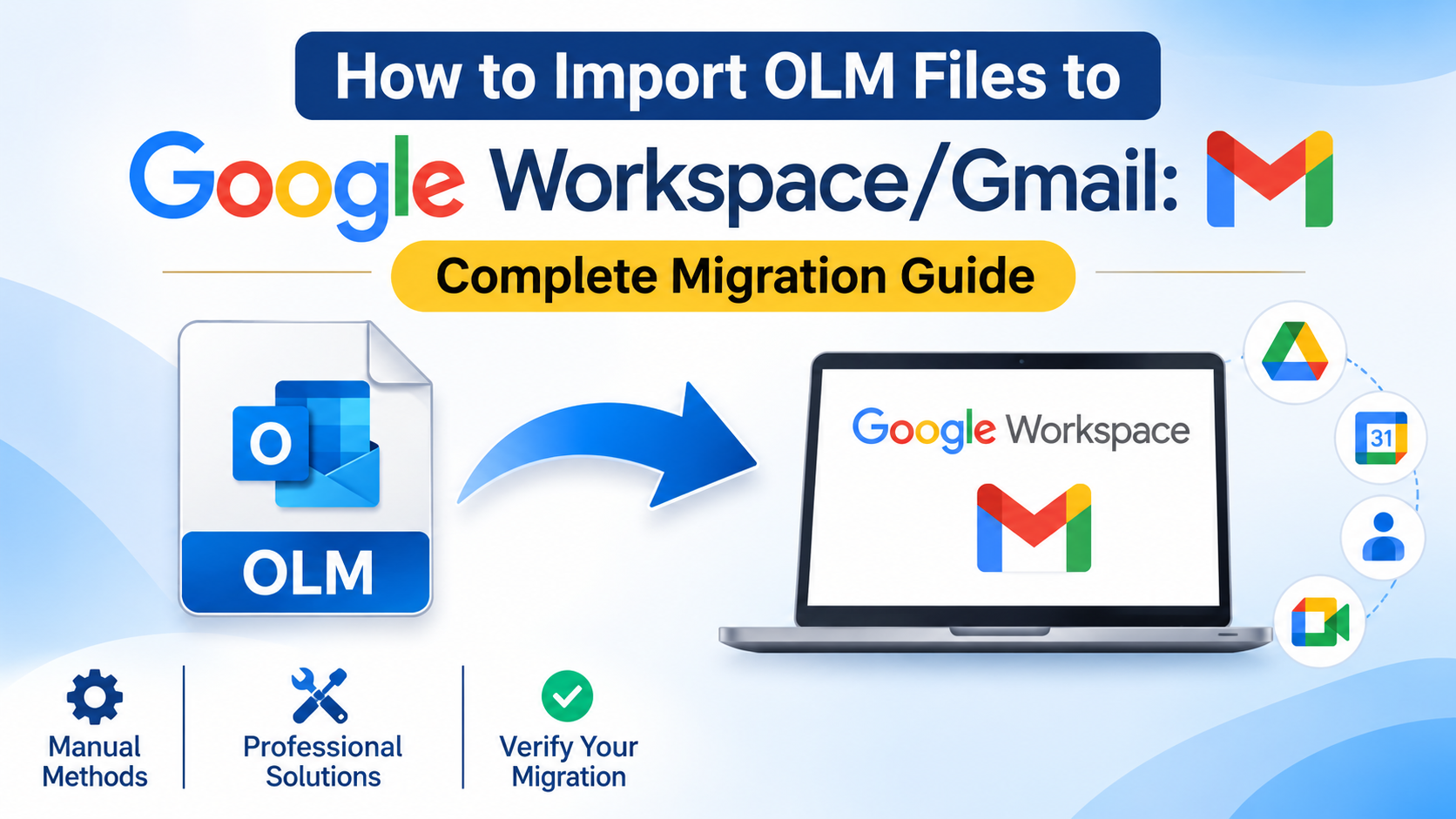
Moving from Microsoft Outlook for Mac to Google Workspace or Gmail can be challenging, especially when your mailbox data is stored in an OLM file. Outlook for Mac uses the OLM format to store mailbox information, including emails, attachments, folders, contacts, calendars, and other data. However, Gmail and Google Workspace do not provide a direct option to upload an OLM file and import its entire mailbox content.
If you want to Import OLM Files to Google Workspace or move your Outlook for Mac emails to Gmail, you need to use an appropriate migration approach. Depending on your requirements, you can use an intermediate email client, IMAP-based migration, or a dedicated third-party migration solution.
This guide explains how to move OLM files to Google Workspace/Gmail, the available migration methods, their limitations, and the precautions you should take before transferring your mailbox data.
Understanding OLM Files and Google Workspace
Before starting the migration, it is important to understand both file formats and email platforms.
What is an OLM File?
OLM (Outlook for Mac Data File) is a proprietary archive format used by Microsoft Outlook for Mac. It stores mailbox information locally and allows users to export or back up their Outlook data.
An OLM file can contain:
- Email messages and attachments.
- Inbox, Sent Items, Drafts, and custom folders.
- Contacts and address book information.
- Calendar events and appointments.
- Notes and other supported mailbox information.
What is Google Workspace?
Google Workspace is Google's cloud-based productivity platform. It provides business email through Gmail along with services such as Google Drive, Calendar, Contacts, and Docs.
Gmail is Google's email service, while Google Workspace provides Gmail with additional business administration, collaboration, and organizational features.
The important difference is that OLM is a local mailbox archive, whereas Google Workspace stores mailbox information in the cloud. Therefore, users need a compatible migration process to transfer their data.
Why Move OLM Files to Google Workspace/Gmail?
There are several reasons users may want to transfer their Outlook for Mac mailbox data to Google's email platform.
1. Access Emails from Anywhere
Google Workspace and Gmail allow users to access their email accounts through web browsers and supported mobile applications. You do not need to depend on the computer where your OLM file is stored.
2. Cloud-Based Email Storage
Moving mailbox data to Google Workspace helps users maintain email records in a cloud environment rather than relying entirely on local OLM backups.
3. Better Collaboration
Google Workspace offers integrated services such as Google Drive, Calendar, and Meet, making it convenient for organizations that want to manage their communication and collaboration through one platform.
4. Simplified Email Management
Users can organize transferred messages using Gmail labels, filters, search functionality, and other mailbox management features.
5. Business Email Migration
Organizations moving away from Outlook for Mac may need to transfer historical email conversations to Google Workspace to maintain business communication records.
Things to Consider Before Importing OLM Files to Google Workspace
A successful migration requires some preparation. Before choosing a method, consider the following points:
- Create an OLM backup: Keep an untouched copy of your original OLM file.
- Check file integrity: Make sure the OLM file is accessible and not corrupted.
- Review mailbox size: Check whether the destination Google account has sufficient storage.
- Check folder organization: Identify important folders and subfolders that need to be transferred.
- Verify Google account access: Ensure that you have the necessary account credentials and permissions.
- Check attachment availability: Confirm that important email attachments are included after migration.
- Review Google limits: Consider Gmail message-size restrictions, account storage, and applicable migration limits.
These precautions help reduce migration errors and make it easier to verify the transferred mailbox data.
Method 1: Move OLM Files to Google Workspace/Gmail Using Outlook for Mac
One practical manual approach is to import the OLM archive into Outlook for Mac and then transfer the required emails to a Gmail or Google Workspace account configured through IMAP.
Follow these steps:
Step 1: Import the OLM File into Outlook for Mac
1. Open Microsoft Outlook on your Mac.
2. Go to the Tools or File menu, depending on your Outlook version.
3. Select the Import option.
4. Choose Outlook for Mac archive (.olm).
5. Browse and select your OLM file.
6. Follow the instructions to complete the import.
7. Check the imported folders and email messages.
Step 2: Configure Your Gmail Account in Outlook
1. Open Outlook for Mac.
2. Navigate to Account Settings.
3. Select Add Account.
4. Enter your Gmail or Google Workspace email address.
5. Sign in using Google's authentication window.
6. Allow the required permissions and complete the account setup.
7. Verify that the account is connected successfully.
Step 3: Transfer Emails to Gmail
1. Open the imported OLM mailbox in Outlook.
2. Select the email folder you want to migrate.
3. Select the required messages.
4. Drag and drop the selected emails into the corresponding folder under your Gmail account.
5. Repeat the process for other folders.
6. Allow Outlook to synchronize the messages with the Gmail server.
Step 4: Verify the Migrated Data
Open Gmail in your browser and check whether the transferred messages are available. Review email content, attachments, dates, and folder organization.
Limitations: This method requires Outlook for Mac, a properly configured Gmail account, and sufficient upload capacity. Large mailboxes may take considerable time to synchronize. Folder structures may appear as labels in Gmail, and you should verify the results before removing any local data.
Method 2: Use an OLM to Google Workspace Migration Tool
If you have a large OLM archive or need to migrate multiple mailboxes, a dedicated migration utility can simplify the process.
A professional migration solution generally provides a direct workflow for transferring OLM mailbox data to Gmail or Google Workspace without requiring users to manually move individual messages.
The general process involves:
1. Install and launch a compatible OLM migration utility.
2. Add the source OLM file to the software.
3. Preview the mailbox folders and email messages.
4. Select the required folders for migration.
5. Choose Gmail or Google Workspace as the destination, if supported.
6. Authenticate the destination account using the supported sign-in method.
7. Configure the available migration options.
8. Start the migration process.
9. Verify the transferred mailbox data in the destination account.
Depending on the software, additional options may include date filters, selective folder migration, batch processing, and attachment preservation.
Important: Check whether the selected utility supports direct Google Workspace migration, OAuth authentication, and the mailbox data types you need. Not every OLM converter supports direct cloud migration.
Method 3: Convert OLM Files into a Supported Format Before Migration
Another possible approach is to convert the OLM archive into an intermediate format that can be processed by a compatible email migration application.
For example, you can consider the following workflow:
1. Convert the OLM mailbox into MBOX format using a compatible conversion application.
2. Install and configure Mozilla Thunderbird.
3. Import the converted MBOX data using a compatible import extension or supported import method.
4. Add your Gmail or Google Workspace account to Thunderbird using IMAP.
5. Select the imported email folders.
6. Copy the messages into the corresponding folders of your Google account.
7. Wait for synchronization to finish.
8. Check the migrated emails through the Gmail web interface.
This approach can be useful when you want to use an email client as an intermediate platform. However, it involves additional conversion and configuration steps. It is primarily suitable for email migration; contacts and calendar information may require separate migration procedures.
Manual vs. Professional OLM Migration
Comparison Factor Manual Method Professional Method
Technical knowledge Moderate Usually basic
Migration process Multiple steps Simplified workflow
Large mailbox handling Can be time-consuming Depends on tool capacity
Selective migration Manual selection May offer filters
Folder management Requires verification Depends on software
Batch migration Limited May be supported
Direct cloud migration Through an email client Depends on tool support
The manual approach is suitable for smaller mailboxes and users comfortable with Outlook and IMAP configuration. A professional solution may be more convenient when dealing with large OLM files, multiple accounts, or selective migration requirements.
Can Google Workspace Migration Tools Import OLM Files Directly?
Google provides migration utilities for transferring email data from supported sources. However, its official migration product matrix lists PST files, IMAP servers, and other supported sources rather than OLM files as a direct migration source.
For example, Google Workspace Migration for Microsoft Outlook (GWMMO) supports importing data from local PST files and Microsoft Exchange accounts. It does not list OLM as a supported source format. Therefore, an OLM archive needs an intermediate conversion or another compatible migration method.
Google Workspace Help+1
Similarly, Gmail's built-in Import Mail feature is designed for importing messages from supported email accounts, not uploading a local OLM archive directly.
Gmail Help
Common Issues When Moving OLM Files to Google Workspace
During migration, users may encounter several technical challenges. Understanding these issues can help prevent data loss and incomplete transfers.
1. Large OLM File Size: Large mailbox archives may take longer to process and synchronize. Divide the migration into smaller batches when necessary.
2. Attachment Transfer Issues: Some attachments may not transfer correctly because of message-size restrictions or synchronization errors. Verify important attachments after migration.
3. Folder Hierarchy Changes: Outlook folders and Gmail labels work differently. Review the destination structure to ensure messages are organized correctly.
4. Authentication Errors: Google may require OAuth-based authentication or additional account permissions. Complete the required authorization steps before starting migration.
5. Duplicate Emails: Repeated migration attempts can create duplicate messages. Check whether your migration method supports duplicate detection.
6. Missing Contacts and Calendar Events: Email migration does not automatically guarantee that contacts and calendar events will also be transferred. Handle these data types separately when required.
Best Practices for Successful OLM to Google Workspace Migration
Consider these recommendations before and after migration:
- Always maintain a backup of your original OLM file.
- Test the migration with a small mailbox folder first.
- Use a stable internet connection.
- Check the destination account's available storage.
- Avoid interrupting the migration process.
- Verify email headers, attachments, and message content.
- Compare the source and destination mailbox folders.
- Keep the original OLM archive until migration verification is complete.
Conclusion
Moving Outlook for Mac mailbox data to Google Workspace or Gmail requires an appropriate migration approach because OLM files are not directly supported by Google's standard migration tools. Users can choose manual migration through Outlook and IMAP, convert OLM files into an intermediate format, or use a dedicated migration utility.
The right method depends on mailbox size, migration requirements, available technical resources, and the type of data you want to transfer. Regardless of the approach, always back up your OLM files and verify the migrated emails, attachments, and folder organization before completing the migration.