Email remains an important source of business information, even as organizations move toward cloud-based communication platforms. Yahoo Mail is used for personal correspondence, professional communication, customer interactions, and the exchange of important documents. Over time, an individual mailbox can accumulate thousands of messages, attachments, and custom folders that may be difficult to manage without a structured data protection strategy.
Although webmail services provide convenient access to stored messages, relying exclusively on an online mailbox can create challenges when users need independent copies of their communication records. Account access problems, accidental deletion, security incidents, provider changes, and organizational migrations can all affect email availability.
A reliable Yahoo Mail backup process helps users maintain control over their information by creating separate copies of mailbox data. However, an effective backup involves more than downloading messages. Authentication, folder preservation, attachment management, data integrity, export formats, and recovery validation must all be considered.
This article examines the technical aspects of designing a secure and manageable Yahoo Mail backup and migration workflow.
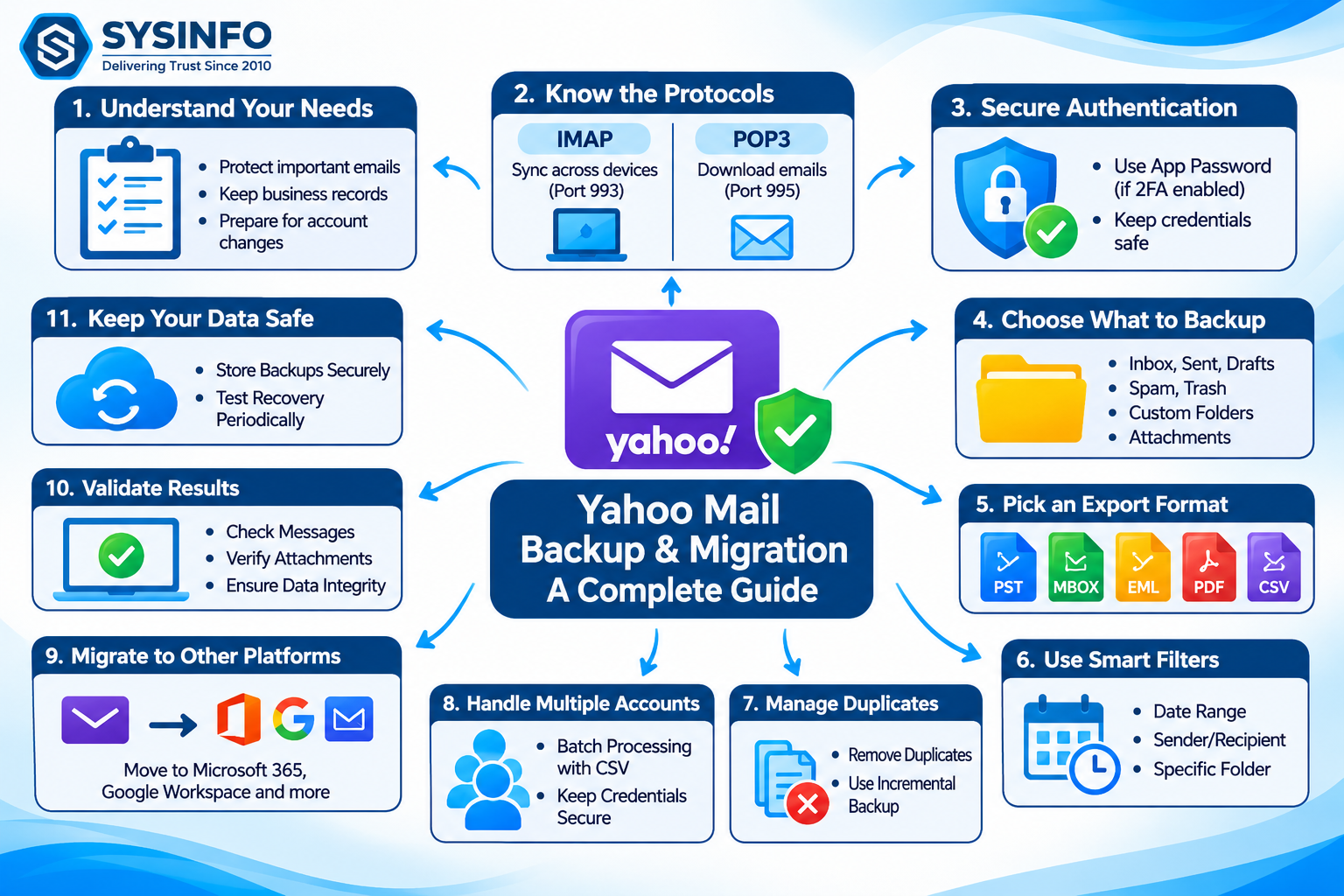
1. Understanding Yahoo Mail Storage and Backup Requirements
Yahoo Mail uses a centralized email infrastructure that allows users to access their messages through a web browser or compatible email applications. Email clients can connect to the mailbox using standard protocols such as IMAP and POP3.
IMAP is particularly useful when users need to access the same mailbox from multiple devices. It maintains synchronization between the server and connected email applications. Changes made through one connected application can also be reflected in other connected sessions.
However, synchronization does not provide an independent backup.
For example, if a user accidentally deletes an important business conversation, the deletion may synchronize across connected email clients. Depending on the account's recovery options and retention conditions, retrieving the original message may become difficult.
A separate backup creates another copy of the mailbox that can be stored on a computer, external drive, or another supported destination.
Common reasons to maintain independent Yahoo Mail backups include:
Protecting important business correspondence.
Maintaining copies of customer communication.
Preserving historical invoices and transaction records.
Preparing for email provider changes.
Supporting legal and internal record reviews.
Reducing dependence on a single online account.
Maintaining access to information during account disruptions.
The backup strategy should be based on the importance of the stored information and the recovery requirements of the user or organization.
2. IMAP and POP3: Understanding the Technical Differences
IMAP and POP3 are two widely used protocols for retrieving email messages. Understanding their differences helps determine which connection method is appropriate for a backup operation.
IMAP Protocol
Internet Message Access Protocol allows an email client to communicate with a remote mailbox while maintaining server-side message organization.
Its important characteristics include:
Access to multiple mailbox folders.
Server-side message synchronization.
Support for accessing mail from multiple devices.
Management of message flags and folder information.
Ability to retrieve selected messages.
IMAP is generally suitable when the objective is to preserve the mailbox structure and retrieve messages from different folders.
Yahoo's standard IMAP configuration commonly uses:
Server: imap.mail.yahoo.com
Port: 993
Security: SSL/TLS
POP3 Protocol
Post Office Protocol version 3 provides another method of retrieving email messages from a remote server.
POP3 is primarily designed around downloading messages to an email client. Depending on the client configuration, downloaded messages may remain on the server or be removed after retrieval.
Its simpler retrieval model can be useful for certain local email workflows, although it does not provide the same folder synchronization capabilities as IMAP.
Yahoo's standard POP3 configuration commonly uses:
Server: pop.mail.yahoo.com
Port: 995
Security: SSL/TLS
For comprehensive mailbox preservation, administrators should evaluate folder coverage and message handling before selecting a protocol.
3. Secure Authentication and App Password Configuration
Authentication is one of the most important stages of a Yahoo Mail backup operation.
Yahoo accounts may have additional security requirements, especially when two-step verification is enabled. In such cases, an ordinary account password may not work with applications using traditional email authentication.
An app password is a separate credential generated for an authorized third-party application when supported by the account's security configuration.
The general authentication workflow involves:
Sign in to the Yahoo account.
Open the account security settings.
Locate the app password generation option, if available.
Generate a password for the intended application.
Enter the account email address and app password in the compatible email client or backup application.
Verify that the connection is established using the correct server and encryption settings.
App passwords should be handled as sensitive credentials. They should not be included in publicly accessible documents, shared spreadsheets, or unsecured configuration files.
Organizations managing multiple accounts should establish clear credential-handling procedures and revoke application access when it is no longer required.
4. Identify the Mailbox Components That Need Preservation
A Yahoo mailbox contains several types of information that may be important during backup or migration.
Focusing only on Inbox messages can result in incomplete archives.
Before starting the process, users should identify the mailbox folders and associated information that require protection.
Important components include:
Inbox: Contains incoming communication, customer requests, business inquiries, and general correspondence.
Sent: Stores messages sent by the account owner. These records can be essential when reviewing previous discussions and commitments.
Drafts: May contain unfinished business communication and important message content.
Spam and Trash: These folders may contain information relevant to investigations or recovery, depending on the user's retention requirements and the service's available access.
Custom Folders: Users frequently organize email according to customers, projects, departments, and reporting periods.
Attachments: Documents, images, spreadsheets, invoices, and other files exchanged through email should be considered part of the backup scope.
Preserving the original folder hierarchy is particularly important for users who maintain extensive email archives. A well-organized backup makes it easier to locate messages and understand their original context.
5. Maintain Email Metadata and Attachment Integrity
Email messages contain more information than the visible text displayed in an inbox.
Technical metadata can help establish the context and chronological order of communication.
Important message properties include:
Sender and recipient addresses.
CC and BCC information.
Subject lines.
Message timestamps.
Email headers.
Message body content.
Attachments.
HTML formatting.
Inline images.
Message identifiers.
During export, administrators should verify which properties are preserved by the selected format.
For example, a PDF archive may provide readable copies of email messages, but it is not necessarily equivalent to a native mailbox archive. Likewise, CSV files can be useful for structured reporting but may not preserve the complete message content and attachment relationships.
Attachment integrity also requires attention. If a business email contains an invoice or signed document, the attachment should remain accessible after the backup operation.
Users should test representative exported messages rather than assuming that successful file creation guarantees complete data preservation.
6. Select an Appropriate Export Format
The destination format should be selected according to how the archived messages will be accessed in the future.
Different formats support different workflows.
Export formatTechnical purposePSTOutlook-compatible mailbox archivesMBOXThunderbird, Apple Mail, and compatible applicationsEMLIndividual email message storageMSGOutlook message-level storagePDFReadable and shareable email recordsJSONStructured communication dataCSVTabular information and reportingDOC/DOCXDocument-based email review
PST is useful for organizations planning to access Yahoo email data through compatible Outlook environments.
MBOX is appropriate for applications that support mailbox-level archives. EML provides an option for storing individual messages separately.
PDF can be useful when communication records need to be reviewed or shared without requiring an email client.
JSON and CSV can support downstream processing, reporting, and data analysis, although their suitability depends on the information required.
Before selecting a format, users should consider attachment preservation, message formatting, search functionality, and compatibility with the intended destination.
7. Implement Selective Backup Using Advanced Filters
Large Yahoo mailboxes may contain years of correspondence. Exporting every message is not always necessary, especially when the objective is to preserve a specific set of records.
Selective filtering allows users to narrow the backup scope.
Useful filtering criteria include:
Date Range: Select messages received or sent during a specified period.
Sender and Recipient: Identify correspondence associated with particular people or organizations.
Subject: Locate messages containing specific subject information.
CC and BCC: Narrow the selection using additional recipient fields.
Message Content: Search for relevant information within email bodies, where supported.
Folder Selection: Export only the required folders and subfolders.
Consider an organization that needs to preserve customer correspondence from the previous financial year. Rather than processing the entire mailbox, administrators can select the relevant date range and folders.
Selective backup can reduce processing time and make the final archive easier to manage.
However, filters should be documented carefully. A filtered export should not be considered a complete mailbox backup when other folders or date periods remain excluded.
8. Manage Duplicate Emails and Incremental Backup Operations
Repeatedly exporting the same messages can increase storage consumption and make mailbox archives difficult to manage.
Duplicate email removal helps identify identical messages using selected properties such as Subject, From, To, and Body.
This can be useful when multiple mailbox folders contain repeated copies of the same correspondence.
Incremental processing provides another way to improve efficiency.
Instead of repeating an entire backup operation, users can configure subsequent processing to skip messages that have already been migrated, where supported.
A practical workflow involves:
Perform the initial mailbox export.
Verify the exported folders and messages.
Retain the details of the completed operation.
Run another backup when new messages need to be preserved.
Skip previously migrated messages where appropriate.
Review the final processing report.
Incremental migration is especially useful when moving Yahoo Mail to another provider over several stages.
However, skipping previously migrated messages should not be confused with complete version history. Users who need to preserve deleted or modified versions should maintain separate backup generations.
9. Plan Bulk Yahoo Mail Backup for Multiple Accounts
Managing several Yahoo accounts individually can become time-consuming for IT teams, businesses, and managed service providers.
A batch-based workflow can simplify account organization.
For example, an organization managing 100 Yahoo mailboxes can prepare a CSV file containing the required account information and connection settings.
Depending on the supported authentication workflow, relevant fields may include:
Email address.
App password or supported credential reference.
IMAP or POP3 server.
Port number.
Administrators should verify the file structure before importing account information.
Credentials must be protected during preparation, processing, and storage. A CSV file containing plain-text passwords should never be placed in an unrestricted shared directory.
Batch processing should also be performed with reasonable concurrency. Connecting too many accounts simultaneously may result in authentication errors, server throttling, or connection interruptions.
A pilot involving a small number of accounts helps establish suitable processing settings before the complete operation begins.
10. Migrate Yahoo Mail to Other Email Platforms
Some users require more than a local backup. They may want to move their existing Yahoo correspondence to another email service.
Common destinations include Microsoft 365, Google Workspace, Gmail, and other IMAP-compatible platforms.
A structured migration process generally involves the following stages:
Source Authentication: Establish a secure connection to the Yahoo mailbox.
Mailbox Discovery: Retrieve the available folders and message information.
Account Mapping: Identify the correct destination mailbox for each source account.
Data Selection: Select the required folders, messages, and date ranges.
Destination Authentication: Authorize access to the receiving email service.
Message Transfer: Transfer eligible messages and attachments while maintaining the required folder relationships.
Post-Migration Validation: Compare source and destination results and investigate missing or unsuccessful items.
Folder mapping deserves particular attention during large migrations. If the source and destination platforms use different folder or label structures, administrators should determine how those elements will be represented after transfer.
A staged migration can help reduce operational disruption. Initial transfers can be performed before the final transition, followed by another synchronization pass to capture eligible messages received during the migration period.
11. Validate Backup Results and Maintain Recovery Readiness
Backup validation is essential for ensuring that exported information remains accessible.
A completed operation does not automatically prove that every selected message was transferred successfully.
Users should review:
Total messages identified.
Successfully exported messages.
Skipped messages.
Duplicate items.
Failed operations.
Attachment availability.
Folder-level results.
Output file sizes.
A sample of exported emails should be opened to verify message content, formatting, attachments, and timestamps.
For business environments, it is also useful to perform periodic recovery exercises. Administrators can restore selected messages into a test email application and verify that the archive works as expected.
Backup files should be stored in protected locations with appropriate access permissions. Critical information should have an additional copy on separate storage to reduce the risk of a single hardware failure or security incident affecting every backup.
12. Simplifying Yahoo Mail Backup and Migration Operations
Managing multiple accounts, export formats, folders, and filters manually can increase the workload for users and IT administrators.
A dedicated backup application can consolidate these activities into a more organized workflow.
The SysInfo Yahoo Backup Tool(https://www.sysinfotools.com/yahoo-backup.php) supports single-account and batch mailbox processing, secure app-password-based authentication, folder selection, multiple export formats, date filtering, duplicate removal, and direct migration to supported email platforms such as Microsoft 365, Google Workspace, and IMAP services.
It also provides options for skipping previously migrated messages, managing attachments, and reviewing operation reports.
Users can export Yahoo messages into formats such as PST, MBOX, EML, MSG, PDF, JSON, and CSV according to their requirements.
Before using any backup solution in a production environment, administrators should verify the supported authentication methods, account requirements, export capabilities, operating system compatibility, and destination configuration.
A small test migration is a sensible way to confirm that the process meets the organization's data preservation requirements.
Conclusion
Yahoo Mail backup is an important part of managing long-term email records and maintaining access to business communication. A reliable approach requires more than downloading messages because folder hierarchy, attachments, metadata, authentication, and destination compatibility all influence the quality of the resulting archive.
Understanding IMAP and POP3, configuring secure account access, applying selective filters, managing duplicates, and validating exported data can make the backup process more predictable.
For organizations handling multiple accounts, batch processing and incremental migration can further reduce repetitive work. Regular recovery testing and secure storage practices help ensure that archived information remains useful when it is needed.
By establishing a documented backup workflow, users and IT teams can maintain better control over their Yahoo email data while preparing for account changes, provider migrations, and unexpected data access problems.