Microsoft Outlook is widely used for managing professional and personal email communication. However, when users receive, send, or import messages from multiple sources, duplicate emails can sometimes appear in their mailboxes. These repeated messages can make inbox management difficult and increase mailbox clutter.
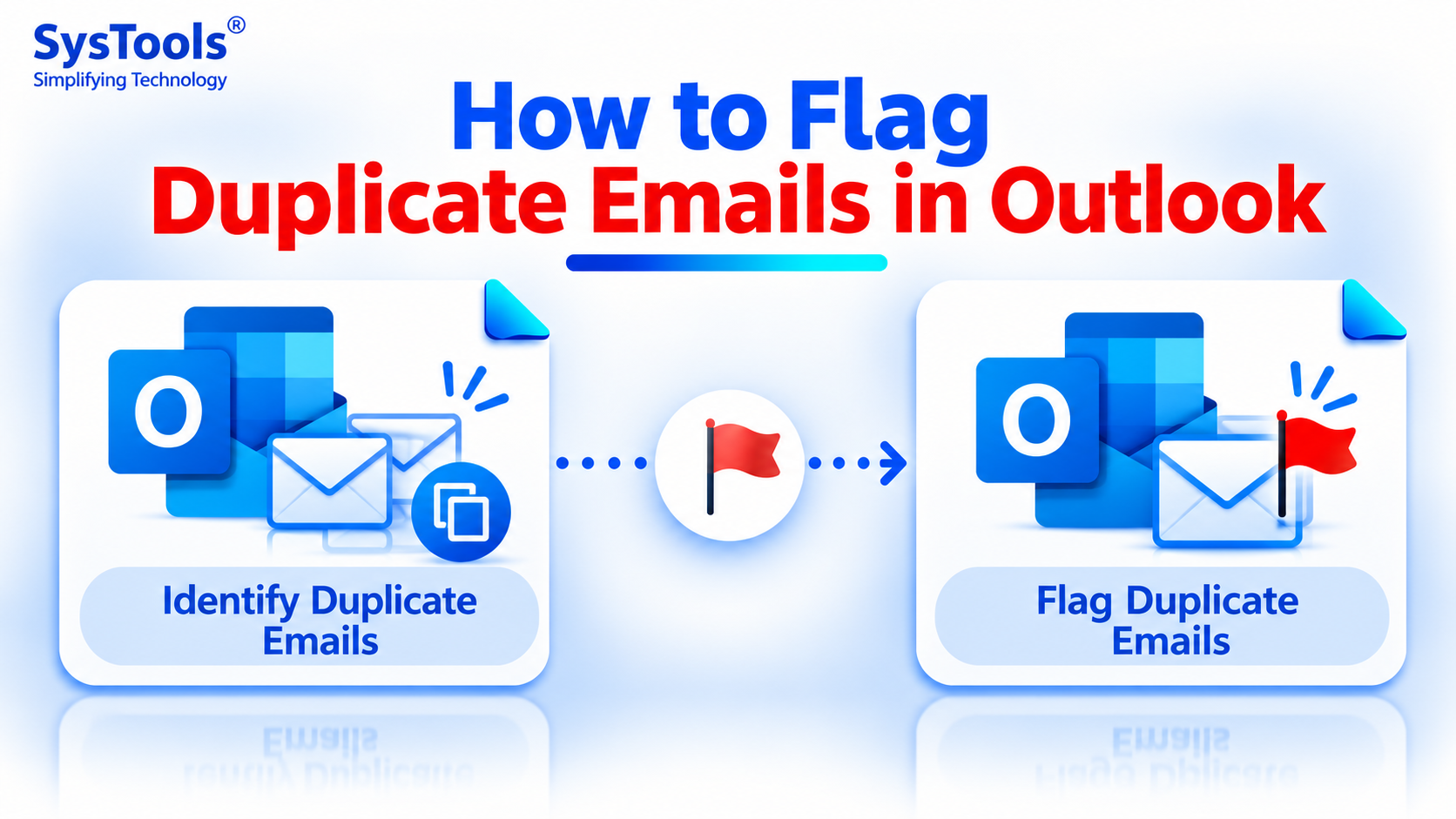
Instead of deleting every repeated message immediately, users may prefer to identify and flag duplicate emails first. This makes it easier to review repeated messages and decide which ones should be retained or removed.
If you are wondering how to flag duplicate emails in Outlook, there are several ways to identify and mark repeated messages. Let's explore some practical approaches.
Why Do Duplicate Emails Appear in Outlook?
Before learning how to flag duplicate emails in Outlook, it is important to understand why these messages occur. Some common reasons include:
Repeated Email Downloads: Outlook may download the same messages multiple times due to synchronization issues.
Importing PST Files: Importing an existing Outlook data file without proper duplicate handling can create repeated emails.
Multiple Email Accounts: Configuring the same mailbox across different Outlook profiles may sometimes result in duplicate messages.
Synchronization Problems: Issues between Outlook and the connected mail server can cause messages to appear more than once.
Rules and Forwarding: Incorrectly configured email rules or forwarding settings may contribute to repeated messages.
Identifying the reason can help prevent duplicates from appearing again.
How to Flag Duplicate Emails in Outlook Manually?
Outlook does not provide a dedicated built-in option to automatically identify and flag all duplicate emails. However, users can use its existing features to organize and manually identify repeated messages.
Method 1: Sort Emails by Subject and Date
Sorting emails is one of the simplest ways to identify duplicate messages in Outlook.
Follow these steps:
Open Microsoft Outlook on your computer.
Navigate to the Inbox or folder containing duplicate messages.
Switch to the View tab.
Select View Settings or Sort, depending on your Outlook version.
Choose Subject as the sorting criteria.
Sort the messages by Date as well.
Review emails with identical subjects, sender details, and timestamps.
Select the repeated messages and use a category or flag to mark them.
This method works well when the mailbox contains a limited number of duplicate messages. However, identifying duplicates manually can become time-consuming in large mailboxes.
Method 2: Use Outlook Categories to Mark Duplicate Emails
Categories allow users to assign visual labels to selected emails. You can create a separate category for identifying duplicate messages.
Steps to follow:
Launch Microsoft Outlook.
Select an email that appears to be duplicated.
Navigate to the Home tab.
Click Categorize.
Select All Categories.
Click New and enter a name such as "Duplicate Emails."
Choose a suitable color for the category.
Apply the category to the messages you have identified as duplicates.
You can now easily recognize the marked emails using their assigned category.
Method 3: Use Follow-Up Flags
Outlook also provides a follow-up flag feature that can help users mark emails for later review.
Here is how to use it:
Open your Outlook mailbox.
Find the email you suspect is duplicated.
Right-click the message.
Select Follow Up.
Choose a flag option, such as Today, Tomorrow, or This Week.
Repeat the process for other suspected duplicate messages.
You can use these flags to remember which emails need further review. However, follow-up flags are not specifically designed to detect duplicate messages automatically.
How to Automatically Identify and Flag Duplicate Emails in Outlook?
The manual methods discussed above are useful for identifying a small number of repeated emails. However, they have limitations when dealing with large PST or OST files containing thousands of messages.
For a more efficient approach, users can consider a dedicated Outlook duplicate email remover.
The SysTools Outlook Duplicate Items Remover ODIR is a specialized utility designed to identify duplicate Outlook items, including emails, contacts, calendars, tasks, notes, and journals.
It provides options to compare duplicate items using different email properties and offers actions such as deleting, moving, flagging, or marking expired items.
Using a dedicated solution can help users:
Identify duplicate emails within the same folder or across different folders.
Compare messages using multiple email properties.
Flag identified duplicate emails for easier identification.
Manage duplicate messages in large Outlook mailboxes.
Process supported PST, OST, and BAK files.
This approach is particularly helpful when manual identification becomes difficult or when users need to manage duplicates across multiple Outlook folders.
Tips to Prevent Duplicate Emails in Outlook
Once you have identified duplicate emails, consider following these practices to minimize their occurrence:
Check Outlook Synchronization: Make sure Outlook is synchronizing properly with the connected email server.
Avoid Repeated PST Imports: Check whether the data already exists before importing a PST file.
Review Email Rules: Examine forwarding and inbox rules to identify unnecessary duplication.
Update Outlook: Install available updates to reduce issues caused by outdated software.
Monitor Multiple Profiles: Avoid configuring the same mailbox unnecessarily across multiple Outlook profiles.
Conclusion
Duplicate emails can make Outlook mailbox management challenging, especially when dealing with large volumes of messages. Learning how to flag duplicate emails in Outlook allows users to identify and review repeated messages before deciding what to do with them.
For smaller mailboxes, sorting emails, applying categories, and using follow-up flags can be practical options. However, when duplicates exist across multiple folders or large data files, a dedicated duplicate-removal solution can make the process more manageable.
Choosing the right approach helps maintain an organized Outlook mailbox and makes email management more efficient.