Forgot PST Backup Password? Best Ways to Access Outlook Data
There might be several reasons why you might not be able to view a PST file. The file can be password protected, the password may have been lost or the backup may have been transferred from an older version of Outlook. File corruption, inadequate copying, or compatibility issues can sometimes also cause the file to not open in Outlook. It is important to know the real reason before picking the right way to recover.
How to Open a Password-Protected PST File in Outlook Manually
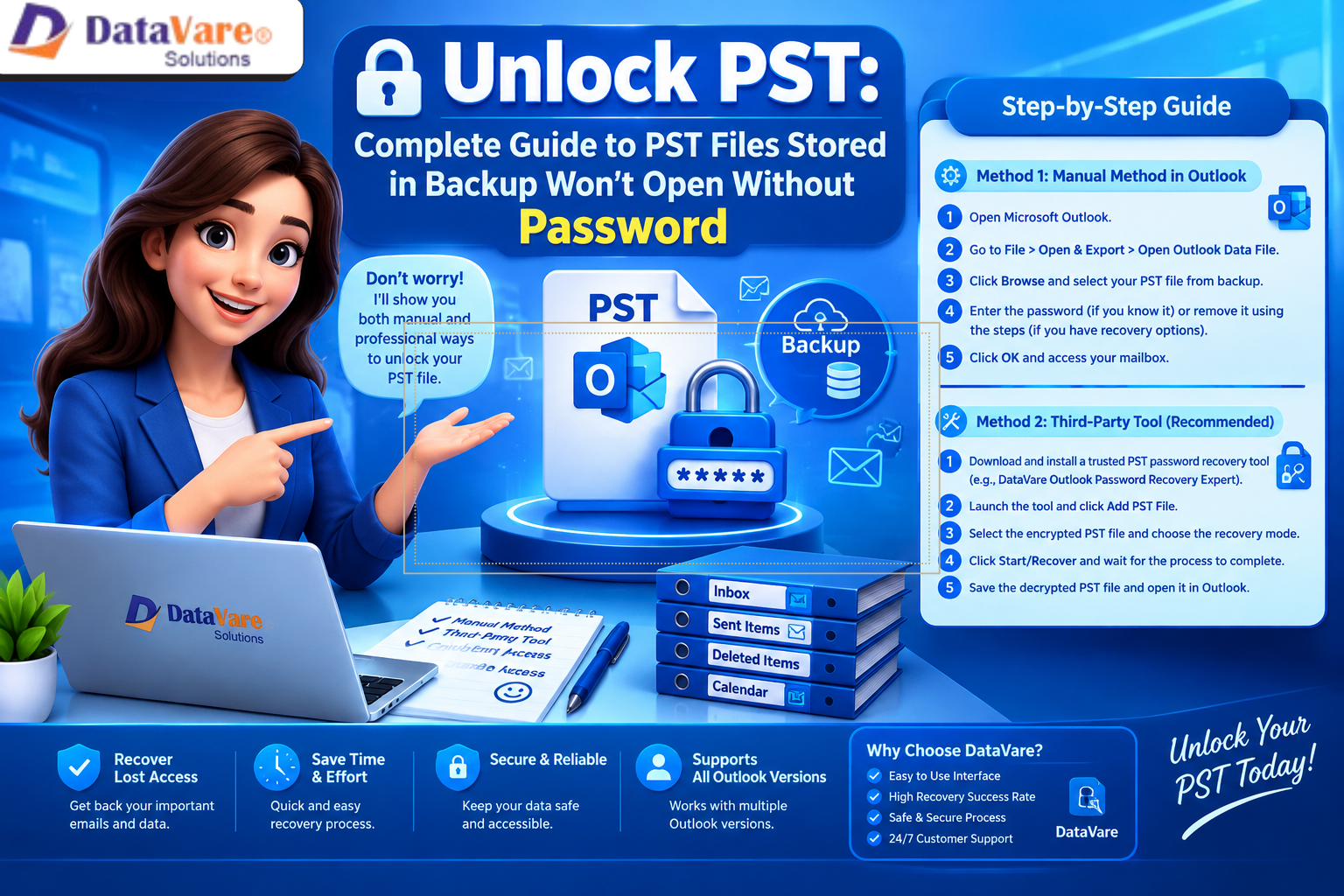
When you have the right password, Microsoft Outlook will provide you with choices to view PST files and manage their password options. Follow these steps to check the file manually.
Open Microsoft Outlook on your computer.
Select File, then choose Open & Export.
Click Open Outlook Data File.
Go to the location of the backup and choose a suitable PST file.
If Outlook requests a password, enter the correct password to access the mailbox.
Once the file opens, review its contents and create another backup if necessary.
Once the password is approved, you get access to the saved mailbox data. Outlook's standard interface does not provide a single way to restore a lost PST password. If you still cannot access the file, you might want to try to identify additional possible backups or password records before going to another option.
Use a third-party program to retrieve your PST password.
When manual troubleshooting does not resolve the issue, a specialized recovery application may offer another option. DataVare Outlook Password Recovery Expert is a third-party tool designed to assist users with recovering access to password-protected Outlook PST files.
To use a recovery application, download it from its official website, install it on a compatible computer, and launch the software. Select the protected PST file from its saved location and follow the application's on-screen instructions. Review the available recovery options and examine the results before attempting to open the file again in Outlook.
Before you use any third-party application, check the validity, compatibility, privacy policy, and supported recovery capabilities of the program. It is recommended that you work on a duplicate of the original PST file whenever feasible, to limit the chances of corrupting crucial email data. Recovery results may vary depending on the file and its password protection.
Tips to Prevent Future PST Access Problems
Store PST backups in a secure location and maintain more than one backup copy. Keep passwords in a trusted password manager and document which files require separate credentials. Periodically verify that backup files can be opened successfully, and avoid interrupting file transfers while copying large Outlook data files.
Conclusion
A password-protected PST backup does not necessarily mean that your email data is lost. Start with Outlook's manual options and confirm whether the password is available. If access remains blocked, a suitable third-party recovery utility may help. By maintaining verified backups and storing passwords securely, you can reduce the chances of facing similar problems in the future.