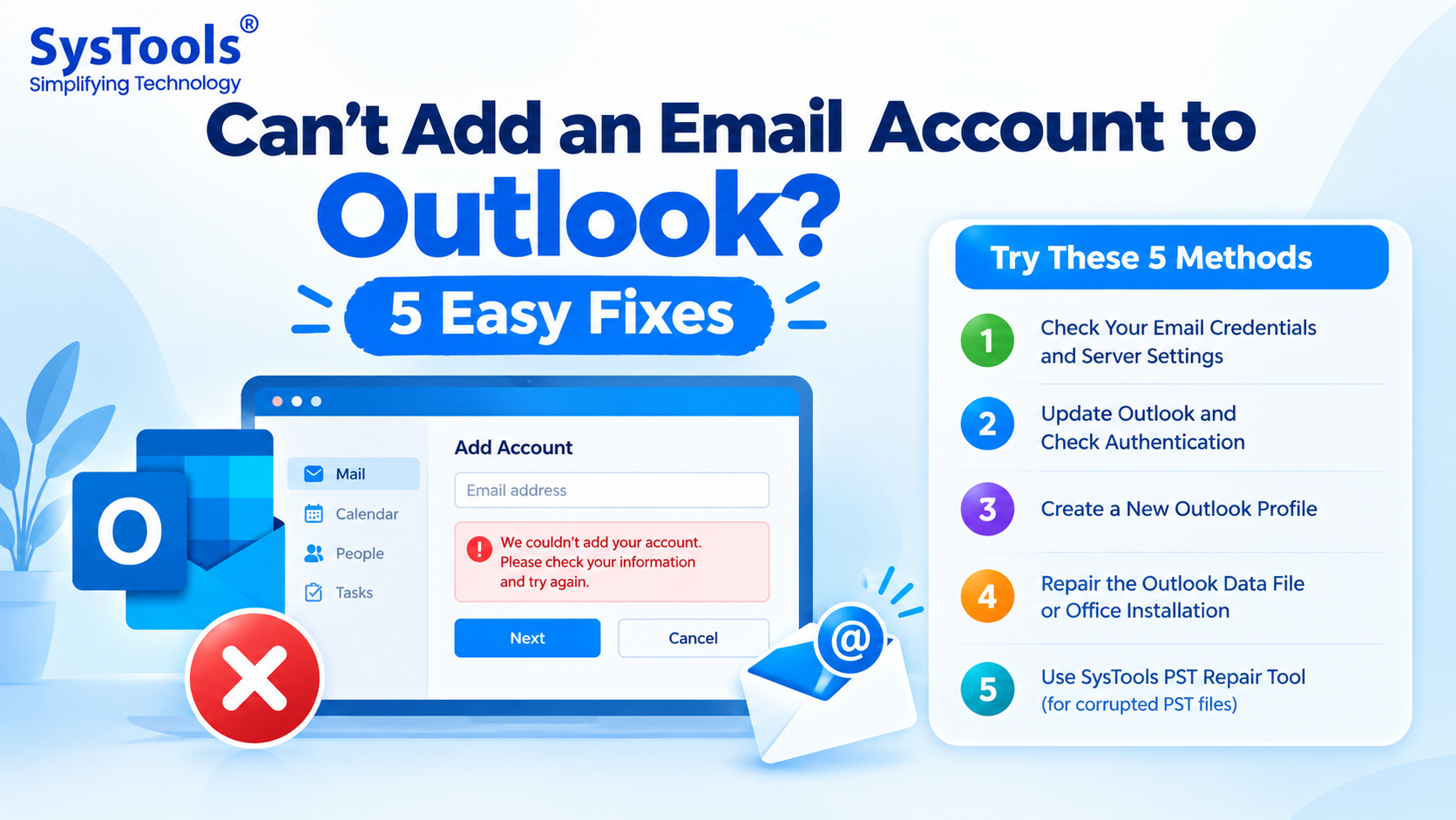
Microsoft Outlook allows users to manage multiple email accounts in one place. However, sometimes users cannot add an email account because of incorrect login credentials, authentication failures, server configuration problems, or a corrupted Outlook data file.
This issue can occur when adding Gmail, Microsoft 365, Outlook.com, Yahoo Mail, or other email accounts. Outlook may display errors such as “Something went wrong,” repeatedly ask for a password, or fail to connect to the mail server.
If you can't add an email account to Outlook, this guide explains five methods to troubleshoot the issue, including checking account settings, repairing the Outlook profile, and using SysTools PST Repair Tool when a damaged PST file is involved.
Why Can't I Add an Email Account to Outlook?
Several factors can prevent Outlook from adding an email account:
Incorrect login credentials: The email address or password may be incorrect.
Authentication issues: Your email provider may require OAuth, multifactor authentication, or an app password for supported configurations.
Incorrect server settings: Incoming or outgoing mail server details may be incorrect.
Network problems: A firewall, VPN, or unstable internet connection may interrupt communication.
Corrupted Outlook data file: A damaged PST file may cause problems when accessing existing Outlook data or using a profile associated with that file.
Identifying the cause will help you select the appropriate troubleshooting method.
Method 1: Verify Email Credentials and Server Settings
Incorrect credentials or server settings are common reasons Outlook fails to add an email account. Before changing your Outlook configuration, confirm that your email account works independently.
Steps to Verify Your Email Account
Open your email provider's official website in a browser.
Sign in using your email address and password.
Complete any required security verification.
If sign-in fails, reset your password through the provider's official recovery process.
Check the provider's documentation for the correct IMAP, POP, and SMTP settings if manual configuration is required.
Return to Outlook and select File > Add Account in classic Outlook, or use the account settings in new Outlook.
Enter your email address and follow the authentication prompts.
For third-party email accounts, the correct server addresses, ports, encryption methods, and authentication requirements depend on the provider.
When to use this method: Try it first if Outlook repeatedly requests your password or displays a connection error during account setup.
Method 2: Update Outlook and Check Account Authentication
An outdated Outlook application or an unsupported authentication method can prevent successful account setup.
Steps to Update Outlook
Open classic Outlook.
Select File > Office Account.
Click Update Options > Update Now, if available.
Wait for the update to finish.
Restart Outlook and try adding the account again.
For new Outlook, check for updates through the Microsoft Store or your organization's approved software update process.
Check Authentication Requirements
If updating Outlook does not resolve the problem:
Visit your email provider's official security settings.
Check whether the account requires multifactor authentication or another verification step.
Confirm that Outlook supports the provider's current sign-in method.
Follow the provider's recommended authentication procedure.
Try adding the account again.
Avoid disabling account security features or enabling legacy authentication simply to complete setup.
When to use this method: This approach is useful when the password is correct but Outlook continues to reject the sign-in attempt.
Method 3: Create a New Outlook Profile
An Outlook profile stores account configuration and related settings. If the existing profile is damaged, creating a new one may help resolve account setup problems.
Steps to Create a New Outlook Profile
Close Outlook completely.
Open the Windows Control Panel.
Search for and open Mail (Microsoft Outlook).
Select Show Profiles.
Click Add and enter a name for the new profile.
Follow the instructions to add your email account.
Once the setup finishes, open Outlook using the new profile.
Check whether you can send and receive messages.
These steps apply to classic Outlook for Windows. New Outlook has a different account-management interface.
Important: Creating a new profile does not automatically delete server-stored messages, but locally stored data may need to be reconnected or imported. Back up important PST files before making changes.
When to use this method: Try this approach if account setup fails in an existing profile or Outlook behaves incorrectly with multiple accounts.
Method 4: Repair the Outlook Data File or Office Installation
If Outlook cannot open an existing mailbox or repeatedly reports data-file errors, a damaged PST file or an Office installation problem may be involved.
A PST file stores Outlook data such as emails, calendar items, contacts, and other mailbox information. However, not every account-addition problem is caused by a PST file. New accounts may use an OST file or rely primarily on server-side mailbox data.
Option A: Repair a PST File Using the Inbox Repair Tool
Classic Outlook includes the Inbox Repair Tool, commonly known as ScanPST.exe, for checking and repairing certain PST file errors.
Close Outlook.
Locate the ScanPST.exe utility associated with your Office installation.
Open the utility and browse to the PST file you want to check.
Select Start to scan the file.
If errors are detected, choose the repair option after making a backup of the original PST file.
Reopen Outlook and check whether the data file works correctly.
The utility's location depends on your Office installation. Repair results also depend on the type and extent of the corruption.
Option B: Repair Microsoft Office
If the issue appears to involve Outlook itself:
Open Windows Settings > Apps > Installed apps.
Locate Microsoft 365 or Microsoft Office.
Select the available modify or change option.
Run Quick Repair.
Restart your computer and test Outlook.
If necessary, consider Online Repair, which may require an internet connection and additional setup.
When to use this method: Use PST repair when Outlook reports data-file errors. Use Office repair when the application itself appears damaged.
Method 5: Repair a Corrupted PST File Using SysTools PST Repair Tool
If Outlook cannot access an existing PST file because it is corrupted, built-in repair methods may not always resolve the problem. In such cases, a dedicated PST repair solution may help recover accessible mailbox data.
SysTools Best PST Recovery Tool is designed to repair corrupted or damaged Outlook PST files and recover accessible mailbox items. It can be considered when the issue involves an existing PST file that Outlook cannot open or process correctly.
Steps to Repair a PST File Using SysTools PST Repair Tool
Step 1: Download and install the SysTools PST Repair Tool from the official website.
Step 2: Launch the application and add the corrupted PST file or browse to it.
Step 3: Start the scan or repair process using the available options.
Step 4: Preview the recoverable mailbox items, where supported, to check whether the required data is accessible.
Step 5: Select the supported export or save option and choose an appropriate destination for the repaired data.
Step 6: Open the repaired output in Outlook, if required, and verify that the recovered emails and other mailbox items are accessible.
Benefits of Using SysTools PST Repair Tool
PST File Repair: Helps address corruption in existing Outlook PST files.
Mailbox Data Recovery: Helps recover accessible emails and other supported Outlook items.
Preview Options: Allows users to inspect recoverable items where the feature is supported.
Alternative to Built-in Repair: Provides another option when ScanPST.exe does not resolve the issue.
Data Verification: Enables users to review the repaired output before relying on it.
Important: PST repair software addresses damaged PST files; it does not fix incorrect passwords, server outages, or unsupported authentication methods. If you cannot add a completely new account and have no PST-related error, first troubleshoot the account configuration.
Conclusion
If you can't add an email account to Outlook, begin by checking your credentials, server settings, and authentication requirements. If the problem persists, create a new Outlook profile or repair the Office installation.
When the issue specifically involves a corrupted PST file, use ScanPST.exe first where appropriate, or consider SysTools PST Repair Tool if the built-in utility does not resolve the corruption. Choosing a solution based on the actual error will help you troubleshoot Outlook without making unnecessary changes to your mailbox.