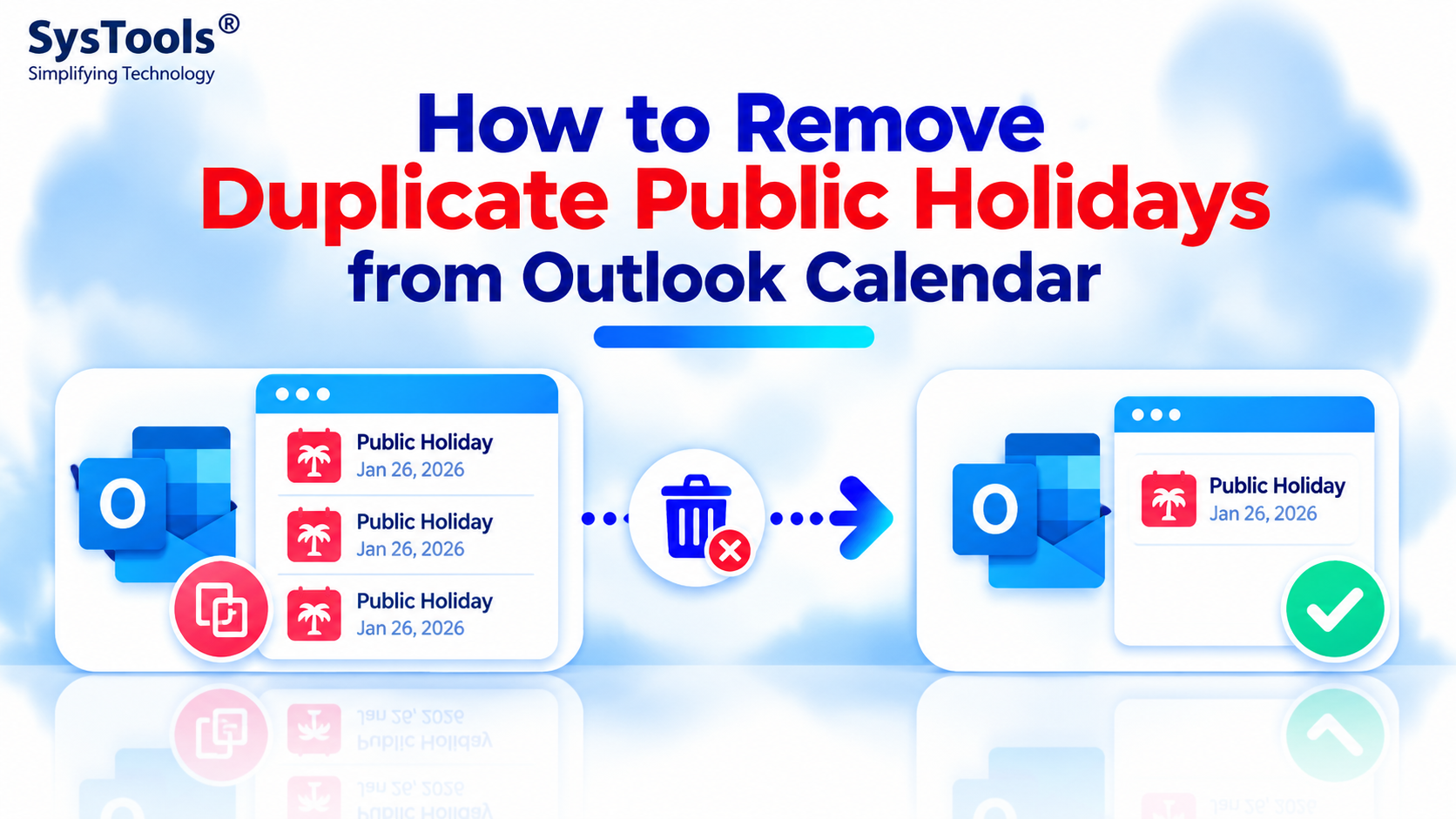
Start writing Duplicate public holidays in Outlook Calendar can make your schedule confusing and cluttered. You may see the same holiday listed two or more times because holidays were added repeatedly, imported from another calendar, or added through both Outlook desktop and Outlook on the web.
The good news is that you can remove duplicate public holidays from Outlook calendar manually without deleting your important meetings or appointments. The steps depend on whether you use classic Outlook, the new Outlook app, or Outlook on the web.
Quick Answer: How to Remove Duplicate Public Holidays in Outlook
In classic Outlook, open Calendar > View > Change View > List. Sort the events by Categories, locate the Holidays category, select the duplicate holiday entries, and press Delete. In new Outlook or Outlook on the web, right-click the separate holiday calendar and select Remove if the duplicates come from that calendar.
Why Does Outlook Show Duplicate Public Holidays?
Before removing duplicate entries, understand what might be causing the issue.
Holidays added multiple times: Adding the same country's holidays repeatedly in classic Outlook can create duplicate events.
Multiple holiday calendars: Adding holidays through both Outlook desktop and Outlook on the web can display duplicate entries.
Calendar imports: Importing calendar data with the option to allow duplicates can create repeated events.
Overlapping calendars: Two enabled calendars may contain the same public holidays.
Multiple countries or regions: Adding holidays for different countries can display similarly named holidays on the same date.
Identifying the cause helps you choose the correct removal method without affecting other calendar events.
Method 1: Remove Duplicate Public Holidays in Classic Outlook
This method is useful when duplicate holidays appear directly inside your main Outlook calendar.
Steps to follow
Open Microsoft Outlook and navigate to Calendar.
Select the View tab from the top menu.
Click Change View > List to display calendar events in a list.
In the Arrangement group, select Categories to organize events by category.
Find the Holidays category and review the listed entries.
Select the duplicate holiday events. Hold down Ctrl while clicking individual entries you want to remove.
Go to Home > Delete or press the Delete key.
Return to your regular calendar by selecting View > Change View > Calendar.
Important: Check the dates and holiday names before deleting anything. If you delete every holiday entry, you will need to add the required holidays again.
Method 2: Remove a Duplicate Holiday Calendar in New Outlook
In new Outlook, holidays can be added as a separate calendar. If you have two holiday calendars enabled, you may not need to delete individual events.
Follow these steps:
Open new Outlook and switch to Calendar.
Find the holiday calendar in the left navigation pane.
Right-click the duplicate holiday calendar.
Select Remove and confirm the action.
Check your calendar to verify that the duplicate holidays are no longer displayed.
Removing the separate holiday calendar does not mean deleting your primary calendar.
If you only want to hide the holidays temporarily, clear the checkbox beside that calendar instead of removing it.
Method 3: Remove Duplicate Holidays in Outlook on the Web
If you use Outlook.com or Outlook on the web, duplicate holidays may originate from a subscribed holiday calendar.
Open Outlook on the web and navigate to Calendar.
Locate the holiday calendar in the left navigation pane.
Right-click the calendar you no longer need.
Select Remove and confirm your choice.
Refresh the calendar view and check whether the duplicates have disappeared.
If the holidays were imported into your main calendar as individual events, removing a separate holiday calendar will not delete those imported entries. In that case, you may need to remove the duplicates from classic Outlook.
Method 4: Remove Duplicate Calendar Events Using SysTools Software
If your Outlook calendar contains numerous duplicate public holidays along with repeated meetings, appointments, or other calendar entries, manually identifying and removing each duplicate can be time-consuming. In such cases, SysTools Outlook Duplicate Items Remover offers a dedicated solution for cleaning up duplicate Outlook items.
The tool helps identify and remove duplicate calendar entries based on supported comparison criteria, allowing users to manage cluttered Outlook data more efficiently. It is useful when duplicate events appear across multiple folders or when you need to clean up other Outlook items alongside calendar entries.
Key benefits include:
Remove duplicate calendar items: Clean up repeated calendar entries in supported Outlook data files.
Multiple item types: Find duplicate emails, contacts, calendars, tasks, notes, and journals.
Flexible duplicate handling: Delete, move, or flag identified duplicate items using supported options.
Multiple-folder support: Identify duplicates within or across folders.
PST and OST support: Work with supported Outlook data files, including PST, OST, and BAK.
Note: Before using any duplicate-removal tool, create a backup of your Outlook data. Also, verify that the software's current version supports your specific calendar data and public-holiday cleanup requirements.
How to Prevent Duplicate Public Holidays in Outlook
After cleaning up your calendar, follow these practices to prevent the problem from returning.
Add each country's holidays only once in classic Outlook.
Avoid importing the same calendar file repeatedly.
Check whether a holiday calendar is already subscribed to through Outlook on the web.
Remove unused or duplicate holiday calendars.
Review the duplicate-import options before importing calendar data.
Keep Outlook updated to receive supported calendar improvements.
If you use a work or school Microsoft 365 account, subscribing to a holiday calendar through Outlook on the web can help you receive updates when holidays are added or changed.
Conclusion
Removing duplicate public holidays from Outlook Calendar is straightforward once you identify where the repeated entries originate. Classic Outlook users can delete duplicate holiday events through List view, while new Outlook and Outlook on the web users can remove an unwanted separate holiday calendar.
Always review the selected entries before deleting them so your personal meetings and appointments remain intact.
For more Outlook troubleshooting guidance, explore the relevant Outlook resources available from SysTools.