Introduction
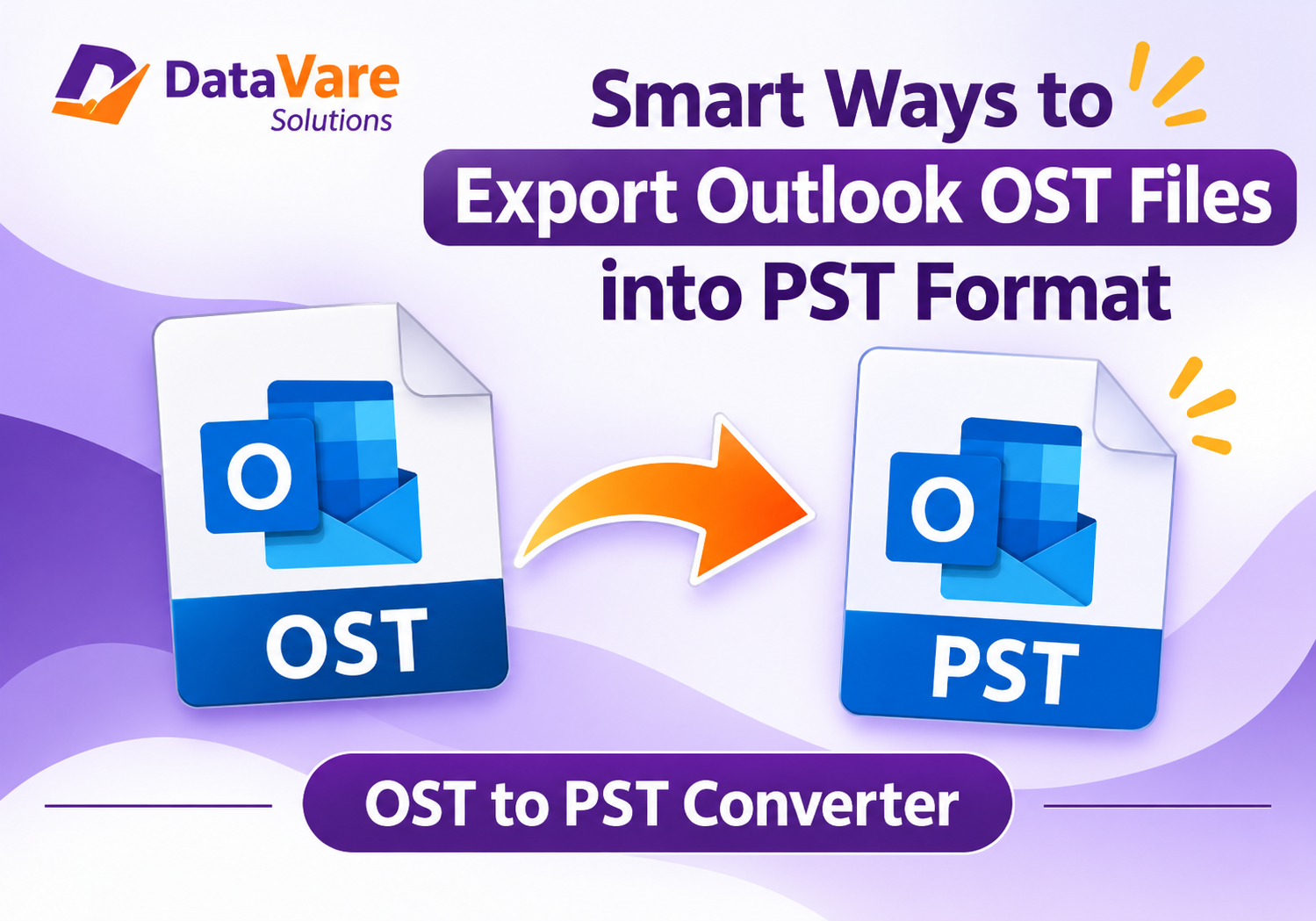
Email contains valuable information, including business discussions, personal conversations, attachments, and best records. MS Outlook stores offline mailbox information in OST files, which are associated with a specific Outlook profile in Microsoft Outlook. When Users change systems, modify accounts, or experience problems with their existing Outlook profiles, accessing this stored information can become challenging. In such cases, exporting OST data into PST format can provide a useful way to retain mailbox information in a more convertible file. There are several conversion methods available, and users can pick between the built-in export facility of Outlook and a specialist OST to PST converter based on their file accessibility and requirements.
Reasons to Convert OST Files to PST Format
There are several situations where users can need to export their OST mailbox data into PST format.
1. Account or Profile Changes: Changing Outlook profiles or email accounts may require a separate copy of previous mailbox data.
2. Mailbox Backup: Saving emails to PST format gives Users an extra local copy for later use.
3. Server connectivity problems: If an Exchange account is offline, users can need to restore mailbox information that is available from an existing OST file.
4.Email Migration: PST files enable users to easily migrate mailbox information between the supported Outlook installations.
5. Long-term Storage: Users can keep older conversations, attachments, and other mailbox items separately without depending on an active email account.
Manual Method to Export OST Data into PST
Microsoft Outlook has import and export features that enable users to store mailbox data in PST format. This strategy is useful if you have access to your original Outlook profile and the Exchange or Microsoft 365 account.
Perform the following actions:
1. Start Microsoft Outlook.
2. Go to File and choose Open and Export.
3. Open Import and Export to launch the Import and Export.
4. Click Export to a file, and then click Next.
5. Select Outlook Data File (.pst).
6. Choose the mailbox folder you want to export.
7. Choose a location to save the PST file.
8. Click Finish to complete the export process.
Limitations of the Manual Method
Although Outlook provides a built-in export facility, this feature has certain drawbacks. It generally requires an accessible Outlook profile and a working connection to the related mailbox for complete synchronization. If the OST file is from an unavailable account or a disconnected profile, then the export option won’t let you access its data. Also, handling multiple OST files individually can take considerable time. Users can also face difficulties dealing with damaged or unavailable OST files.
Professional OST to PST Converter Tool
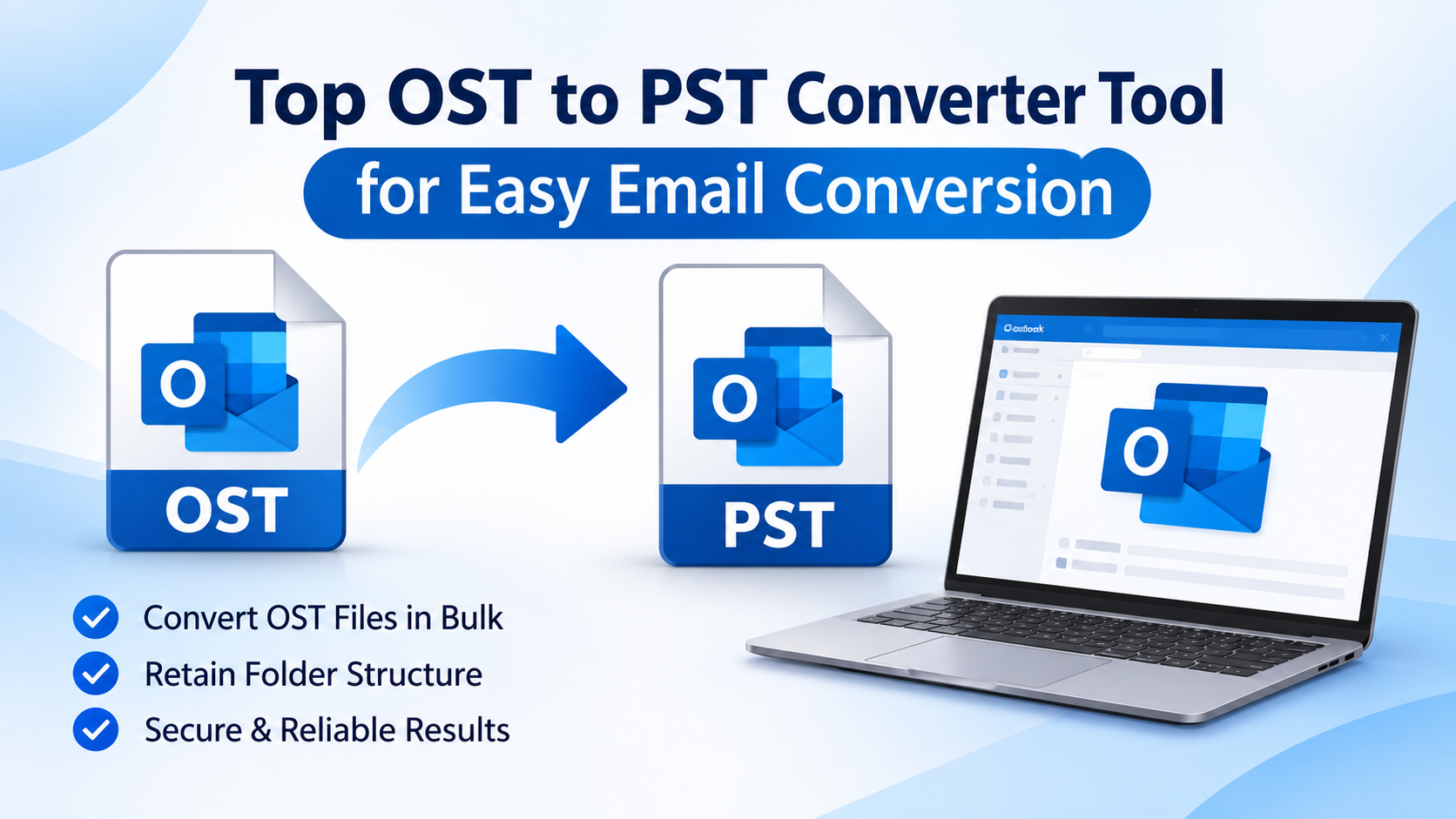
When the original mailbox is unavailable, or the built-in Outlook option is unable to access the essential data, a dedicated conversion utility can be worth considering. ViceVersa OST to PST Converter is one of the best options for users who want to export OST mailbox information into PST format. It is designed to help users work with OST files without having to depend on the original Outlook profile.
Depending on the condition of the file and the capability of the software, users can protect essential mailbox items like emails, attachments, and folder organization. Before selecting any conversion utility, check its supported OST file conditions, compatibility with Outlook, Windows requirements, and export options.
Steps to Use an OST to PST Converter
Generally, the steps for using a professional conversion application are as follows:
1. Download and install the OST to PST converter tool and open it.
2. Scan your system and add the OST file you want to process.
3. Open the application and scan the file you have selected.
4. Look at the current mailbox folders and the email contents.
5. Choose the folders or mailbox items for conversion.
7. Change the output format to PST.
7. Choose where you want to save the converted file.
8. Begin the conversion process and wait until it is complete.
9. Open the PST file that you created in Outlook and examine its contents.
Conclusion
The conversion of OST to PST enables users to preserve access to crucial mailbox data, back it up, and manage email data during account migration. If you still have access to the mailbox in question, you can use the export option provided with Outlook. But there is another way if you have inaccessible or offline OST files, use a specialized conversion tool. Before you start, always make a backup copy of the original file and validate the data in the converted mailbox.
Frequently Asked Questions (FAQs)
Q1. Is it acceptable to convert an inaccessible OST file?
Depending on the quality of the OST file and whether its contents are still accessible, it can be achieved with proper conversion software.
Q2. Does OST to PST conversion contain attachments?
A good conversion program can maintain email attachments, but it’s wise to examine the exported data after the conversion.
Q3. Why do we convert OST files into PST format?
PST files are a great way to keep local mailbox backups, archive older emails, and move Outlook data between supported settings.ontent...