Microsoft Outlook is a trusted email client for millions of professionals and organizations throughout the world. Outlook is the core of daily communications, from routine office chat to monitoring crucial projects, calendar invitations, and client requests.
Behind the scenes, Microsoft Outlook saves all your local e-mail, attachments, contacts, and calendar entries in Personal Storage Table files, or PST files.
These files are small and agile when you first use Outlook. But as months and years pass and large attachments build up, your PST file slowly grows. What starts as a little file can soon become a large data collection.
Not only is an enormous PST file an administrative headache, but it may also really slow down your system and put your precious mailbox data in danger. In this lesson, we will discuss why managing PST file size is important, examine built-in manual repairs in Microsoft Outlook, and see how automatic splitting solutions may ease your backup process.
Why a large PST file is bad for your Outlook
Before we get into the remedies, it is useful to understand what occurs behind the hood when a PST file grows too enormous.
1. Delays in performance are annoying
When a PST file goes past its sweet spot, Outlook needs to work significantly harder to do simple things. You may experience substantial delays when:
Open folders or switch tabs.
Search for older messages by keyword.
Open or save big email attachments.
Opening Outlook as part of your morning start-up ritual.
2. High chances of file corruption
Every file format has constraints of operation. Outlook used to utilize PST files based on the ANSI standard, with a tight 2 GB limit. Modern versions employ Unicode PST files that technically handle up to 50 GB.
However, taking a PST file close to its upper ceiling greatly increases the risks of header corruption. Recovering lost data from a corrupted PST file is a hard and frustrating operation.
3. Backup is really slow
If your main PST file is 35 GB or 40 GB in size, copying this to an external disk or cloud storage as a backup every day or week takes hours. To make matters worse, a network blip or system reboot in the middle of the transfer might render the whole backup copy useless.
This allows routine backups to be much quicker and far more dependable by breaking big archives into smaller bite-sized parts.
Method 1: Manual Ways to Reduce PST File Size in Outlook
Microsoft has built-in tools in Outlook that can help you clean up and shrink your storage files. These native techniques are absolutely free, and no further downloads are required.
Method A: Automatically Archive Old E-mails
Outlook’s AutoArchive function may automatically move old messages and completed tasks to a separate archive file depending on rules you define for dates.
How to Turn On AutoArchive
Start Microsoft Outlook.
Navigate to the File tab on the top ribbon.
Under Options, click Advanced.
Find the AutoArchive section, and select AutoArchive Settings.
Select the box next to Run AutoArchive every X days (for example, 14 or 30 days).
Specify the age requirement for the things you wish to archive (e.g., items that are older than 6 months).
Select a clean folder location on your computer for the new archive file.
Click OK to save the changes.
Pro Tip: AutoArchive sorts things according to the received or last changed date. If you need to sort files by customer name or project, then manual sorting is more appropriate.
Approach B: Make Custom PST Files and Organize Manually
You may also create separate PST files yourself (e.g., by calendar year or project name) and drag messages straight in if you want to be more in control of your folder structure.
Instructions Step-by-Step:
Click Home > New Items > More Items > Outlook Data File in Outlook.
Name your new file something obvious (like Client_Archive_2025.pst) and click OK.
You will notice this new secondary file appears on the left-hand folder navigation bar.
Navigate to your main Inbox, pick the messages or whole subfolders you want to relocate, and then drop them into the new file.
When you have copied, remove the original items from your principal Inbox and empty your Deleted Items folder.
Method C: Run “Compact Now” Command
When you delete emails or move emails to another folder, the PST file on your hard disk doesn’t decrease immediately. Outlook leaves vacant space that you must compress with the built-in compact function.
How to Compress Your File:
File > Account Settings > Account Settings.
Go to the Data Files tab.
Choose your primary PST file from the list and click on Settings.
Click the Compact Now button in the pop-up box.
Allow the procedure to finish and then click OK.
Problems of Manual PST Management
These built-in alternatives are helpful for basic maintenance, but they come with obvious disadvantages:
Time-consuming: Manually selecting and moving thousands of emails via the deep folder trees is a lot of work.
Risk of Missing Data: When using the manual drag-and-drop method, it is simple to overlook important folders or mistakenly remove information.
No direct size-based cutoff: Outlook cannot automatically split a single 40 GB file into four equal 10 GB pieces, based on file size criteria alone.
Method 2: Split Large PST Files using an Automated Utility
If manual sorting is too cumbersome, or you're dealing with really large PST files, a specialist third-party tool is the most pragmatic way to go.
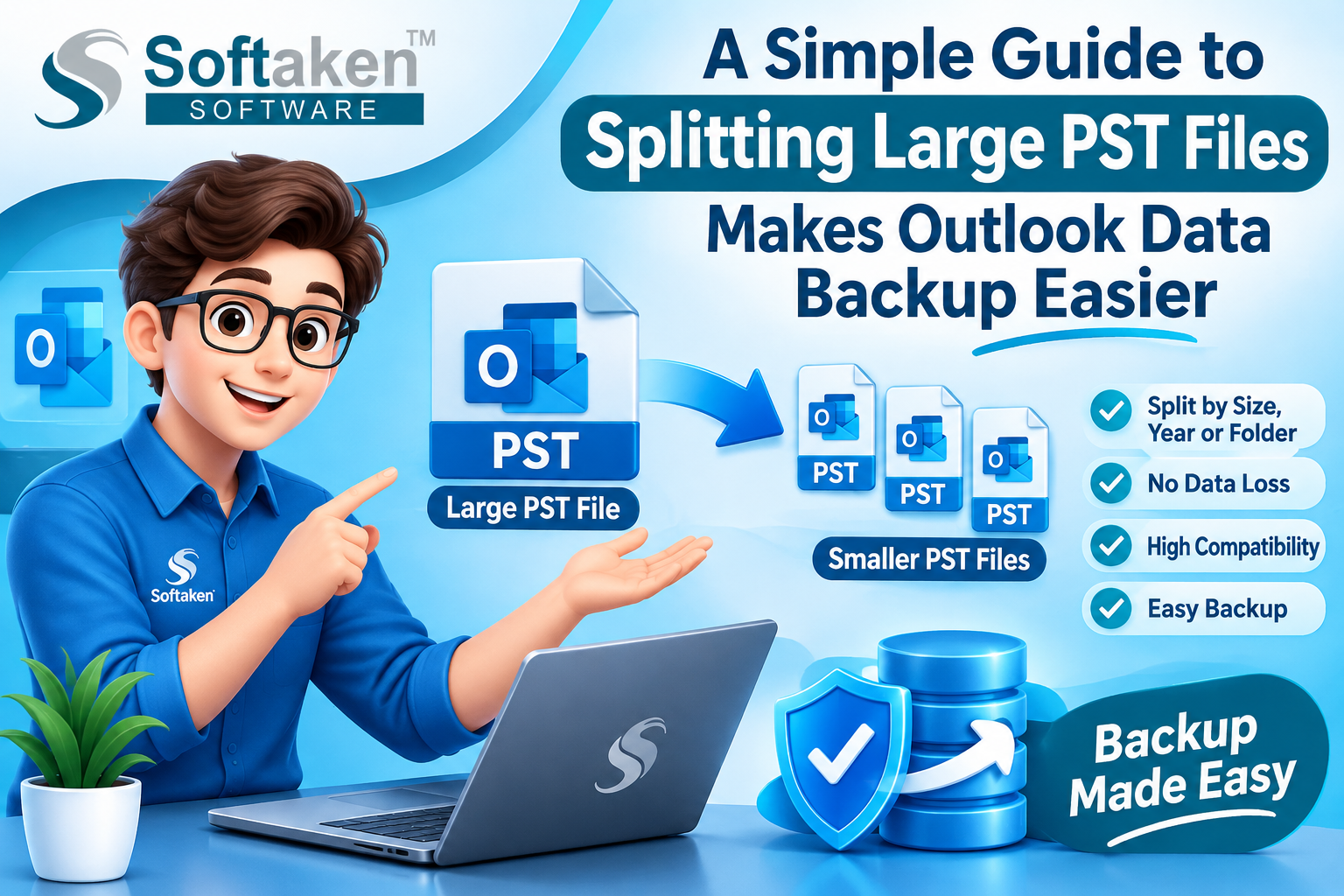
Splitting large PST archives into smaller, fully functioning parts without affecting the original mailbox contents or losing read/unread flags is easy with the help of a specialist application such as Softaken Split PST Software.
Why Automated PST Splitter Works Better
Flexible Division Criteria: Split big PST files by precise size limitations (e.g., 2GB, 5GB, 10GB), by year, by date periods, or by individual folders.
100% Data Integrity: All email properties are preserved (attachments, inline pictures, folder hierarchy, timestamps, CC and BCC headers).
Standalone Working: Most of the trusted software tools work in standalone mode and don’t require Outlook to be open throughout the split process.
Wide Version Compatibility: Compatible with both old ANSI files and new Unicode PST formats.
General Steps to Use Automated PST Splitter Tool
Open the Utility: Open the app on your PC.
Load Your Target PST File: Click on Browse or Add File to choose the large PST file that you want to break down.
Pick Your Desired Criteria: Select how you want the file split:
By Size: Choose target file sizes (e.g., 5GB chunks).
By Date: Filter messages sent or received in defined date ranges.
Per Folder: Export individual mail folders to individual PST files.
Choose Destination: Choose a safe folder on your hard disk or external disk where you want to save the generated files.
Click Split Start Process to begin the process.
After that, you will have smaller, well-structured PST files which you may attach to Outlook anytime you want.
Healthy Habits to Keep PST Files from Getting Too Big
Here are some basic housekeeping activities that might help keep your Microsoft Outlook working properly throughout the year:
Keep PST Files under 15 GB: Although current Outlook allows up to 50 GB, keeping active PST files under 15 GB minimizes sudden freezing and performance decreases.
Delete Items Weekly: Get into the habit of cleaning up your Deleted Items and Junk E-mail folders periodically.
Save email attachments that are large separately: Rather than keeping large PDF presentations, video clips, or compressed zip files in your email, download them straight to your hard disk or cloud storage.
Do not use network drives for active PST files: Accessing PST files directly from shared network drives or shaky Wi-Fi links substantially escalates the potential for data damage. Always work on local copies
Final Thought
You don’t need to be a technological wizard to manage your Outlook PST files. You may maintain smaller mail storage humming along for free by routinely archiving old mail, rearranging folders, and compacting unnecessary space.
However, when you need to rapidly and safely deal with huge archives, an automated PST splitting program provides a fast, accurate, and headache-free way out. Keep your data separated for improved Outlook performance, safer backups, and ultimate peace of mind.
Visit Website: https://www.softaken.com/split-pst-pro