Microsoft Outlook offers a built-in Clean Up Old Items feature that helps users archive older emails and reduce mailbox clutter. However, sometimes users encounter issues where Outlook does not archive old emails, skips certain folders, or fails to create an archive PST file.
If you are facing the Outlook Clean Up Old Items not working issue, several factors could be responsible, including incorrect AutoArchive settings, folder restrictions, inaccessible PST files, or Outlook configuration problems.
Let's explore some practical ways to resolve this issue.
Why Is Outlook Clean Up Old Items Not Working?
Some common reasons behind this problem include:
AutoArchive is disabled or incorrectly configured.
The archive date does not match the age of mailbox items.
Individual emails have the Do Not AutoArchive option enabled.
The destination PST file is inaccessible or corrupted.
Exchange retention policies restrict local archiving.
Outlook add-ins or profile issues interfere with the process.
5 Ways to Fix Outlook Clean Up Old Items Not Working
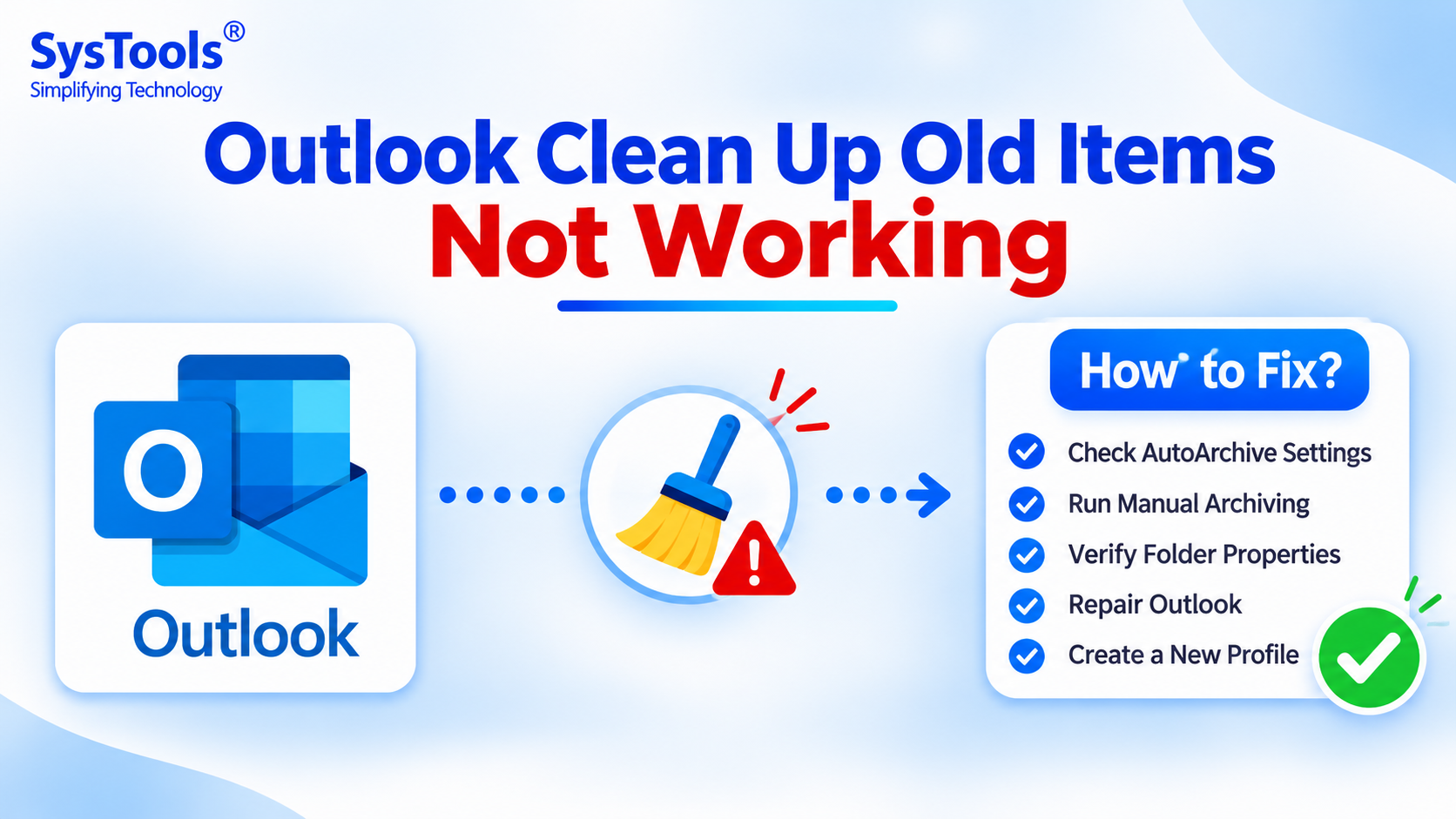
1. Check AutoArchive Settings
Open Outlook and navigate to File > Options > Advanced. Find the AutoArchive section and click AutoArchive Settings. Make sure automatic archiving is enabled and the correct number of days is configured. Also, verify the archive PST file location.
2. Run Manual Archiving
If automatic archiving is not working, try archiving items manually.
Open Outlook and click File.
Select Info and open Cleanup Tools.
Choose Archive.
Select the folder you want to archive.
Specify the date under Archive items older than.
Select the destination PST file and click OK.
3. Check Folder and Email Properties
Outlook allows users to exclude individual emails or folders from AutoArchive. Right-click the required folder, select Properties, and check the AutoArchive tab. Also, open individual email properties and verify that Do not AutoArchive this item is not selected.
4. Repair Outlook Installation
Damaged Office installation files can affect Outlook functionality. Open Windows Settings, navigate to Installed Apps, select Microsoft Office or Microsoft 365, and choose Modify. Run Quick Repair first. If the problem continues, try Online Repair.
5. Create a New Outlook Profile
A corrupted Outlook profile can cause unexpected problems with mailbox operations. Open Control Panel, select Mail (Microsoft Outlook), and click Show Profiles. Create a new profile, configure your email account, and check whether the archiving feature works correctly.
Additional Solution: Clean Up Duplicate Outlook Items
Apart from archiving old emails, removing duplicate mailbox items is another way to organize Outlook data.
If your mailbox contains duplicate emails, contacts, calendar entries, tasks, notes, or journals, you can use SysTools Outlook Duplicate Remover.
The software supports PST, OST, and BAK files and helps identify duplicates within the same folder or across multiple folders. Users can preview duplicates and choose to delete, move, or flag them.
It offers a practical way to remove duplicate emails in Outlook without manually checking every folder.
Recover Data from a Corrupted Archive PST File
Sometimes, Outlook Clean Up Old Items fails because the archive PST file is corrupted or inaccessible. In such situations, users may need a dedicated recovery solution.
SysTools Outlook PST Recovery helps recover mailbox data from corrupted or inaccessible PST files. Users can add the affected PST file, scan its contents, preview recovered items, and export the data into a new PST file.
Conclusion
The Outlook Clean Up Old Items not working issue can occur due to incorrect AutoArchive settings, folder exclusions, PST file problems, or Outlook profile corruption. Start by checking the archive configuration and trying manual archiving. If you also have duplicate mailbox items, SysTools Outlook Duplicate Remover can help organize your data, while SysTools Outlook PST Recovery can recover data from damaged PST files.