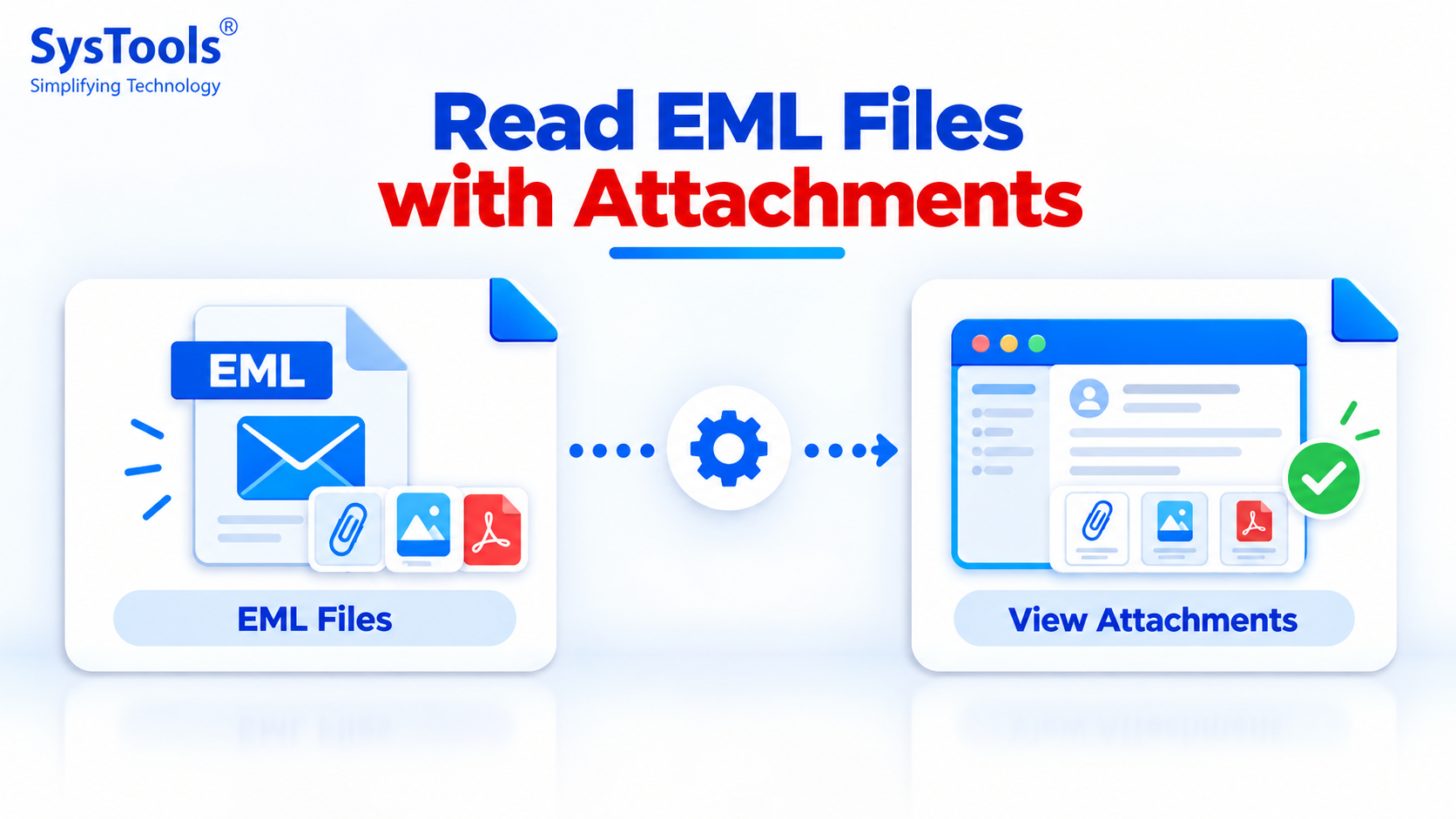
Start writing EML files store individual email messages along with important details such as the sender, recipient, subject, date, message body, and attachments. Users often need to read EML files with attachments when reviewing saved emails, accessing old correspondence, or opening email messages exported from clients like Mozilla Thunderbird, Windows Mail, and Apple Mail.
However, opening an EML file is not always straightforward. Some email applications may not be installed on your computer, and certain viewers may display the email content without providing convenient access to its attachments. The right method depends on whether you want to open a single EML file, view multiple emails, or access attachments without configuring an email account.
In this guide, we will explain five practical methods to open and read EML files with attachments on Windows and other devices.
Why Do You Need to Read EML Files with Attachments?
There are several reasons users need to open EML files and access their attachments.
Access old emails: Read previously saved messages without logging in to the original email account.
Review important documents: Open invoices, contracts, reports, and other files received through email.
Investigate email messages: Examine message content and headers for troubleshooting or security analysis.
Preserve email records: Access saved correspondence for business, legal, or personal reference.
Open exported emails: View EML files received from different email clients without importing them into the original application.
Search Content EML Files: If someone wants to know what is inside EML files, they need to view them.
Method 1: Open EML Files with Attachments in Mozilla Thunderbird
Mozilla Thunderbird is a desktop email application that supports EML files. It can be useful when you want to read an email and access its attached files through a familiar email interface.
Steps to open EML files in Thunderbird:
Download and install Mozilla Thunderbird from its official website.
Launch Thunderbird on your computer.
Locate the EML file you want to open in File Explorer.
Drag and drop the EML file into Thunderbird, or use a supported open/import option.
Open the email message to review its sender, subject, date, and body.
Locate the attachment section within the message.
Double-click an attachment to open it, or save it to your computer.
Thunderbird may handle EML files differently depending on the version and available import functionality. If dragging and dropping does not work, use a compatible import option or another method.
Method 2: Read EML Files with Attachments in Microsoft Outlook
Microsoft Outlook can also be used to open EML files, although the exact steps depend on the Outlook version and configuration.
Steps to open an EML file in Outlook:
Open File Explorer and navigate to the folder containing your EML file.
Right-click the file.
Select Open with and choose Microsoft Outlook, if it is available.
Review the email message after it opens.
Find the attachment section in the message.
Click an attachment to preview it, or save it to a suitable folder.
If Outlook does not appear in the Open with menu, you can try opening the file through a compatible Outlook installation or use another EML-compatible application.
Note: Do not enable macros or open unexpected attachments simply because an email file appears familiar. Verify the source of the email before opening potentially unsafe files.
Method 3: Open EML Files with Attachments Using Windows Mail or Another Compatible Email App
Windows email applications and other compatible desktop email clients may allow you to open EML files directly or import them into a mailbox.
Steps:
Locate the EML file on your computer.
Right-click the file and select Open with.
Choose an installed application that supports EML files.
If prompted, import or open the message using the application's supported workflow.
Review the email content and locate the attachment section.
Save or open the attachments you need.
If the application does not support EML files, select another compatible email client.
Method 4: Read EML Files with Attachments Using a Text Editor
A text editor such as Notepad can display the raw contents of an EML file. This method is helpful when you need to inspect email headers or understand how an email is structured.
However, it is not the best option for reading formatted emails or opening attachments conveniently.
Steps:
Right-click the EML file.
Select Open with and choose Notepad or another text editor.
Review the email headers and message content.
Search for MIME boundaries and attachment-related headers if necessary.
Email attachments may be stored as Base64-encoded data or other MIME-encoded content. As a result, you might see unreadable characters instead of the original document or image.
Therefore, use a text editor primarily for technical inspection rather than normal email reading.
Method 5: Use a Dedicated EML Viewer to Read Emails and Attachments
If you regularly work with EML files, a dedicated EML viewer can provide a more convenient way to inspect saved email messages without relying on the original email client.
For example, the SysTools EML Viewer is an option to consider when you need to browse and read EML files independently of an email account. Before choosing any viewer, verify that its current version supports the attachment types and viewing features you require.
Steps to read EML files with attachments using an EML viewer:
Download the EML viewer from its official website.
Install and launch the application if installation is required.
Add or browse to the folder containing your EML files.
Select the email message you want to examine.
Preview the sender, recipient, subject, date, and message body.
Locate the attachment section and select the required file.
Use the available preview or save options to access the attachment.
For a large collection of EML files, check whether the selected application supports bulk loading, folder browsing, and attachment extraction before using it.
Conclusion
There are several ways to read EML files with attachments, depending on your requirements. Mozilla Thunderbird and compatible Outlook installations are useful for opening emails in a familiar interface, while text editors can help inspect raw email data. A dedicated EML viewer may be more convenient when you need to browse multiple saved messages without configuring an email account.
For the best results, choose a method that supports both the EML structure and the attachment types you need to access. If you work with many EML files, check for features such as folder browsing, attachment previews, and attachment extraction before selecting a tool.