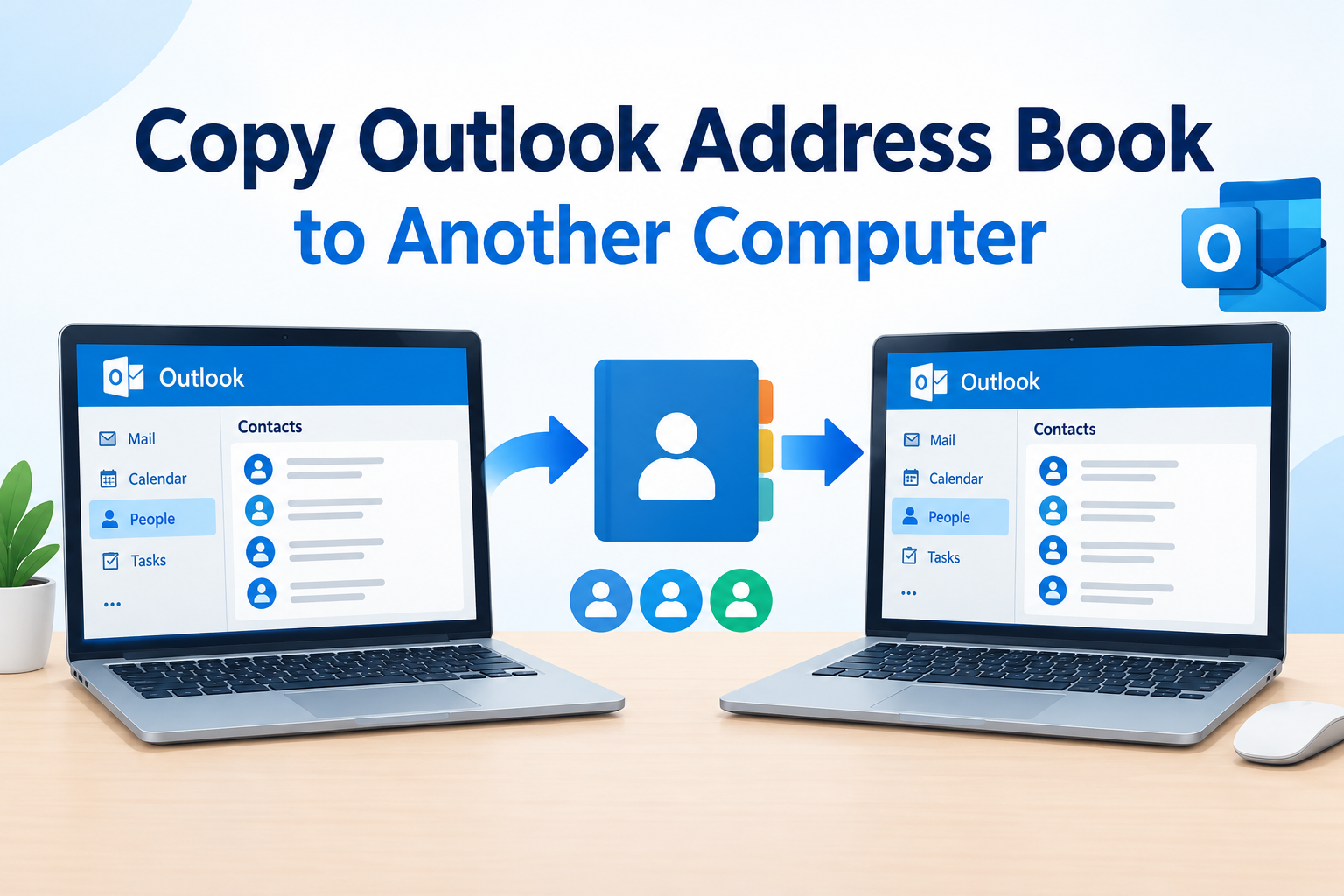
Moving to a new computer or switching your existing workstation does not mean you have to rebuild your Outlook contacts from scratch. You can copy your Outlook address book to another computer and access your saved contacts without losing important details such as names, email addresses, phone numbers, and other contact information.
However, the right method depends on how your contacts are stored. For example, Microsoft 365 or Exchange account contacts may synchronize automatically, while locally stored Outlook contacts may require manual export and import.
In this guide, we will explain different ways to Export Outlook address book to another computer , including manual methods and a professional solution. Follow the steps below to choose the approach that best suits your requirements.
If you wish to know more about the Export Outlook address book to another computer process, visit this URL: https://www.systoolsgroup.com/how-to/export-outlook-contacts-to-new-computer/
Why Copy an Outlook Address Book to Another Computer?
There are several situations where transferring Outlook contacts becomes necessary:
1. Switching to a new PC: Access your existing contacts without manually adding them again.
2. Creating a backup: Keep a separate copy of important Outlook contact information.
3. Changing Outlook profiles: Move contacts from an old profile to a new one.
4. Migrating to another system: Transfer contacts when moving between computers or Outlook installations.
5. Preventing data loss: Keep important business and personal contacts accessible if the old computer becomes unavailable.
How to Copy Outlook Address Book to Another Computer?
There are multiple ways to move Outlook contacts between computers. You can use Outlook's built-in export and import options, transfer a PST file, or use specialized software for a more direct migration. Let's explore each method step by step.
Method 1: Export Outlook Contacts to CSV and Import Them on Another Computer
This is one of the easiest ways to transfer an Outlook address book between two computers. Outlook allows you to export your contacts into a CSV (Comma Separated Values) file. You can then transfer this file using a USB drive, external hard disk, or cloud storage and import it into Outlook on the destination computer.
Step 1: Export Contacts from Outlook on the Old Computer
1. Open Microsoft Outlook on your old computer.
2. Click File from the top menu.
3. Select Open & Export and click Import/Export.
4. Choose Export to a file and click Next.
5. Select Comma Separated Values (CSV) and click Next.
6. Select the Contacts folder associated with the email account you want to transfer.
7. Click Browse and choose a destination to save the exported file.
8. Enter a suitable file name and click OK.
9. Click Next and then Finish to start exporting your contacts.
Step 2: Transfer the CSV File to Another Computer
1. Once the export process is complete, locate the CSV file on your old computer.
2. Copy the file to a USB flash drive.
3. Transfer it through Google Drive or OneDrive.
4. Send it through another secure file-sharing service.
Now, access the transferred CSV file on your new computer.
Step 3: Import Contacts into Outlook on the New Computer
1. Install and open Microsoft Outlook on your new computer.
2. Click File > Open & Export > Import/Export.
3. Select Import from another program or file and click Next.
4. Choose Comma Separated Values and click Next.
5. Browse and select the CSV file you transferred.
6. Choose how Outlook should handle duplicate contacts.
7. Select the destination Contacts folder.
8. Click Next and then Finish.
Advantages:
No additional software is required.
Suitable for transferring individual contact details in bulk.
The CSV file can also be opened and checked in Microsoft Excel.
Limitations:
CSV is primarily designed for contact information and may not preserve every Outlook-specific property.
Contact groups or distribution lists may need to be recreated.
Incorrect encoding can affect special characters and multilingual names.
Method 2: Sync Outlook Contacts Using a Microsoft Account
If your Outlook contacts are already saved in a Microsoft 365, Outlook.com, or Exchange account, you may not need to export and import them manually. You can add the same account to Outlook on your new computer and allow the contacts stored on the server to synchronize.
Steps to Sync Outlook Contacts:
1. Open Outlook on your old computer.
2. Check which Microsoft or Exchange account contains your contacts.
3. Verify that your contacts are stored in the account's online Contacts folder rather than a local-only folder.
4. Open Outlook on your new computer.
5. Add the same email account using Outlook's account setup options.
6. Allow Outlook to synchronize the mailbox.
7. Open the People or Contacts section and verify that your contacts are available.
Advantages:
No need to create or transfer separate files.
Convenient when switching between computers.
Contacts stored on the Exchange server remain accessible through the account.
Limitations:
Works only when contacts are stored in an account that synchronizes them.
Locally stored contacts may not automatically appear on the new computer.
You must have access to the original account.
Important Note: If your contacts are saved under a folder named Contacts (This computer only), they may not synchronize with your Microsoft account. In that case, use the CSV or PST method to move them.
Method 4: Copy Outlook Address Book Using a Professional Tool
If you have a large Outlook address book or need to export contacts into different file formats, a professional solution can make the process easier. The FreeViewer Outlook Contacts Export Tool is another option for transferring Outlook contacts to another computer.
It helps extract contacts from Outlook profiles and PST files and save them in multiple formats, including VCF, CSV, WAB, PDF, MSG, HTML, and PST. Instead of manually exporting contacts one by one, you can use the software to process multiple contacts together and save the resulting files for transfer to another computer.
Steps to Export Outlook Contacts:
1. Download and install Tool on your old computer.
2. Launch the software and select the Outlook profile or PST file containing your contacts.
3. Allow the software to load the available contact folders.
4. Preview the contacts and select the required ones.
5. Choose your preferred export format, such as CSV, VCF, or PST.
6. Select a destination folder and start the export process.
7. Copy the exported files to a USB drive or another storage device.
8. Transfer them to your new computer and import them into the required application.
Key Features of the Tool:
Multiple Export Formats: Export Outlook contacts into VCF, CSV, WAB, PDF, PST, MSG, HTML, and other supported formats.
Bulk Contact Export: Export multiple contacts together instead of processing them individually.
PST File Support: Extract contacts from Outlook PST files.
Contact Preview: Preview contact details before exporting them.
Multiple Contact Folders: Access contacts from different Outlook folders and profiles.
Selective Export: Choose the required contacts for export.
Contact Information: Export available details such as names, email addresses, and phone numbers.
Important Tips Before Copying Outlook Contacts
Before transferring your Outlook address book to another computer, consider these points:
1. Check Your Contact Folder: Make sure you select the correct Contacts folder, especially if multiple email accounts are configured.
2. Create a Backup: Keep an additional copy of your exported CSV or PST file.
3. Check Duplicate Contacts: Choose the appropriate duplicate-handling option during import.
4. Verify Contact Details: Check names, email addresses, phone numbers, and other important information after migration.
5. Check Special Characters: Use UTF-8 encoding for CSV files containing multilingual contact information.
6. Protect Your Data: Store exported contact files in a secure location because they may contain sensitive business and personal information.
Conclusion!
Copying an Outlook address book to another computer is straightforward when you choose the right transfer method. The CSV method is suitable for basic contact migration, while PST is useful when you need to transfer additional Outlook data. Account synchronization is convenient for cloud-based contacts, whereas a professional utility can simplify bulk contact extraction and format conversion.