Have you ever saved an important email on your computer and later struggled to find it in your regular inbox? This situation often comes down to the difference between keeping an email as a separate file and accessing messages through a mail server.
EML files and IMAP mailboxes serve different purposes, even though both are related to storing and accessing email. Understanding how they work can help you choose the right way to manage old conversations, preserve attachments, and make your email history easier to access.
What Is an EML File?
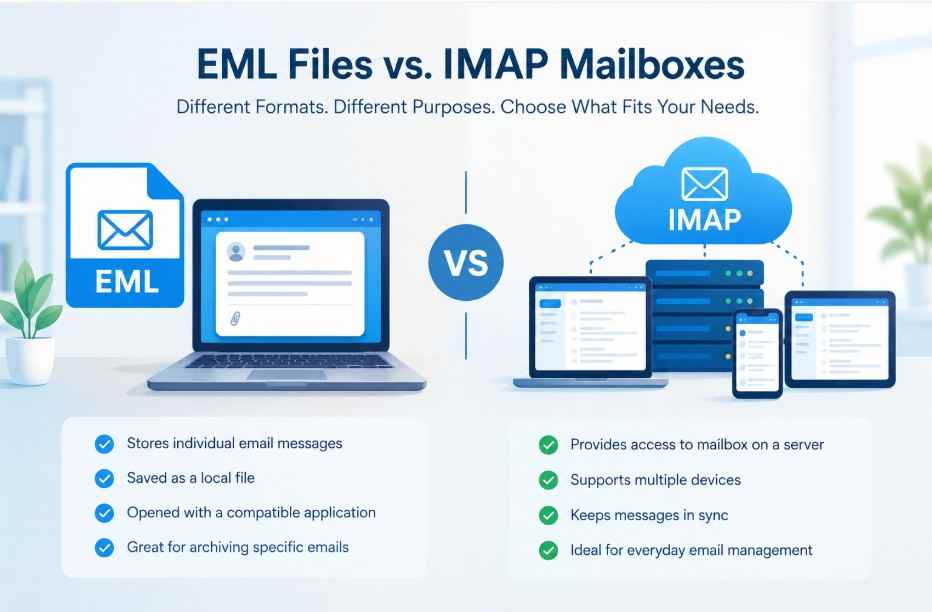
An EML file stores an individual email message. Depending on the message, it can contain information such as the sender, recipient, subject, date, message body, and attachments.
For example, imagine receiving an invoice by email and saving that message to your computer. If it is saved in EML format, you have a separate file containing that email's content. You can keep it in a folder, move it to another storage location, or open it with a compatible email application.
This approach can be useful when you want to preserve specific conversations outside your everyday inbox. It also gives you a way to keep selected messages for reference without relying entirely on the original email account.
However, having a collection of EML files does not automatically mean those messages are available inside your current mailbox. You may need to import them using a compatible email application or migration method.
What Is an IMAP Mailbox?
IMAP stands for Internet Message Access Protocol. It allows an email application to communicate with a mail server to access and manage messages in a mailbox.
Consider someone who checks their email from both a laptop and a mobile phone. With an IMAP-based account, messages and mailbox changes can generally be synchronized through the server, depending on the account configuration and application.
This makes IMAP useful for people who want to access their email from different devices rather than keep every message in an isolated local file.
An IMAP mailbox can also contain folders and message status information, such as whether an email has been read. The exact features available depend on the mail service and the email client being used.
It is worth remembering that IMAP is a communication protocol, not an email file format. It provides a way for applications to work with server-hosted mailboxes.
When Should You Keep Emails as EML Files?
Keeping individual messages as EML files can make sense when you want a separate copy of important correspondence.
For instance, a consultant may want to retain a client's approval email alongside the related project documents. A person managing household records may keep purchase confirmations and warranty messages in a dedicated archive.
EML files can also be useful when an old email account is no longer actively used but its messages still need to be preserved.
The main consideration is accessibility. If you have hundreds or thousands of separate messages, locating a particular conversation may become inconvenient unless the files are organized consistently. You should also keep backups and verify that important attachments remain accessible.
When Does an IMAP Mailbox Make More Sense?
An IMAP mailbox is often more convenient when you regularly work with email from multiple devices or want messages available through a connected email application.
For example, a small business owner might check customer correspondence on a desktop during working hours and review the same mailbox on a phone while travelling. A server-based mailbox can support this workflow without requiring the person to manually move individual email files between devices.
IMAP can also help keep message status and folder changes synchronized across supported clients. However, synchronization is not the same as a complete backup. If a message is deleted from the server, that deletion may also appear in connected applications.
For this reason, important business or personal correspondence should have an appropriate backup strategy, even when it is stored in an IMAP mailbox.
What If You Have a Collection of EML Files and Want to Use IMAP?
This is where the difference between the two becomes especially important.
Suppose you have accumulated several years of email messages on an older computer. The messages are saved as individual EML files, but you now want to access them through an IMAP account.
Simply connecting your email application to the IMAP account will not necessarily import those files. The messages need to be transferred into the destination mailbox using a method that supports the source files and the intended destination.
Before starting, consider the following steps:
Review the archive. Identify the messages you need and check how the files are organized.
Create a backup. Keep an untouched copy of the original files in a secure location.
Check the destination. Confirm that the IMAP account is active and has sufficient storage for the messages you intend to transfer.
Choose a compatible method. Review the available import or migration options and confirm that they support EML files and your destination service.
Test a small batch. Transfer a limited selection first, if the chosen method permits it.
Verify the results. Check message content, dates, attachments, and folder organization before moving the rest of the archive.
A dedicated option worth evaluating for this workflow is PCDOTS EML to IMAP Migration Tool. Before using any migration utility, verify its supported input and destination configurations against your particular account and requirements.
Taking time to check these details can help you identify compatibility issues before processing a large archive.
Common Mistakes to Avoid
One mistake is assuming that saving an email locally and transferring it to a mailbox are the same operation. They are not. A file can remain safely stored on a computer without appearing in the destination account.
Another mistake is moving the entire archive before checking a sample. A test can reveal issues with attachments, message formatting, or organization while the original data remains available.
It is also easy to overlook storage limits or account permissions. If the destination mailbox has insufficient space or restricts the required operations, the transfer may not complete as expected.
Finally, avoid deleting the original archive immediately after migration. Keep it until you have checked the transferred messages and confirmed that the records you need are accessible.
Final Thoughts
EML files and IMAP mailboxes solve different email-management needs. EML is useful for keeping individual messages as files, while IMAP makes it possible to access and manage server-hosted email through compatible applications.
Neither approach is automatically better in every situation. The right choice depends on whether you need to preserve selected messages independently, work with a synchronized mailbox, or move an existing email archive into a new environment.
Understanding this difference before beginning a migration helps you choose a suitable method, protect important correspondence, and avoid assuming that locally saved messages will automatically appear in your online mailbox.