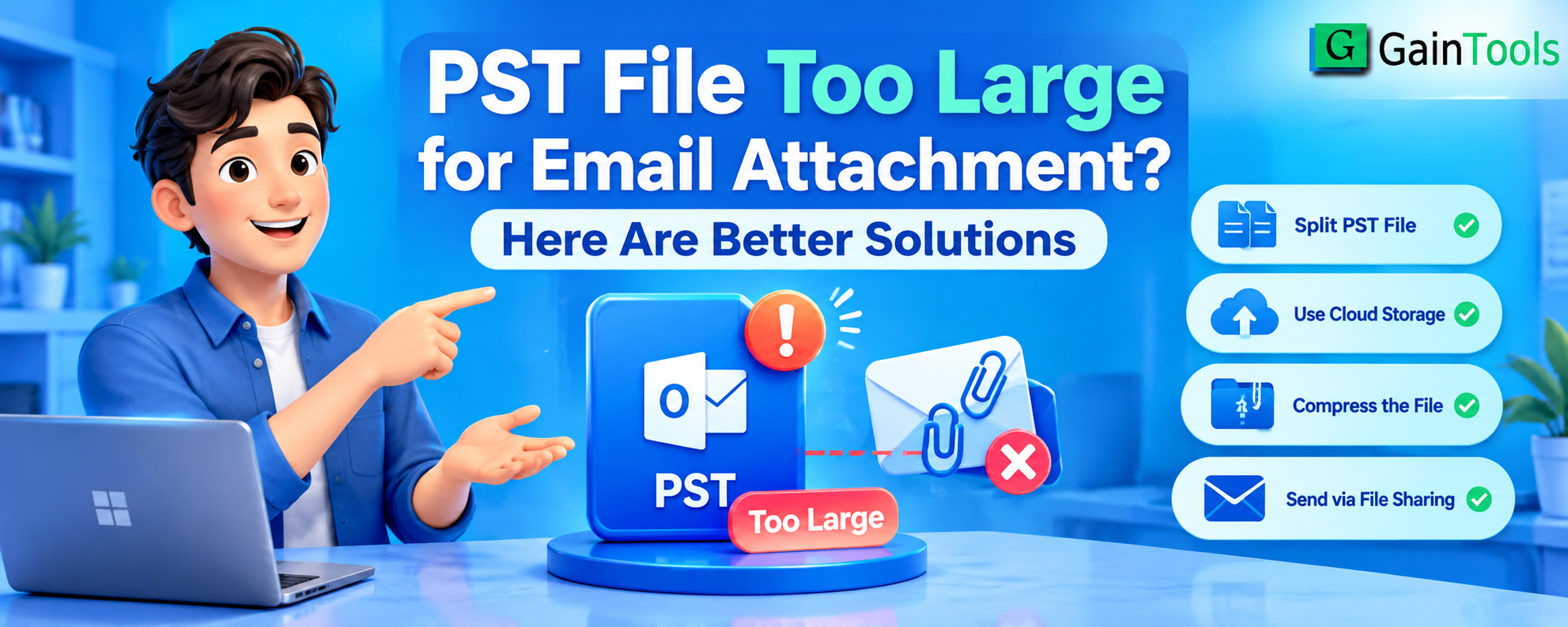
Large Outlook PST files are a common pain point for anyone managing heavy email workflows. When an Outlook PST file gets too large, sending it as an email attachment or simply keeping Outlook running smoothly becomes a major headache. Large file sizes can lead to slow performance, frequent freezing, Outlook crashes, and even severe file corruption.
If you are struggling with a PST file too large for email attachment errors or need to share email data without hitting strict file size limits, there are reliable ways to fix this. In this guide, we will explore why PST file size limits matter, how to reduce or split PST files manually within Microsoft Outlook, and how to use a dedicated third-party utility to streamline the entire process.
Why Large PST Files Cause Problems in Outlook
Microsoft Outlook uses PST (Personal Storage Table) files to store emails, contacts, calendar events, tasks, and attachments locally. While modern versions of Outlook support large PST file limits (up to 50 GB by default), letting your PST file get close to or exceed these limits creates several issues:
Email Attachment Limits: Most email providers (like Gmail, Outlook.com, or enterprise Exchange servers) restrict attachment sizes between 20 MB and 25 MB. Sending a complete PST file via email is practically impossible.
Outlook Performance Lag: As a PST file grows, Outlook takes much longer to search for messages, open folders, and process incoming or outgoing mail.
Increased Risk of File Corruption: The larger a PST file gets, the more susceptible it becomes to corruption during unexpected system shutdowns or software crashes.
Backup and Storage Hassles: Backing up or moving a single massive file across cloud drives or local storage media is slow and prone to network timeouts.
Method 1: Manual Solutions in Microsoft Outlook
Microsoft Outlook provides built-in tools to manage, reduce, and archive your data. While these manual options do not directly "cut" a single PST file into multiple smaller pieces automatically, they allow you to split data into separate PST files by date or archive old items.
Solution A: Use the AutoArchive Feature
Outlook’s archive feature moves older emails and items from your primary PST file into a separate archive PST file, reducing the overall size of your active working file.
Steps to Archive Emails in Outlook:
Open Microsoft Outlook.
Click on the File tab in the top-left corner.
Select Info, then click on Tools (or Cleanup Tools) and choose Clean Up Old Items... (or Archive...).
Select the Archive this folder and all subfolders option.
Choose the specific folder you want to archive (such as Inbox or Sent Items).
In the Archive items older than: field, select a cutoff date.
Click Browse to specify the save location and name for your new archive PST file.
Click OK to start the process.
Note: Archiving creates a new PST file containing your older data, leaving your main PST file significantly smaller.
Solution B: Manually Move Emails to a New PST File
If you want complete control over which emails go into which PST file (for example, organizing by project, client, or year), you can create a new PST file manually and drag items into it.
Steps to Create and Split Data Manually:
In Outlook, go to the Home tab.
Click on New Items > More Items > Outlook Data File.
Choose a folder location, give your new PST file a name (e.g., Emails_2023.pst), and click OK.
You will now see this new PST file listed in the left-hand navigation pane of Outlook.
Go to your primary PST file, select the emails or folders you want to move, and drag and drop (or right-click and choose Move) them into the new PST file folders.
Once transferred, right-click the top folder of the newly created PST file and select Close to detach it from Outlook.
Solution C: Compact the PST File
After deleting or moving large amounts of data out of your main PST file, Outlook does not automatically shrink the file on your hard drive. You must manually compact it to claim back unused storage space.
Steps to Compact a PST File:
In Outlook, go to File > Account Settings > Account Settings.
Switch to the Data Files tab.
Select your PST file and click Settings.
In the dialog box that appears, click the Compact Now button.
Click OK when finished.
Limitations of Manual Methods
While manual techniques cost nothing, they come with notable drawbacks:
Time-Consuming: Moving thousands of emails manually or setting up multiple archives takes considerable time.
No Automated Size-Based Splitting: Outlook cannot automatically divide a 20 GB file into four equal 5 GB chunks.
Risk of Human Error: Moving items manually increases the risk of accidentally missing critical emails or folders.
Potential System Freezes: Dragging massive quantities of items at once can cause Outlook to freeze or crash mid-transfer.
Method 2: Third-Party Automated Tool Solution
When manual methods prove too slow or complex, dedicated third-party utilities offer an automated, hassle-free alternative. A specialized utility designed specifically for this task is the GainTools Split PST Software, which allows you to divide oversized PST files into manageable pieces seamlessly without risking data loss.
Advantages of Using a Specialized Split Utility
Split by Specific Criteria: You can split oversized PST files by size (e.g., 1 GB, 2 GB, 5 GB chunks), by year, by folder, or by date range.
Maintains Folder Hierarchy: Keeps all original subfolders, read/unread statuses, attachments, and metadata intact.
No Outlook Dependency: Many advanced utilities can process PST files independently without requiring Outlook to be running.
Prevents File Corruption: Splitting massive files into smaller units reduces system load and keeps your Outlook data healthy.
General Steps to Use an Automated PST Split Tool:
Download and Install: Launch the software on your Windows computer.
Add PST File: Browse and select the large PST file you want to break down.
Choose Split Option: Select your preferred criteria (such as splitting by file size or date).
Set Output Destination: Pick the folder where you want the new, smaller PST files saved.
Start Splitting: Click the process/convert button to create smaller, lightweight PST files automatically.
Feature
Comparison: Manual Outlook Methods vs. Automated Tool
Feature Manual Outlook Methods Automated PST Split Tool
Effort Required High (manual folder creation and item moving) Low (automated single-click processing)
Size-Based Splitting Not supported directly Fully supported (custom MB/GB limits)
Data Safety Risk of accidental deletion during manual drag-and-drop High precision; original file remains
untouched
Speed Slow for large data volumes Very fast processing
Outlook Requirement MS Outlook must be installed and configured Works independently of Outlook
Best Practices for Managing Outlook PST Files
To prevent your PST files from causing attachment or performance problems in the future, follow these best practices:
Regular Maintenance: Run AutoArchive every few months to keep your primary PST file lightweight.
Avoid Storing Large Attachments in PSTs: Save heavy attachments to cloud storage (Google Drive, OneDrive, Dropbox) or local drives and share download links instead of attaching large files directly to emails.
Keep Backup Copies: Always create a duplicate copy of your primary PST file before performing manual cleanup operations or running split utilities.
Monitor Storage Limits: Check your PST file size periodically in File Explorer to ensure it stays well below the 20–30 GB mark for optimal performance.
Frequently Asked Questions (FAQs)
Q1. What is the maximum email attachment limit in Microsoft Outlook?
Most email service providers, including Microsoft Outlook and Gmail, limit email attachments to 20 MB or 25 MB per email. For larger files, cloud links or file-splitting tools are recommended.
Q2. Can I compress a PST file without deleting emails?
Yes, you can use Outlook's built-in Compact Now feature. It removes unallocated white space left behind after archiving or deleting items, reducing the PST file size without deleting any existing data.
Q3. Why is my PST file size not reducing after deleting emails?
When you delete emails from Outlook, the space they occupied is marked as empty space within the PST file. You must run the Compact Now option to reclaim that space on your hard drive.
Q4. Is it safe to split large PST files?
Yes, as long as you maintain a backup copy of your original file before initiating any manual or automated splitting process.
Conclusion
Handling oversized Outlook files does not have to be difficult. Manual approaches like AutoArchiving, creating secondary PST files, and compacting data offer effective built-in remedies within Microsoft Outlook. However, for a quick, automated, and precise way to break large PST files down by size or date without manual effort, utilizing a specialized solution like the GainTools Split PST Software ensures your email management remains effortless and secure.
Visit Website: https://www.gaintools.com/split-pst/