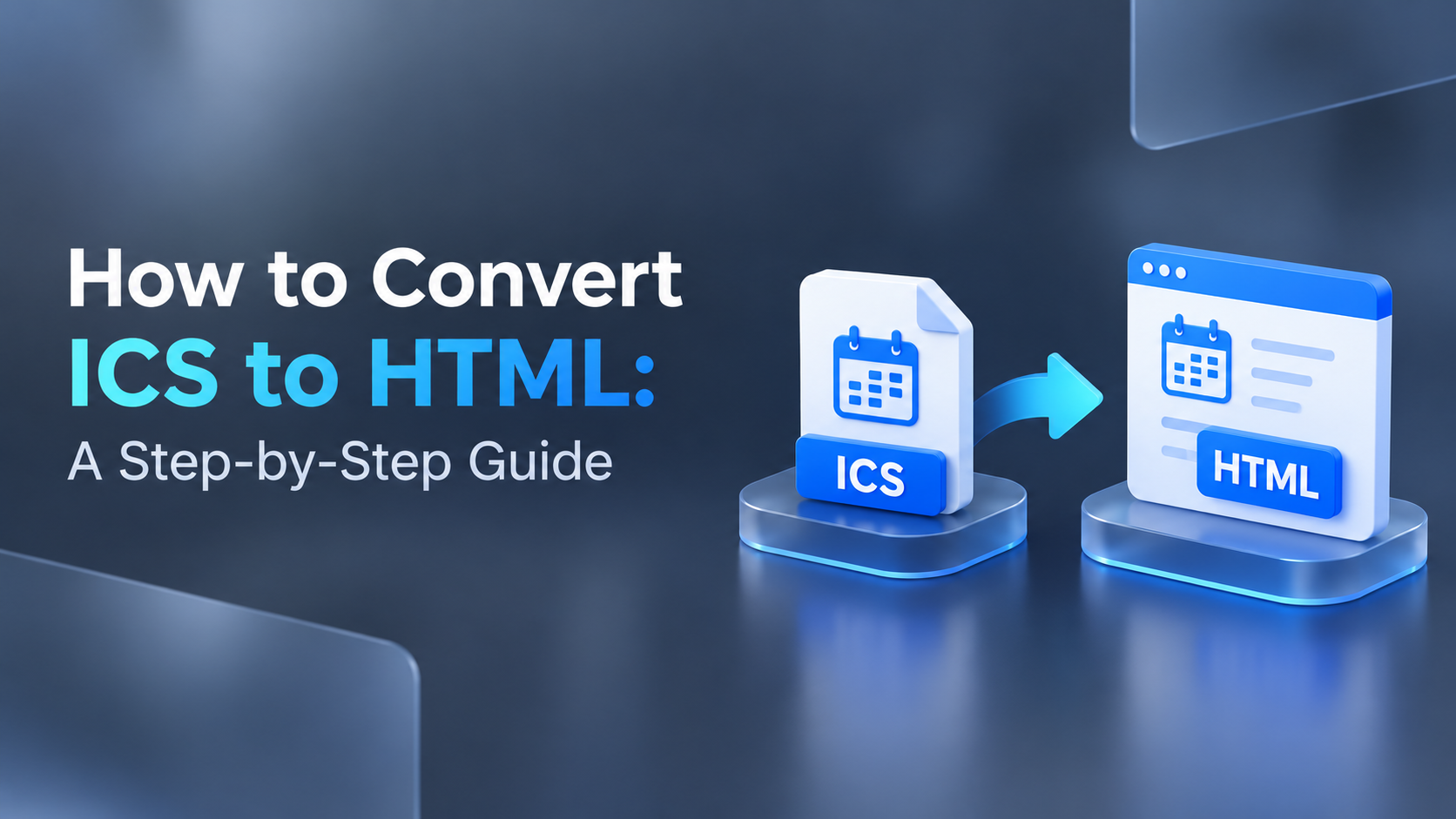
Calendar files are handy until you need to share them with someone who doesn’t use a calendar app. An ICS file opens only in compatible applications, but an HTML file opens in any web browser on any device. That is why many users look for an ICS to HTML converter that turns their events into a readable, shareable web page.
This guide explains why people convert ICS to HTML and walks you through the process step by step.
What Is an ICS File?
ICS (iCalendar) is a standard file format for calendar data. It stores events, appointments, meetings, dates, times, locations, and descriptions. Outlook, Google Calendar, and Apple Calendar all support it, which makes it the usual format for exchanging calendar information.
The limitation is readability. You can’t simply open an ICS file in a browser and see a clean list of events. To convert iCalendar files to HTML format, you need a dedicated tool.
Why Convert ICS to HTML?
Easy sharing: Anyone can open an HTML file in a browser, with no calendar software required.
Web publishing: You can post your event schedule on a website, intranet, or internal portal.
Readable archives: HTML gives you a simple, human-readable record of past events.
Printing and review: A browser-friendly layout is easier to read and print than raw calendar data.
Cross-platform access: HTML works on Windows, Mac, Linux, and mobile devices.
Limitations of Manual Methods
You could copy event details by hand or open the ICS file in a calendar app and re-save the events, but this has drawbacks:
It is slow and error-prone for more than a few events.
Details such as descriptions, locations, and attachments are easy to lose.
It is impractical when you have many ICS files to process.
Filtering by date range or removing duplicates is difficult.
A professional ICS to HTML conversion tool avoids these problems.
Best Way to Convert ICS to HTML: DRS Softech ICS Converter
The DRS Softech ICS Converter Tool is a dependable way to export an ICS calendar to HTML. Besides HTML, it converts ICS files to CSV, PDF, PST, MSG, EML, JPG, DOCX, and more. It keeps your event details (dates, times, descriptions, and locations) intact.
Key Features
Batch conversion: Convert a single ICS file or many files at once.
Date range filter: Convert only the events within a time frame you choose.
Remove duplicates: Clean out duplicate ICS items based on subject, from, to, and date.
Preview panel: Review added ICS files and attachments before converting, with no file size limits.
Attachment options: Save attachments separately or exclude them.
Custom folder name: Name the output folder so converted files are easy to find.
No email client needed: The tool runs independently.
Easy interface: Users of all skill levels can complete a conversion without technical expertise.
Compatibility: Works with all Windows versions (32-bit and 64-bit) and is also available for Mac.
Step-by-Step Guide to Convert ICS to HTML
Step 1: Download and install the tool.
Download the DRS Softech ICS Converter Tool and install it on your system.
Step 2: Launch the software and add ICS files.
Open the application and click Add File or Add Folder to import your ICS files. You can add several files for batch conversion.
Step 3: Preview your data.
Use the preview panel to check your calendar events and attachments before converting.
Step 4: Select HTML as the output format.
Choose HTML from the list of saving options.
Step 5: Adjust the settings.
Pick the output location and apply any extra options, such as a date range filter, duplicate removal, a custom folder name, or attachment handling.
Step 6: Click Convert.
Click the Convert button. The software processes your ICS files and saves the HTML files to the folder you selected.
Step 7: Open and verify the output.
Go to the destination folder and open the HTML files in your browser to confirm that all event details came through correctly.
Free Version vs Full Version
The free version lets you evaluate the tool by converting up to 10 ICS files per folder. The full version removes this limit and converts the complete folder. It also includes 24x7 technical support.
FeatureFree VersionFull VersionConvert ICS files to HTML and other formats10 ICS files per folderComplete folderPreview panelYesYesDate range filterYesYesRemove duplicatesYesYesTechnical supportNo24x7
Tips for a Smooth Conversion
Keep a backup of your original ICS files before converting.
Use the date range filter to avoid converting events you don’t need.
Remove duplicates first so your HTML output stays clean.
Convert a few files with the free version to check the output before buying.
Use a custom folder name to keep large batches organized.
Final Thoughts
Converting ICS files to HTML makes your calendar data easier to share, publish, and archive. Instead of copying events by hand, a dedicated ICS to HTML converter saves time and preserves every detail. With batch conversion, date filtering, and duplicate removal, the DRS Softech ICS Converter handles both small and large conversions with a few clicks.
For a more detailed walkthrough, read the full guide on how to convert ICS to HTML, or download the ICS Converter Tool and try the free version today.
Frequently Asked Questions
Can I convert multiple ICS files to HTML at once?
Yes. The tool supports batch conversion of single or multiple ICS files.
Will my event details be preserved?
Yes. Dates, times, descriptions, and locations are retained during conversion.
Can I convert only certain dates?
Yes. The date range filter lets you convert events within a specific time frame.
Do I need Outlook or another email client installed?
No. The software works independently of any email client.
Is there a free trial?
Yes. The free version converts up to 10 ICS files per folder.