Email remains one of the most important communication channels for modern businesses. Organizations use email to exchange contracts, customer information, invoices, project documents, internal discussions, and other business-critical records. However, keeping all these communications exclusively on an email server can create challenges when organizations face mailbox limits, server changes, accidental data loss, or unexpected service disruptions.
This is why maintaining an independent IMAP email backup has become an important part of business data management. A properly planned backup strategy allows IT administrators to preserve important email conversations, maintain organized archives, and access historical correspondence when required.
For organizations managing multiple mailboxes, manually downloading emails is rarely practical. It consumes time, creates administrative overhead, and increases the possibility of missing important messages. A dedicated IMAP backup solution can simplify this process by automating mailbox downloads, supporting multiple export formats, and maintaining the original folder organization.
Let's explore how businesses can approach IMAP email backup, the technical challenges involved, and how specialized software can make the process more manageable.
Why Do Businesses Need an IMAP Email Backup Strategy?
IMAP (Internet Message Access Protocol) allows users to access and synchronize email messages across multiple devices while keeping messages stored on the mail server. Although this synchronization makes email management convenient, it does not replace an independent backup.
If an email is accidentally deleted and the change synchronizes across connected devices, the same message may disappear from multiple locations. Server outages, account deactivation, provider changes, and mailbox migrations can also create accessibility problems.
Some important reasons to maintain an IMAP backup include:
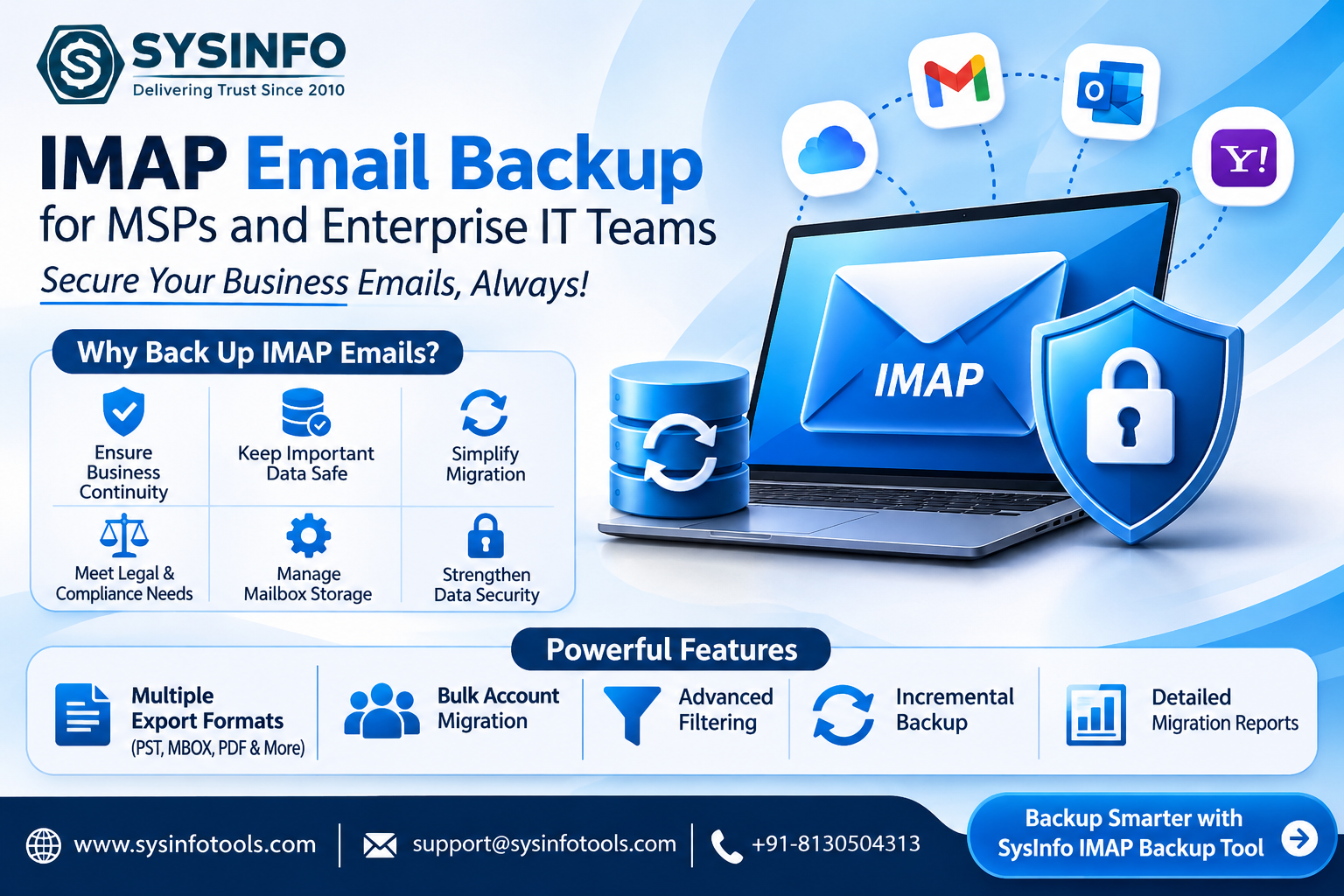
Business continuity: Maintain access to historical correspondence when an email service becomes unavailable.
Data retention: Keep independent copies of important business communications for future reference.
Platform migration: Preserve existing emails before moving to another IMAP provider or Microsoft 365.
Legal documentation: Maintain searchable email archives for internal investigations and compliance-related requirements.
Storage management: Move older correspondence into locally stored archives to manage mailbox storage more effectively.
Operational security: Maintain another copy of important email records outside the primary mailbox.
For businesses handling several employee accounts, an organized backup process also makes it easier to manage employee transitions and mailbox deprovisioning.
Common Challenges in Backing Up IMAP Mailboxes
Backing up a single email account may appear straightforward, but enterprise environments introduce additional technical requirements.
1. Managing Multiple Email Accounts
IT administrators often manage dozens or hundreds of mailboxes across different departments. Downloading each account individually creates repetitive work and makes centralized monitoring difficult.
2. Preserving Folder Hierarchy
Business mailboxes contain custom folders, nested directories, Sent Items, Drafts, and archived conversations. A backup that does not maintain this structure can make historical information difficult to locate.
3. Handling Large Mailboxes
Some employees maintain years of correspondence with large attachments. Transferring these mailboxes requires sufficient storage, stable connectivity, and a process that can handle large data volumes.
4. Avoiding Duplicate Emails
Repeated backup operations can generate duplicate messages, particularly when administrators perform multiple migration attempts. This increases storage requirements and complicates email management.
5. Selective Email Export
Not every business needs to migrate an entire mailbox. Sometimes administrators only need messages from a particular date range, sender, recipient, or department.
These challenges make automated backup and migration solutions useful for organizations that require better control over their email data.
What Should You Look for in an IMAP Backup Tool?
Choosing an appropriate IMAP Backup Tool requires more than checking whether it can download messages. Businesses should evaluate its ability to handle different mailbox sizes, maintain data organization, and support their existing IT infrastructure.
Here are some important capabilities to consider.
1. Multiple Export Formats
A reliable backup solution should provide flexibility in how email data is stored. PST is useful for Outlook-based environments, while MBOX supports several email clients. EML and MSG allow individual message storage, and PDF can be useful for document-based archival requirements.
CSV, JSON, DOC, and DOCX can also support specific reporting and documentation workflows.
2. Bulk Mailbox Processing
For enterprise environments, batch processing is particularly important. Administrators should be able to configure multiple accounts through a structured CSV file rather than entering credentials individually.
3. Folder Mapping
Folder mapping helps maintain the relationship between source mailbox directories and their destination locations. This reduces confusion after migration and makes archived correspondence easier to navigate.
4. Advanced Filtering
Date-range, sender, recipient, subject, and attachment-based filtering can help administrators export only the required information instead of processing every message.
5. Incremental Backup
An incremental process should identify previously transferred messages and skip them during subsequent runs. This helps reduce unnecessary processing when backing up mailboxes repeatedly.
6. Migration Reports
Detailed activity reports allow administrators to review processed, skipped, and failed items. This information is particularly valuable when handling multiple employee accounts.
How SysInfo IMAP Backup Tool Simplifies Email Backup
For IT professionals looking for a centralized solution, the SysInfo IMAP Backup Tool provides features for backing up individual IMAP accounts and managing larger mailbox migration projects.
The software supports email backup from major IMAP-enabled providers, including Gmail, Yahoo, Zoho Mail, iCloud, Outlook, Microsoft 365, Google Workspace, and other compatible services.
Instead of manually downloading messages, administrators can connect their accounts, preview mailbox folders, select the required data, and choose an appropriate destination.
Some of its important capabilities include:
Batch IMAP Account Migration: Administrators can import account information through a CSV file containing email addresses, passwords, IMAP host details, and port numbers. This makes it easier to process multiple accounts in a single workflow.
Flexible Export Options: Users can save IMAP emails in PST, MBOX, PDF, EML, MSG, CSV, JSON, DOC, and DOCX formats or migrate them to supported email platforms.
Advanced Email Filtering: The software provides filters based on date range, sender, recipient, subject, CC/BCC, message type, and email body content. These options help users perform selective backups.
Duplicate Email Removal: Its deduplication functionality compares message attributes such as subject, sender, recipient, and body to identify repeated emails before export.
Incremental Migration: The Skip Previously Migrated option helps avoid transferring already processed messages during subsequent migration runs.
Attachment Management: Users can configure how attachments are handled, including saving them separately or incorporating them into supported PDF exports.
Local Processing: The application performs backup operations on the local system without uploading mailbox data to a third-party cloud storage platform.
Activity Monitoring: The reporting dashboard provides information about processed, skipped, and failed items, helping administrators review migration progress.
These capabilities make the software relevant to businesses, managed service providers, and IT teams that need a more structured approach to mailbox backup and migration.
How to Back Up IMAP Emails Using Dedicated Software
A structured backup workflow helps reduce manual work and makes it easier to verify the exported data.
Follow these general steps using the IMAP Backup Tool:
Step 1: Install and Configure the Software
Download and install the application on your system. Open the software and select Single User or Batch Mode depending on the number of accounts you want to process.
Step 2: Connect the IMAP Account
Enter the required email address, password or supported authentication credentials, IMAP host, and port details. Establish the connection and allow the application to retrieve the mailbox folders.
Step 3: Preview and Select Mailbox Folders
Review the available folder hierarchy, including Inbox, Sent Items, Drafts, and custom folders. Select the folders containing the emails you want to back up.
Step 4: Choose an Export Format
Select the required output format, such as PST, MBOX, PDF, EML, or MSG. You can also choose a supported destination email platform when performing migration rather than a local archive.
Step 5: Apply Filters and Start Backup
Configure date-based or other available email filters. Review the selected settings and initiate the backup operation.
Step 6: Monitor the Process and Review Reports
Track the migration progress through the dashboard. After completion, examine the activity reports and verify that the required folders and messages have been processed successfully.
It is good practice to open the exported files or access the destination mailbox and verify important messages and attachments before considering the backup complete.
IMAP Backup vs. Manual Email Download: Which Is Better?
Manual downloading may be sufficient when handling a small number of messages. However, it becomes difficult to manage when organizations need recurring backups or large-scale mailbox migration.
A dedicated solution offers several operational advantages:
RequirementManual DownloadDedicated SoftwareMultiple account handlingRepetitiveBatch processingFolder organizationManual managementFolder mappingSelective backupLimitedAdvanced filtersDuplicate managementManual checkingAutomated detectionIncremental processingManual effortSupportedExport formatsLimited optionsMultiple formatsMigration reportingUsually unavailableActivity reports
The right approach depends on mailbox volume, backup frequency, technical requirements, and available resources. For enterprise administrators, automation can significantly simplify repetitive email management tasks.
Important Considerations Before Starting an IMAP Migration
Although IMAP is useful for transferring email messages, it does not support every type of mailbox data.
Standard IMAP migration generally covers emails, attachments, and supported folder structures. Contacts, calendars, tasks, mailbox rules, signatures, and certain provider-specific settings require separate migration methods.
Before beginning an enterprise migration, administrators should:
Verify source and destination IMAP connectivity.
Confirm the authentication method and server configuration.
Check mailbox storage and destination capacity.
Review account access permissions and connection limits.
Identify folders that require special handling.
Run a pilot migration before processing all employee accounts.
Validate exported messages, attachments, and folder structures.
These precautions help establish realistic expectations and reduce unexpected problems during large-scale migration projects.
Conclusion
An effective IMAP backup strategy is essential for organizations that depend on email for daily communication and long-term business records. Relying exclusively on server synchronization or manual downloads can create unnecessary operational risks, particularly when managing multiple employee mailboxes.
Using a dedicated IMAP Email Backup solution helps businesses organize their archives, automate repetitive operations, apply selective filters, and maintain accessible copies of important correspondence.
The IMAP Backup Tool brings together batch account processing, multiple export formats, folder mapping, duplicate removal, incremental migration, and reporting capabilities in one application. It can be a practical option for IT administrators, MSPs, and businesses looking to simplify their IMAP backup and migration workflows.
Explore the SysInfo IMAP Backup Tool to review its features and evaluate the free trial before planning your mailbox backup process.