If you’ve been using Microsoft Outlook for years, chances are your system has collected a lot of Personal Storage Table (PST) files. Old archives, data from previous projects or different mailboxes created over time might lead to an administrative nightmare in a hurry, when you need to manage many PST files. It's a hassle to search for a given message in 5 or 6 unique files. It also affects your system speed tremendously.
The good news is that it is very possible to merge your email data. In this post, we will go over the reasons why you need to combine your files, show you the native manual technique using MS Outlook, and present you with a faster and safer third-party solution.
When do you need to combine several PST files?
But before we go into the solutions, let’s first understand why managing fragmented Outlook files is an unproductive practice.
Performance Lag: MS Outlook has a hard time managing many massive data files at a time. Opening and indexing many PST files might lead to excessive CPU load and delay in running the software.
Complex Searching: If emails are kept in different archives and folders, it may take time to search through files one by one to find an important piece of correspondence.
Storage and Backup Overhead. Securing 10 little PST files is far more chaotic than securing one well-structured master file. It has the potential to lose or delete crucial records.
Chance of Corruption: A larger, more fragmented Outlook Profile indicates a higher chance of PST corruption from an unexpected crash of the application or system shutdown.
Consolidating your data into one repository eliminates these problems and makes your digital workspace much more efficient.
Method 1: Using MS Outlook (Manual Native Method)
If you don’t want to install additional apps and want a built-in solution, there is a manual approach in Microsoft Outlook. The way around this is to create a new blank PST file and then use the Import/Export wizard to import your current PST archives into the new PST file.
1. Create a new blank PST
Open Microsoft Outlook on your PC.
Click New Items > More Items > Outlook Data File on the top ribbon.
Select a proper location on your local drive to save this new file, name it clearly (e.g., MasterArchive.pst), and click OK.
Now, the new empty PST file will be seen in the left navigation pane of your Outlook window.
Step 2: Importing Existing PST Files to New File
File > Open/Export > Import Export
In the Import and Export Wizard dialog box, choose Import from another program or file, and then click Next.
Select Outlook Data File (.pst) as the kind of file and then press Next.
Click Browse to choose the first PST file that you want to integrate.
Go to Settings, pick "Do not import duplicates (recommended to keep your data clean)" and click Next.
3. Select the folder in that PST file that you want to import. Be sure you check the box for Include subfolders, then select the radio option that says Import stuff into the same folder in:, and then select your newly created MasterArchive.pst file from the drop-down menu.
Click Finish.
Disadvantages of the manual procedure
The manual technique is free, but has some severe downsides:
Time Consuming: If you have many large PST files, then you will need to manually perform this multi-step import procedure for every file.
Risk of Data Loss or Error by Humans. A single misclick in folder mapping might result in data being erased or subfolders vanishing.
Advanced filtering is missing: There's no straightforward way to relate specified items (e.g., calendars or certain date ranges) without long pre-filtering.
Method 2: The Right Way – Third-Party Software Solution
Importing large volumes of important business or personal email history manually may be time-consuming and dangerous. This is where a dedicated third-party utility comes in.
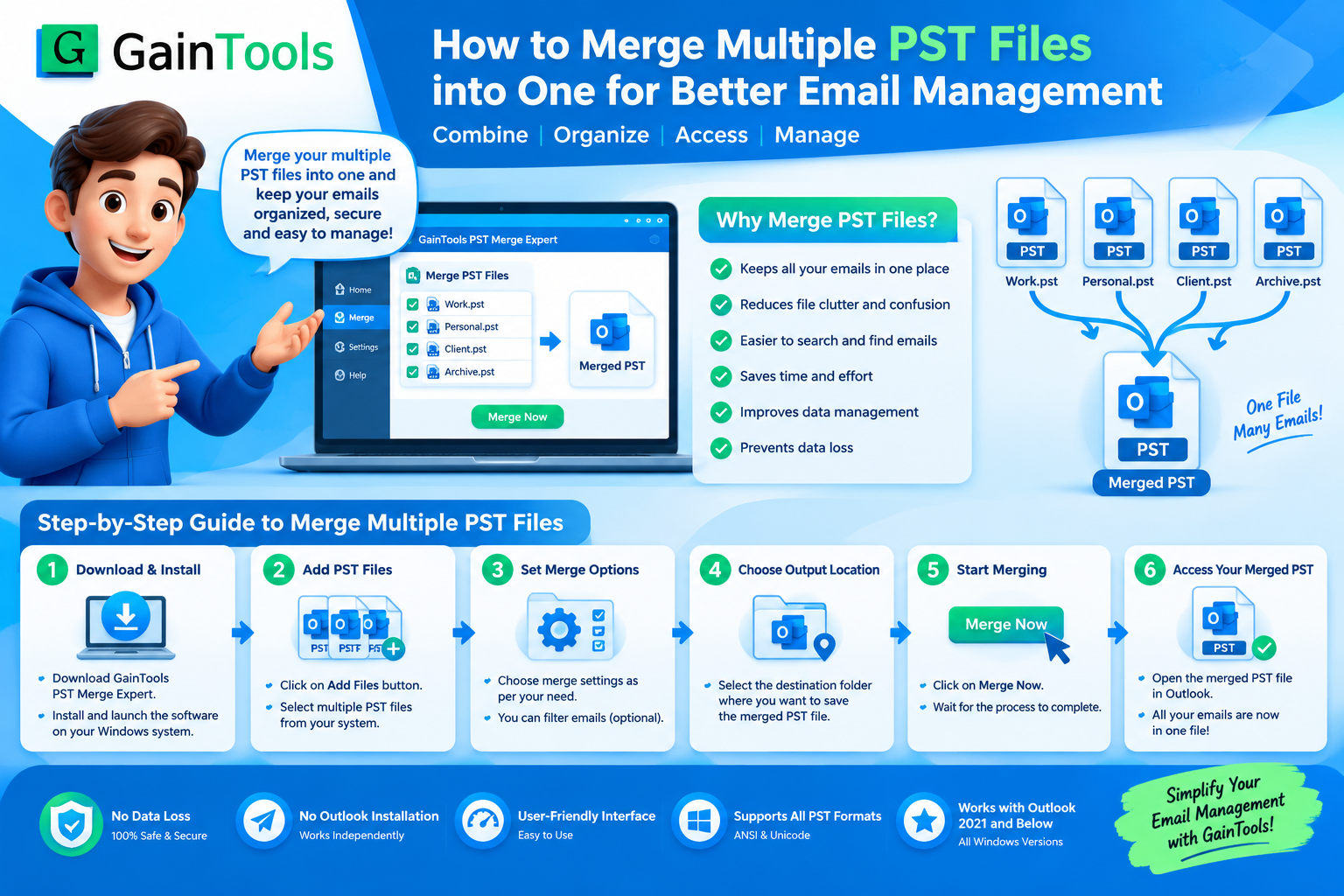
It’s meant to circumvent the dull restrictions of manual sorting. GainTools Merge PST Software helps you simply and safely combine two or more PST files into one consolidated file.
Key Features of Professional PST Merger Tools
Bulk Merging Feature: Merge unlimited Unicode or ANSI PST files into a single healthy PST file without any file size limitation.
Selective Folder Organization: Enables users to see mailbox folders before merging and modify the arrangement of files using simple controls.
No reliance on MS Outlook: The application can complete the merging operation effectively even if MS Outlook is not installed on your PC.
Maintains Data Integrity: It retains the folder structure and formatting of all mailbox elements such as emails, contacts, calendars, tasks, notes, and journals.
Duplicate Item Management: Comes with built-in capabilities to handle overlapping or redundant emails so you don’t have a bloated final master file.
User Interface: It is a basic yet clear wizard design. Easy to use. So, you don’t need any big technical skills to use it.
How to use the automatic tool: instructions
The professional utility takes minutes to run. To archive your emails in one place, follow these simple steps:
Download and Run: Download the tool from the official website, install it on your Windows operating system, and run the application.
Add PST Files: On the software interface, click Add File or Add Folder to browse and upload the target PST files you wish to merge.
Review and Rearrange: After uploading the files, you may preview the information. Alternatively, you may configure the processing order using the administrative features of the application.
Browse option: Click this option to select where the combined PST file will be saved on your local drive.
Merge Now: Click on the Merge Now (or Start Merging) button. The application will scan the data, and in seconds you will get a clean PST file.
Conclusion:
Manage your email archive. Nothing makes your digital office seem cramped like a dirty inbox. Microsoft Outlook’s built-in import tool is good enough for casual users who simply need to import one or two small files, but it doesn’t scale well for large multi-file databases.
So, if you want to combine your archives easily, swiftly, and securely, without any possibility of data loss, you should utilize the automated PST merging program. This is a professional-level solution. Combining all your emails into one strong file may dramatically improve search times, reduce system resource usage, and provide you with total peace of mind regarding your digital records.
Visit Website: https://www.gaintools.com/merge-pst/