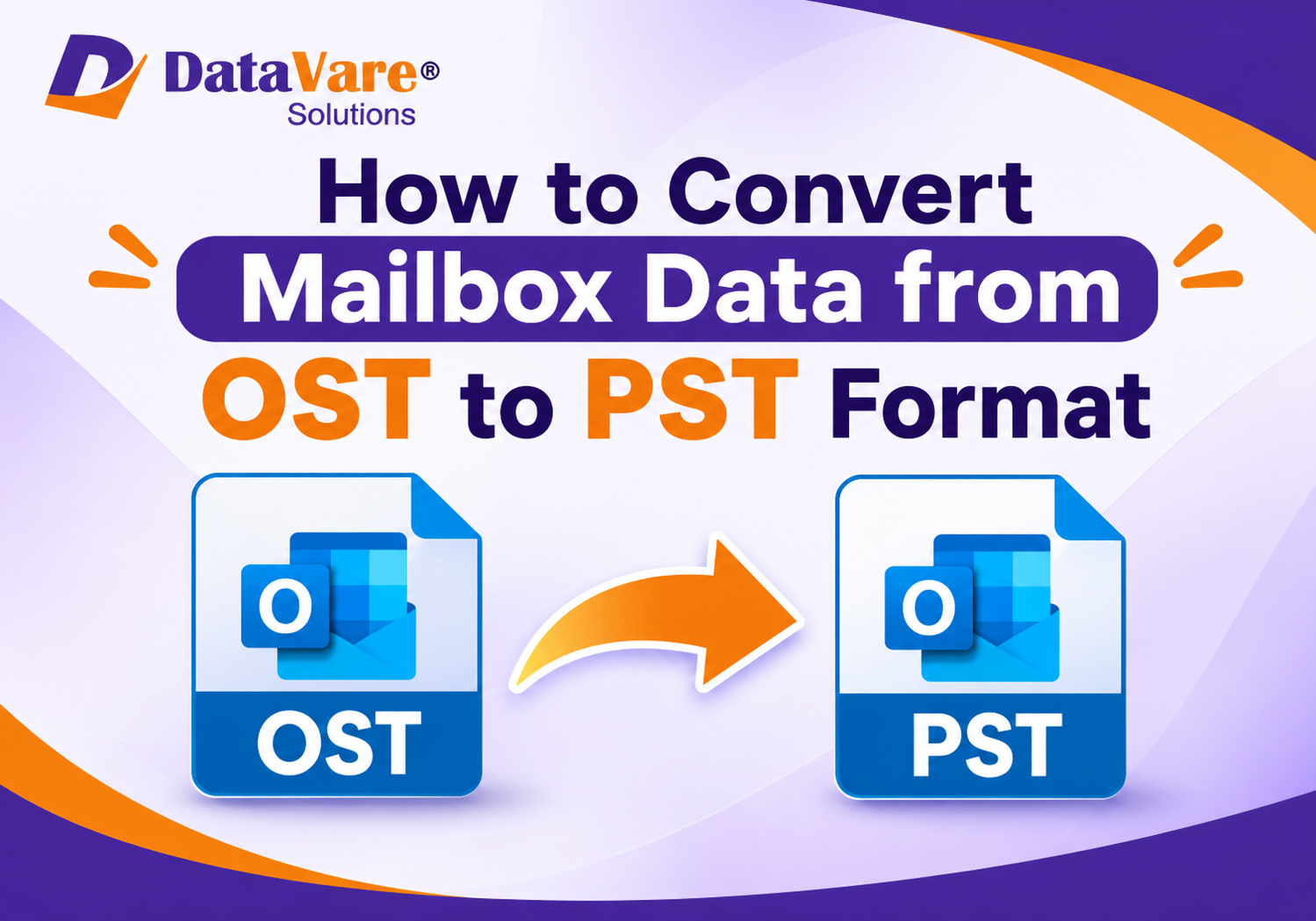
OST (Offline Storage Table) files are used by Microsoft Outlook to store synchronized mailbox data locally. Emails, contacts, calendars, tasks, notes, and attachments are all included in these files. OST files enable users to access mailbox data offline, but when an Outlook profile is missing or the originating account is disconnected, it might be challenging to access them independently.
A useful method for storing mailbox data independently and making it available across compatible Outlook environments is to convert OST files into PST format. This tutorial describes many OST to PST conversion techniques, including both professional and manual ways.
What Makes OST to PST Conversion Useful?
Users' access to saved mailbox information may be restricted because Outlook OST files are connected to their original account settings. More flexibility in managing and preserving email data is provided by converting these files into PST format.
• Independent Mailbox Storage: Make a different data file with all the necessary Outlook data.
• Workplace Transition: When transferring between companies or email environments, keep crucial correspondence.
• Discontinued Account Access: When the original account is no longer accessible, maintain locally accessible mailbox data.
• Selective Data Management: To keep pertinent emails and attachments organized, export particular folders.
• System Replacement: Before reinstalling Outlook or switching to a new computer, save mailbox data.
• Streamlined Data Management: Save exported mailbox records in a portable format for Outlook programs that are compatible.
Methods to Convert OST Files into PST Format
Outlook mailbox data may be exported using one of two popular methods. Whether the original Outlook profile is available determines the best approach.
Method 1: Convert OST to PST using Microsoft Outlook
Outlook's built-in Import/Export Wizard allows users to export their mailbox if the original Outlook profile is active and the mailbox data is available.
Take these actions:
1. Use the original profile to launch Microsoft Outlook.
2. Select the File tab.
3. Click Import/Export after choosing Open & Export.
4. Click Next after selecting Export to a file.
5. Choose the Outlook Data File (.pst).
6. Select the mailbox that you want to convert
7. To export the entire folder structure, turn on Include subfolders.
8. Select the PST file's destination.
9. To finish the export, click Finish.
Next, open the generated PST file in Outlook and confirm that the necessary emails and attachments are present.
Method 2: Use a Professional Tool to Convert OST Files
A specialized OST to PST converter program might offer an alternate solution when Outlook is unable to access the original mailbox.
Without relying on the original Outlook configuration, users may extract mailbox data straight from OST files with the use of a professional tool.
Detailed Conversion Procedure
Installing the conversion application is the first step.
Install a suitable OST converting program on your PC after downloading it. When the installation is finished, launch the program.
Step 2: Include the OST file
Choose the OST file you wish to convert by looking through the storage on your computer. For mass processing, certain programs additionally allow the addition of many OST files.
Step 3: Mailbox Item Preview
Before beginning the conversion, examine the accessible mailbox folders and objects. This aids in determining the data that must be exported.
Choose PST as the output format in step four.
Select PST as convert format of your Need. You could also be able to apply available filters or choose particular folders, depending on the software.
Select the Destination Folder in Step Five
Select a suitable location for storing the converted PST file. Verify that there is adequate space for storage.
Step 6: Begin the Conversion
To start exporting the chosen mailbox data, click the Convert option. Give the procedure uninterrupted time to complete.
Step 7: Confirm the Outcome
Find the converted PST file and launch it in an Outlook environment that supports it. Examine the folder structure, attachments, and emails that were exported.
Features to Consider in an OST to PST Converter
The following characteristics should be taken into account by consumers when choosing an OST file conversion tool:
• Selective Export: This feature enables users to convert particular mailbox folders
• Bulk Conversion: Assists in handling many OST files.
• Mailbox Preview: Offers a chance to examine data prior to conversion.
• Preservation of Folder Structure: Preserves the original arrangement of the mailbox
• Support for Multiple Items: Exports contacts, calendars, emails, tasks, and notes.
• Flexible Output Location: Gives users the option to choose the location of converted files.
• Outlook Independence: This feature allows conversion without requiring the original Outlook profile.
DataVare OST to PST Converter provides features including selective export, mass OST processing, mailbox preview, and storing converted data to a preferred place for consumers looking for these features.
Important Things to Think About Before Converting
Remember these things before starting the Outlook OST file migration:
• Make a copy of the original OST file. Check that the mailbox data is accessible.
• Make sure the final PST file has enough storage space.
• Carefully choose the necessary folders.
• Before deleting the original data, check the exported PST file.
• To import the converted file, use an Outlook version that is compatible.
conclusion
Users may handle Outlook data during migration, backup, and profile changes by converting mailbox data from OST to PST format. When the original mailbox is still available, Outlook's built-in export feature is appropriate; however, disconnected or orphaned OST files may benefit from a professional conversion solution. Users may keep well-organised mailbox records and facilitate future access to critical Outlook data by selecting the proper method and confirming the exported PST file.
Frequently Asked Questions
Q1. Can OST files be converted to PST without Outlook?
Indeed. OST files may be exported using certain conversion programs without the need for the original Outlook profile.
Q2. Which mailbox items are convertible from OST to PST?
Emails, contacts, calendars, notes, tasks, and attachments are examples of supported things.
Q3. Is it possible to convert many OST files to PST format?
Indeed. For managing several OST files, some converters include bulk processing features.
Q4. Why can't I view my OST file in Outlook?
When an Outlook profile is deleted, the account is disconnected, or the file is corrupted, an OST file may become unreadable.
Visit here: https://www.datavare.com/software/ost-to-pst-converter-expert.html