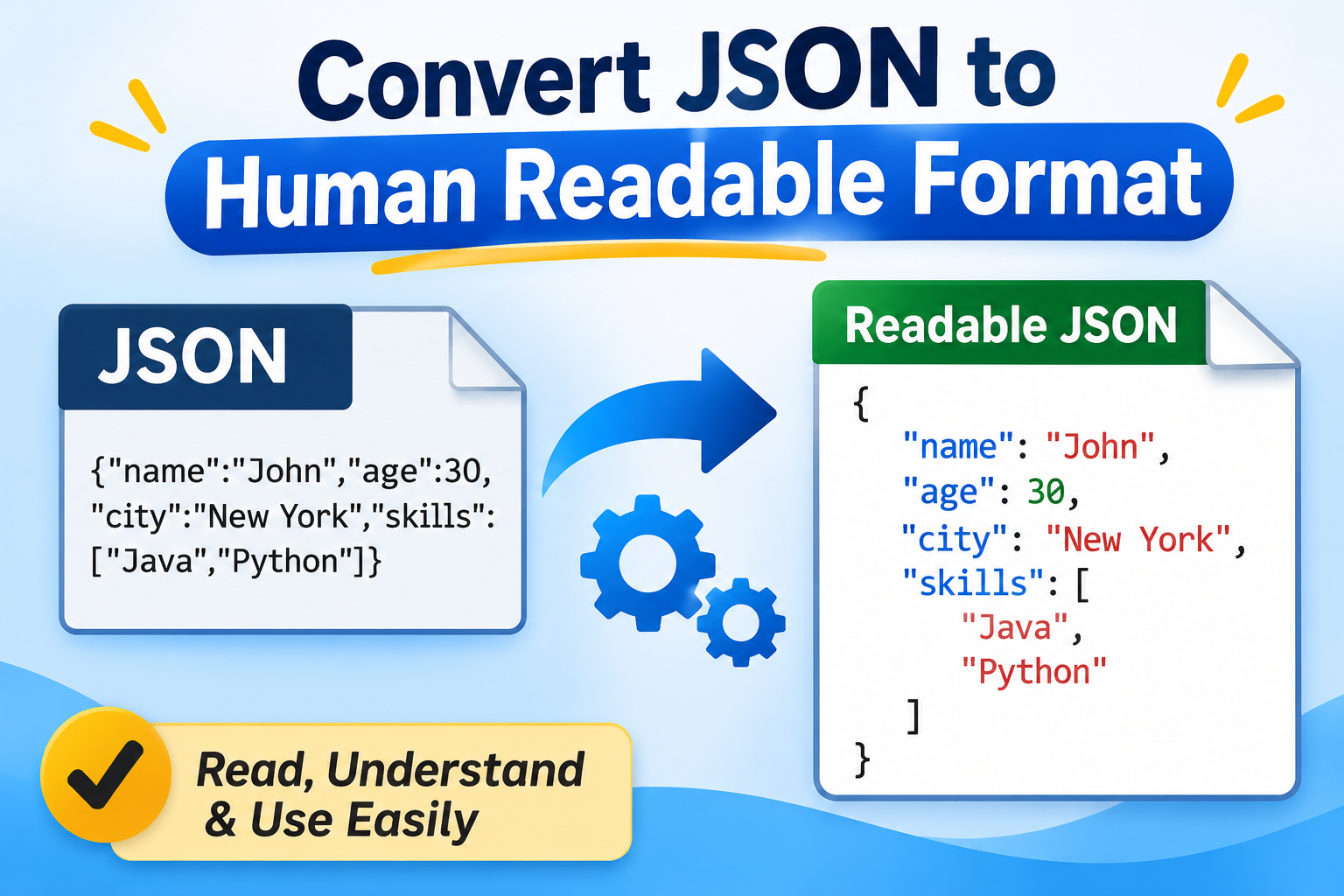
JSON (JavaScript Object Notation) is a widely used format for storing and exchanging structured data. However, when a JSON file contains nested objects, arrays, multiple key-value pairs, or large datasets, reading and understanding its contents can become difficult. Converting JSON to a human-readable format makes the information easier to view, analyze, share, and manage.
There are several ways to convert JSON to a human-readable format, depending on the file size, data structure, and your requirements. You can use a text editor, an online JSON formatter, Python, Excel, or a dedicated JSON conversion tool.
In this guide, we will explore different methods to make JSON files human-readable while maintaining their original data structure.
Why Convert JSON Files to Human Readable Format?
JSON files are generally machine-readable, but their raw structure is not always convenient for users. When you convert JSON file to readable format, you will get some benefits that includes:
Easy Data Understanding: Proper indentation makes complex JSON objects easier to interpret.
Simplified Debugging: Developers can identify missing brackets, incorrect values, and syntax errors.
Better Data Analysis: Structured information becomes easier to review and compare.
Improved Data Sharing: Readable JSON files are easier to share with team members and clients.
Efficient Data Management: Users can locate specific keys, values, and nested records without manually scanning the entire file.
How to Convert JSON to Human Readable Format? 5 Methods
There are multiple ways to make JSON files readable. Below are five practical methods, including manual and automated approaches.
Method 1: Use an Online JSON Formatter
An online JSON formatter is one of the simplest ways to convert raw JSON into a human-readable format. These tools automatically arrange JSON objects, arrays, and key-value pairs with proper indentation.
Follow these steps:
Open a trusted online JSON formatter in your web browser.
Copy the JSON data from your file.
Paste it into the input section of the formatter.
Select the Format, Beautify, or Pretty Print option.
Wait for the tool to process the JSON content.
Copy or download the formatted output.
Advantages:
No software installation is required.
Quick formatting for small JSON files.
Easy to use, even for beginners.
Limitations:
Large JSON files may take longer to process.
Some online tools impose file-size restrictions.
Uploading confidential JSON data to third-party websites may create privacy concerns.
Internet access is required.
Best for: Users who want to format small JSON files quickly without installing additional software.
Method 2: Convert JSON to Human Readable Format Using Notepad++
Notepad++ is a text editor that allows users to open and edit JSON files. With its JSON Viewer plugin, you can format and organize JSON data into a more readable structure.
Steps to follow:
Download and install Notepad++ on your Windows computer.
Launch the application.
Click on File > Open and select your JSON file.
Navigate to Plugins > Plugins Admin.
Search for the JSON Viewer plugin.
Select the plugin and click Install.
Restart Notepad++ if required.
Open your JSON file and use the plugin's formatting option to beautify the content.
Your JSON data will now appear with proper indentation and line breaks.
Advantages:
Supports editing and viewing JSON files.
Works offline after installation.
Useful for examining structured data.
Limitations:
Requires plugin installation.
The interface may be difficult for beginners.
Large or deeply nested JSON files can be challenging to navigate.
Best for: Windows users who regularly work with JSON files and need a desktop-based formatting solution.
Method 3: Convert JSON to Human Readable Format Using Professional Tool
When you need to convert large JSON files or multiple JSON documents into an easily accessible format, a professional SysTools JSON Converter Tool can simplify the process. Unlike basic JSON formatters, which primarily improve indentation and spacing, a dedicated conversion tool allows you to transform JSON data into formats such as Excel, CSV, PDF, HTML, XML, and Word. This makes the information easier to read, share, analyze, and manage.
This solution that helps users convert single or multiple JSON files into different output formats. It supports nested JSON structures, bulk file conversion, and folder-based selection. The software also provides a preview option to examine the loaded JSON data before conversion. Since it works offline, users can process their JSON files locally without uploading sensitive information to online platforms.
Steps to Convert JSON to Human Readable Format
Download and install the tool on your Windows or Mac system.
Launch the software and click Add Files or Add Folder.
Browse and select the JSON files you want to convert.
Preview the loaded JSON data in the software interface.
Select your preferred output format, such as PDF, Excel, CSV, HTML, or DOCX.
Choose the destination location to save the converted files.
Click the Convert button to begin the conversion process.
Open the destination folder to access your converted human-readable files.
Key Benefits of Using Automated Software
Multiple Output Formats: Convert JSON files into 17+ formats, including XLSX, CSV, PDF, HTML, XML, YAML, DOCX, SQL, and TXT.
Bulk JSON Conversion: Add multiple JSON files and process them together instead of converting each file individually.
Nested JSON Support: Process JSON files containing nested objects, arrays, and complex data structures.
Folder-Based Selection: Add an entire folder containing JSON files for convenient processing.
Preview Option: View the loaded JSON content before selecting the required output format.
Offline Processing: Convert JSON files locally without uploading data to third-party online services.
Folder Hierarchy Preservation: Maintain the original folder arrangement during the conversion process.
Best Suitable For: Users, developers, and business professionals who regularly handle large JSON datasets and need to convert them into readable, accessible, and analysis-friendly formats.
Common Challenges While Making JSON Files Human Readable
Even after using a formatting method, users may encounter certain difficulties. Here are some common problems and their possible solutions.
1. JSON File Contains Nested Objects: Nested JSON objects can make the data difficult to understand. Use a formatter that maintains indentation or convert the nested records into a structured spreadsheet.
2. JSON File Is Too Large: Large JSON files may slow down online formatters and text editors. Consider using a desktop-based application or a script that processes the data efficiently.
3. JSON File Contains Invalid Syntax: Missing commas, incorrect quotation marks, and unmatched brackets can prevent JSON formatting. Validate the JSON syntax before attempting conversion.
4. JSON Data Is Difficult to Analyze: A formatted JSON file may still be inconvenient for business analysis. In this situation, convert JSON into Excel or CSV to arrange records into rows and columns.
5. Sensitive JSON Data Requires Privacy: Avoid uploading confidential JSON files to unknown online platforms. Prefer offline desktop applications or local Python scripts to keep data processing on your computer.
Final Words!
Converting JSON to a human-readable format makes structured information easier to understand, manage, and analyze. For small files, online JSON formatters and text editors are convenient choices. Python is useful for developers who prefer automated formatting, while Excel is suitable for analyzing structured records.
However, if you regularly handle multiple JSON files or need to convert them into different output formats, SysTools JSON Converter provides a dedicated solution. It supports bulk processing and multiple output formats, making JSON data management more convenient.