Best Ways to Split Oversized PST Files into Smaller Parts
If you use Microsoft Outlook for business or personal emails on a regular basis, you're likely aware of how fast your mailbox can get filled up. Outlook saves all your e-mail, contacts, calendar entries and attachments in a file format called PST (Personal Storage Table).
However, when these files increase in size, they might slow down your Outlook application, cause it to freeze unexpectedly, or even get corrupted if they exceed the suggested size limitations.
In this detailed article, we will go over the reasons why PST files to become troublesome when they get too large, how to manually divide them using native Outlook capabilities and how to utilize a specialized automated tool like Outlook PST divide Tool to simply deal with huge PST files.
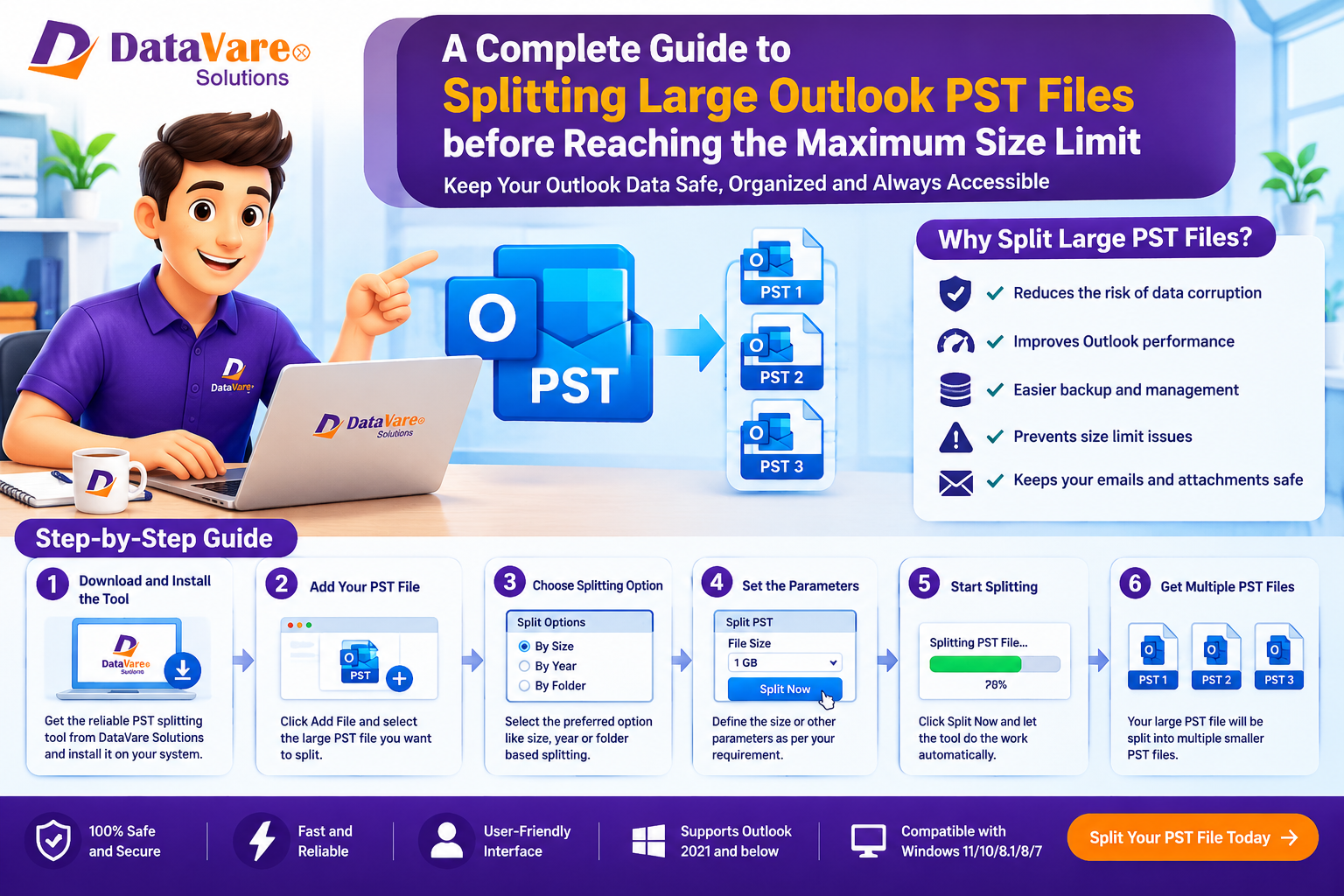
Reasons for Splitting Large Outlook PST Files
Older versions of Microsoft Outlook (Outlook 2007, 2010) were limited to 20 GB, whereas newer versions (Outlook 2016, 2019, and 365) default to a 50 GB restriction on PST files.
If your PST file approaches or exceeds this maximum size limit, you may suffer many problems, such as:
Outlook performance is sluggish Outlook takes forever to open, find an email or send a message.
File Corruption Risk: Larger PST files are more susceptible to being destroyed or corrupted, which can lead to data loss.
Outlook Freezing or Crashing: Outlook may crash or freeze often or exhibit “Not Responding” errors.
Sending/Receiving Errors: When the limit is reached, Outlook will stop storing new items and cease downloading new emails.
To prevent these hassles, it’s better to break your large PST file into smaller, manageable portions before you reach the essential size limit.
Method 1: How to Manually Split PST Files Using Built-in Outlook Features
There is no direct “Split” option in Microsoft Outlook but you may perform the same thing using the built-in capabilities such as Archiving or the Import/Export Wizard.
Option A: Use “Archive” to Compress PST File
The Archive option lets you move older e-mail into a new PST file with a date you select.
Launch Microsoft Outlook.
From the top-left corner, select the File menu.
Click Info > Tools (or Cleanup Tools) > Clean Up Old Items (or Archive).
Select the option Archive this file and all folders.
Select the folder you wish to clear up (e.g., Inbox or Sent Items).
In the Archive things older than box, choose a date (ex: items older than 6 months or 1 year).
Click Browse and choose where to save the new archived PST file and its name.
Press OK. Outlook will start saving the older items to the new PST file. This will make your main PST file smaller.
Option B: How to Split PST File With "Move to Folder" & Export Method
If you want more manual control over what goes in which file:
In Outlook, choose Home > New Items > More Items > Outlook Data File.
Create a new empty PST file and name it (e.g. Archive_2023.pst)
Create folders in your primary inbox and manually choose (select) a few emails, files or objects to move to the new data file you made.
After moving enough elements to lower the original file size right-click the new data file in the left side and select Close [File Name].
Disadvantages of Manual Methods
Manual techniques, however free and built-in, have certain drawbacks:
Time-Consuming: Moving Files, Archiving folders one by one is a time-consuming and laborious process.
Human Error: You may accidently miss some vital folders or remove anything by mistake.
No Direct Size Based Splitting: Outlook does not allow splitting a 40 GB file into four 10 GB files automatically.
Requires Technical Proficiency: The complicated menu structure of Outlook might be a challenge for those who aren't tech-savvy.
Method 2: Easy Way to Split PST Files Using Outlook PST Split Expert Tool
If you have really big PST files (e.g. 20GB, 40GB or greater) or you have several PST files to deal with, manual techniques may not be practicable. With the help of a dedicated third-party software like DataVare Outlook PST Split Expert Tool, the entire procedure becomes effortless.
Features of Outlook PST Split Expert:
Various Splitting Criteria: Split PST files based on size (e.g. 2 GB, 5 GB, 10 GB), year, folder or date period.
Data Integrity Maintained: Original folder structure, attachments, Meta properties (To, From, CC, Subject) & formatting.
Supports All PST Formats: Works with ANSI and Unicode PST files of any Outlook version.
No Outlook Required: You may process PST files even without installing MS Outlook on your machine.
Handles Large Files: It does not crash or freeze when processing big PST files.
How to Use Outlook PST Split Expert Tool Step by Step
Download & Install: Get the Outlook PST Split Expert Utility from the official website and set up it on your computer.
Add PST File(s): Click the Browse or Add File/Folder button to load the huge PST file(s) you want to divide.
Splitting Option Select your option:
Split by Size: Define the precise file size limit for an output file (e.g. 5 GB).
Split PST by Year: Generate distinct PST files for each calendar year.
Split by Folder: Split folders (Inbox, Sent, Drafts) to different PST files.
Choose Destination Path- Click Browse to choose the area on your hard drive where you wish to save the new smaller PST files.
Begin Splitting: Press the split now button. The file will be handled securely and a notice will be shown upon completion of the application.
Q&A (Frequently Asked Questions)
Q1: What is the maximum size of PST file that Outlook can safely handle?
A: Newer versions of Outlook can handle up to 50 GB, however it’s best practice to keep your PST files under 20 GB to 30 GB to ensure smooth performance and to avoid file corruption.
Q2. Will I lose any of my emails or attachments if I divide my PST file?
A: No. Splitting only rearranges your data into smaller container files. None of your emails, attachments, contacts or calendar entries will be lost or changed.
Q3: How to divide a password protected PST file?
A: Yeah. Such password-protected PST files may be securely processed by both the built-in ways of Outlook (after entering the password) and Outlook PST Split Expert-like programs.
Q4: How to open the freshly produced PST files again in Outlook?
A: In Outlook, click File > Open & Export > Open Outlook Data File. Navigate to the location of your freshly divided PST file, pick it and click OK. It will show up in your left side panel.
Q5: Can I divide a corrupted or damaged PST file?
A. If a PST file is substantially contaminated, it is advisable to repair it before trying to divide it, either using Outlook’s built-in scanpst.exe tool or a PST repair application.
Conclusion
Handling big Outlook PST files are important to maintain the health of your email client and preserve your sensitive data safe from damage.
If you merely have a mildly huge file and minimal technical knowledge, Outlook’s built-in Archive tool is a nice free choice. But if you are working with really big files, require an accurate split based on file size or want to process files fast without the danger of data loss, an automated solution like Outlook PST Split Expert Tool is the safest and most effective option.
Visit Website: https://www.datavare.com/software/outlook-pst-split-expert.html