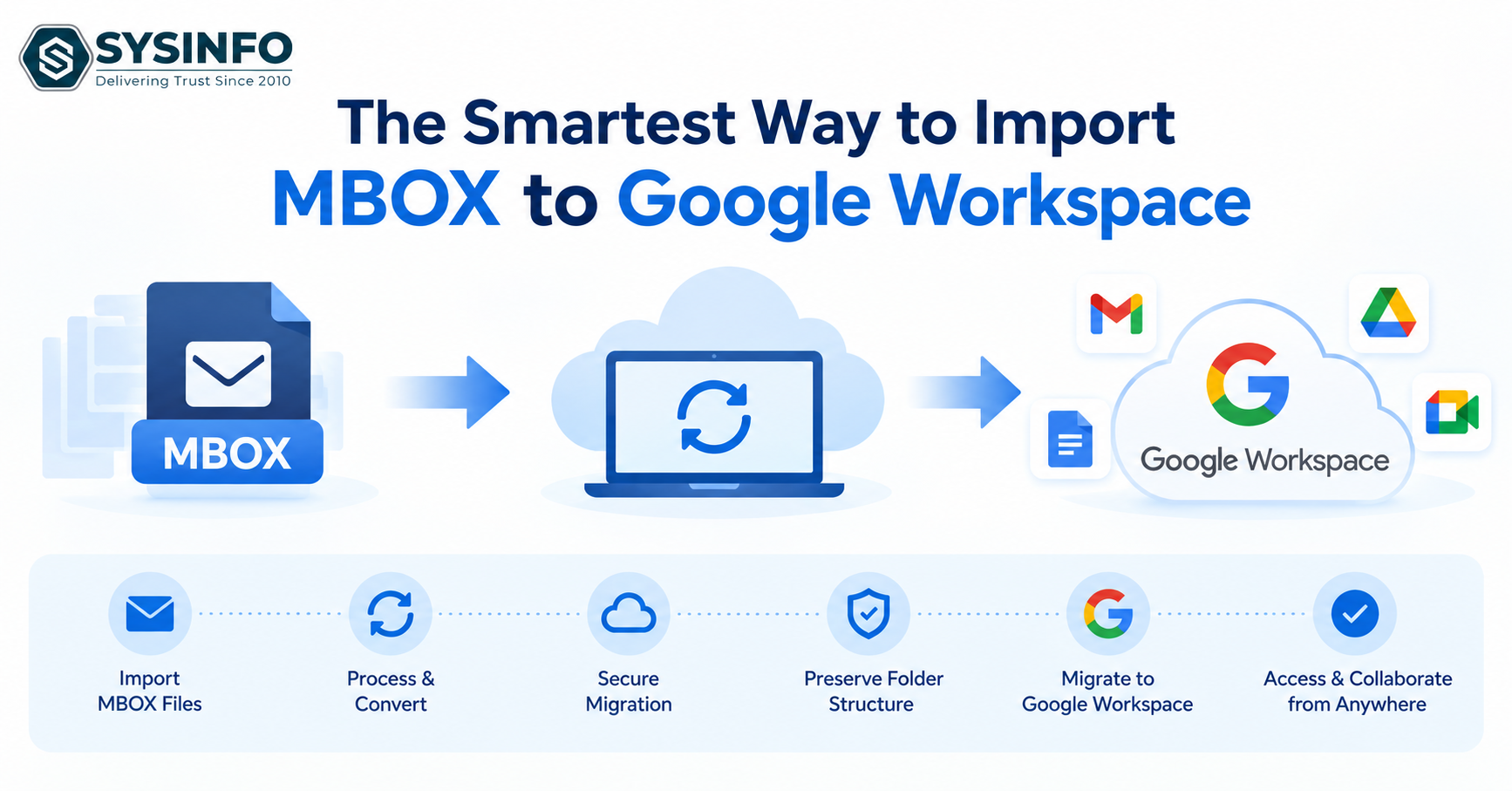
Introduction: MBOX is one of the most popular data formats for the storage of emails. Over time, the accumulation of data leads to issues like multiple account management, sharing of information, and backups becoming tedious. Google Workspace resolves through storing emails in the cloud, sharing between teams, and other business-related features. This blog covers the two best methods to import MBOX to Google Workspace — manual and a professional SysInfo MBOX Converter, which specializes in bulk data migration, advanced filtering, and several other custom options.
Why Users Import MBOX Files to Google Workspace
Access Anywhere: The emails may be accessed from anywhere and using any device.
Central mailbox: Consolidate your MBOXes (Thunderbird, Apple Mail, and others) under one Workspace account for better discovery and management.
Collaborative experience: Easy access to Docs, Sheets, Drive, Meet, and more Google services to associate your emails with day-to-day operations.
Reduced risk of data loss: Back up your emails to the cloud, which reduces the risk of data loss
Scalable and flexible: Add or delete users as your organization evolves while supporting IMAP/POP for continued desktop client access.
Business continuity and branding: during platform migrations, Vault restorations, or transitioning from personal Gmail to a custom business domain.
How to Import MBOX to Google Workspace?
There are two best ways to migrate emails: First, using Mozilla Thunderbird and IMAP synchronization. Second, using a professional tool that is built for advanced tasks and filtering. Let’s see the methods and use them as per your needs.
Method 1: Importing MBOX into Google Workspace using Thunderbird + IMAP Sync
This method requires Thunderbird to be pre-installed on the system. This process works in two different phases. First, import the MBOX into a local folder in Thunderbird. Second, manually move those emails into an IMAP-linked Google Workspace account. Steps:
Step 1: Set Up Thunderbird
To get started, download and install Mozilla Thunderbird. Since native MBOX support isn't built into the client, you need to install the ImportExportTools NG add-on (it's what actually handles the import and export functionality this migration depends on).
Step 2: Import the MBOX File Locally
Right-click on Local Folders in the sidebar.
From the context menu, select ImportExportTools NG > Import mbox file(s).
Select the MBOX file and upload it into Local Folders.
Step 3: Connect Your Google Workspace Account via IMAP
Proceed to Settings > Account Settings > Add Mail Account.
Enter your Google Workspace email address and corresponding credentials.
Under connection type, select IMAP.
Complete the authentication process.
Step 4: Transfer Emails to the Workspace Account
Within Local Folders, select the emails you previously imported from the MBOX file.
Drag and drop them into the corresponding folder under your Google Workspace account: the Inbox, or a custom label folder if you're preserving the original structure.
Thunderbird will initiate the upload, syncing each message to Gmail's servers over IMAP.
Step 5: Monitor the Sync Process
Keep Thunderbird active until the sync status confirms all messages have uploaded successfully.
Limitations of the Manual Method
Some limitations may occur and make impact when we import MBOX to G Suite. These are some of the reasons:
IMAP upload to Gmail is slower and less reliable, which can delay the entire migration.
Manual handling increases the chance of missed or incomplete syncs, which often go unnoticed until later.
Folder structure may not be preserved, which can disrupt existing organization.
Large attachments can slow uploads or trigger failures.
Entire MBOX files import as-is, since there's no range selection available.
IMAP sync often fails with large mailboxes, which interrupts the migration mid-process.
ImportExportTools NG's menu options vary by version, which sometimes requires workarounds to complete the import.
Each account needs separate configuration in Thunderbird.
No automated report confirming success/failure post-import.
Method 2: Professional Tool to Import MBOX to Google Workspace
When bulk migration or large mailboxes are involved, manual methods simply can't keep pace. This is where the SysInfo MBOX Converter proves useful. It can handle bulk conversion, preserve folder hierarchy, smart duplicate management, date-range filtering, a built-in preview panel, and attachment control, all within a single interface. Additionally, it imports MBOX files into Office 365 and email clients for added flexibility.
Steps to Migrate MBOX to Google Workspace:
Download and launch the tool. To import an MBOX file/folder, click “Select Files / Select Folder”, then open and click Proceed.
Then, go through the preview of emails, select the required ones for importing, and click Proceed again.
Next, choose Google Workspace under the email clients dropdown.
Now, enter the required admin email and JSON key to log in to Google Workspace.
You can apply filters (deduplication, date range, etc.) and click Export to import the emails.
Why Choose SysInfo MBOX Converter?
MBOX Converter Tool provides several advanced features that make it safer and more reliable. It can help you import MBOX files to Google Workspace with complete flexibility and scalability.
Emails, attachments, and metadata remain intact throughout the process.
Bulk processing & Custom Output location. Preserved folder structure
Provides date-range filtering to filter out emails within a specific time period
A preview panel to preview emails with their header, MIME, HTML, etc.
Built-in filters remove redundant emails based on fields like To, From, and Subject before migration.
Apply Naming Policy: Subject, Date, or a custom naming format which name your files according to the format makes better accessibility.
Provides Attachment Handling: Include or exclude attachments during export.
Conclusion
In this blog, we've explained the manual method and a professional alternative to import MBOX to Google Workspace. To begin with, the manual method requires Thunderbird to be installed, configured correctly, and relies on repeated manual effort. Moreover, large mailboxes experience synchronization and timeout issues, making the process unreliable for bulk migration. A professional tool resolves this through direct migration with bulk processing, built-in filtering, and several advanced functionalities. Additionally, you can use the demo version to test its features.
Frequently Asked Questions
Q1. Are there any size limitations when migrating MBOX files?
Ans: Google Workspace does limit individual message size and overall storage, so check your account beforehand. However, the SysInfo MBOX Exporter itself places no restrictions on the MBOX files it processes.
Q2. Can attachments be preserved during MBOX to Google Workspace migration?
Ans: Yes, though manual Thunderbird transfers may carry attachment risk at scale. The Professional tool is recommended, which provides attachment handling, whether to include, exclude, or save separately.
Q3. Can I import only emails from a specific date range?
Ans: Yes. The Converter Tool comes with a specific date range filter, where you can choose a start date and end date to filter out emails.
Q4. Does the tool remove duplicate emails automatically?
Ans: Yes, the SysInfo MBOX Exporter filters duplicates by To, From, and Subject. This keeps your destination mailbox clean, something manual migration can't do.
Q5. Is it possible to preview MBOX emails before completing the migration?
Ans: Yes, the professional tool includes a built-in preview panel. Meanwhile, the manual method offers no equivalent step before importing.