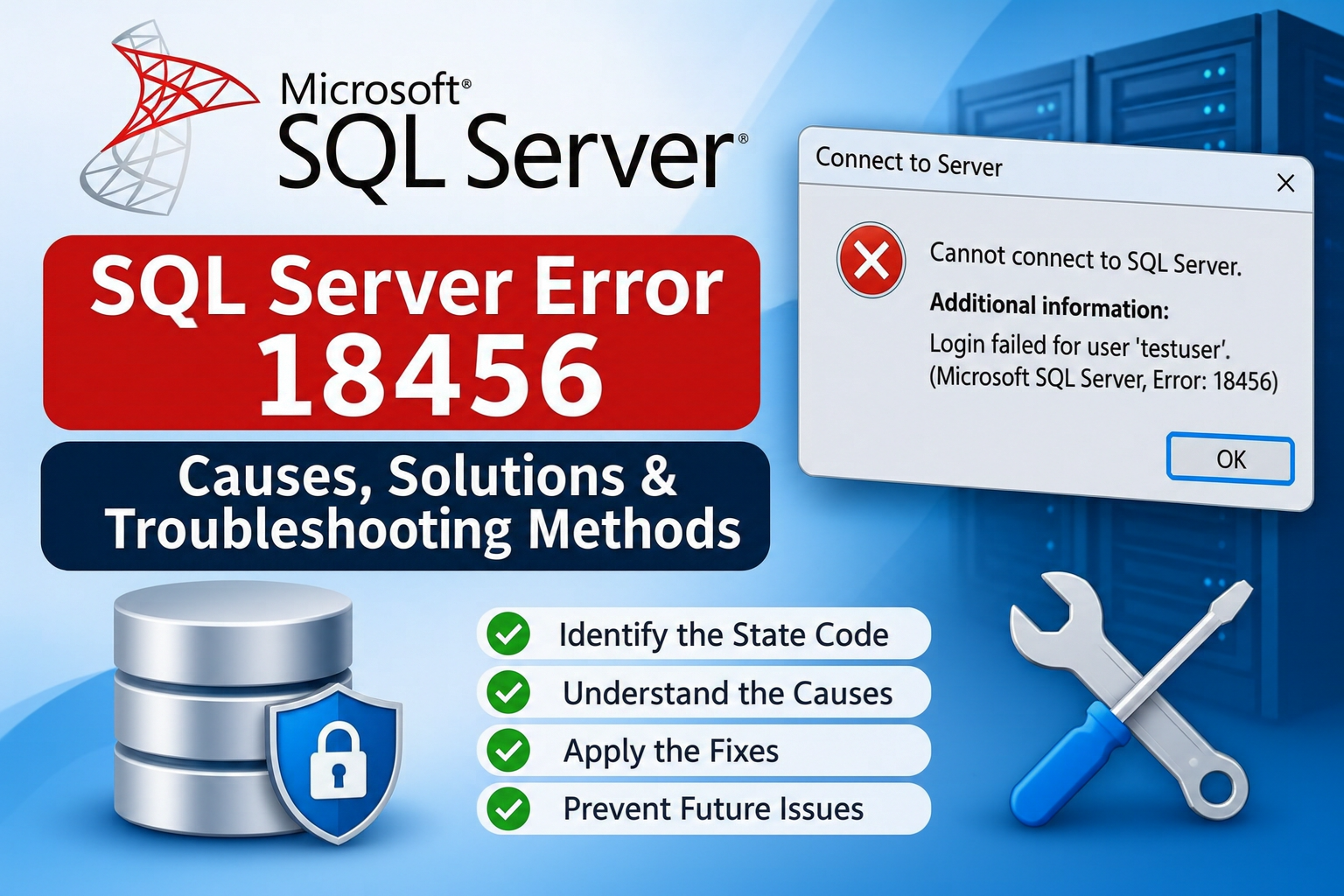
SQL Server Error 18456 occurs when SQL Server rejects a login attempt because it cannot authenticate the provided credentials or the login does not meet the server's authentication requirements. It commonly appears with the message "Login failed for user" followed by the login name and a state code.
This error can prevent database administrators, developers, and application users from accessing SQL Server databases. Although an incorrect password is a common reason, authentication mode mismatches, disabled logins, expired passwords, insufficient permissions, and server configuration issues can also trigger it.
The important part of troubleshooting Error 18456 is identifying its State Code. SQL Server records a state number in the error log, which helps narrow down why the login attempt failed. Instead of repeatedly changing credentials, administrators should first identify the state and then apply the appropriate fix.
This guide explains the common causes of SQL Server Error 18456 and the methods to resolve it.
What is SQL Server Error 18456?
SQL Server Error 18456 is a login authentication error generated when a connection request fails. It indicates that SQL Server could not authenticate the login attempting to connect to the instance.
The error generally appears in the following format:
TITLE: Connect to Server
Cannot connect to SQL Server.
Additional information:
Login failed for user 'username'.
(Microsoft SQL Server, Error: 18456)
The error may appear when connecting through SQL Server Management Studio (SSMS), an application, a client tool, or a remote connection. SQL Server also records a corresponding error entry in its SQL Server Error Log. This entry usually contains a State value that provides more information about the authentication failure.
For example:
Error: 18456, Severity: 14, State: 8.
Login failed for user 'username'.
Reason: Password did not match that for the login provided.
Here, State 8 indicates that the supplied password does not match the password associated with the SQL Server login.
Note: The error message displayed to the client may not reveal the exact reason for authentication failure. Checking the SQL Server Error Log is therefore an important troubleshooting step.
Common Causes of SQL Server Error 18456
Several authentication and configuration issues can cause SQL Server to reject a login request. The most common reasons include:
Incorrect login credentials: The username or password entered during connection does not match the SQL Server login credentials.
Disabled SQL Server login: The administrator has disabled the login account, preventing it from establishing a connection.
SQL Server authentication mode mismatch: The instance is configured for Windows Authentication only, but the user is attempting to connect using SQL Server Authentication.
Login does not exist: The specified login has not been created on the SQL Server instance.
Expired password: The SQL Server login password has expired or requires a password change.
Default database unavailable: The login's default database is offline, inaccessible, or otherwise unavailable.
Insufficient login permissions: The login does not have the required permissions to connect to the SQL Server instance.
Connection configuration issues: Incorrect server names, instance names, or authentication settings may cause connection attempts to fail.
Identifying the actual cause is necessary before applying a corrective action.
How to Check the State Code of SQL Server Error 18456
Before trying different solutions, check the SQL Server Error Log to identify the State Code associated with Error 18456.
Follow these steps:
Open SQL Server Management Studio (SSMS).
Connect to the SQL Server instance using an account with sufficient administrative permissions.
Expand the Management folder in Object Explorer.
Expand SQL Server Logs.
Right-click Current and select View SQL Server Log.
Search for Error 18456 and locate the corresponding login failure entry.
Check the State number and the reason mentioned in the log.
The error log may contain an entry similar to:
Error: 18456, Severity: 14, State: 8.
Login failed for user 'testuser'.
Reason: Password did not match that for the login provided.
You can also retrieve recent login failure entries using the following query:
EXEC xp_readerrorlog 0, 1, N'18456';
This command reads the current SQL Server error log and filters entries containing Error 18456.
SQL Server Error 18456 State Codes and Their Meaning
The State Code helps administrators determine the reason behind a failed login attempt. Below are some commonly encountered states and their explanations.
State 1: SQL Server cannot provide detailed authentication information. Check the server error log for additional details.
State 2: The supplied user ID is invalid.
State 5: The specified login does not exist.
State 6: A Windows login name was used with SQL Server Authentication.
State 7: The login is disabled, and the password is incorrect.
State 8: The supplied password is incorrect.
State 9: The password is invalid.
State 11: The login is valid, but server-level access validation failed.
State 12: The login is valid, but access to the server was denied.
State 18: The login password must be changed.
State 38: SQL Server could not find or open the database requested by the login.
State 46: The requested database could not be found.
State 58: SQL Server is configured for Windows Authentication only, but the connection is attempting SQL Server Authentication.
These are common states, not an exhaustive list. Some SQL Server versions and authentication configurations may produce additional state codes. Always verify the reason recorded in the error log before applying a fix.
How to Fix SQL Server Error 18456
Once you identify the State Code and the corresponding authentication issue, apply the appropriate troubleshooting method.
Method 1. Verify the SQL Server Login Credentials
Incorrect usernames and passwords are among the most common reasons for SQL Server Error 18456. If the login credentials do not match the credentials stored in SQL Server, the Database Engine rejects the connection.
To resolve this issue:
Open SQL Server Management Studio.
Navigate to the Connect to Server window.
Verify that the correct SQL Server instance name is entered.
Select SQL Server Authentication if you are using a SQL login.
Enter the correct username and password.
Try connecting again.
If the password has been changed recently, update the credentials in the application or connection string as well.
For application connections, verify that the connection string does not contain an outdated password.
Method 2. Enable SQL Server Authentication Mode
SQL Server supports two authentication modes:
Windows Authentication Mode: Allows users to connect using their Windows credentials.
SQL Server and Windows Authentication Mode: Also known as Mixed Mode, it supports both Windows and SQL Server logins.
If the SQL Server instance is configured for Windows Authentication only, users cannot connect using SQL Server Authentication. This can result in Error 18456, particularly State 58.
Follow these steps to enable Mixed Mode Authentication:
Open SQL Server Management Studio.
Connect to the SQL Server instance.
Right-click the server name and select Properties.
Navigate to the Security page.
Under Server Authentication, select SQL Server and Windows Authentication mode.
Click OK to save the changes.
Restart the SQL Server service for the authentication mode change to take effect.
After restarting the service, try connecting with the SQL Server login again.
Important: Enable Mixed Mode only when SQL Server Authentication is required. Use strong passwords and follow your organization's authentication policies.
Method 3. Enable the Disabled SQL Server Login
A SQL Server login can be disabled by an administrator for security or access management purposes. If a user attempts to connect through a disabled login, SQL Server may generate Error 18456 with State 7.
To check whether a login is disabled, execute the following query using an account with sufficient permissions:
SELECT
name AS LoginName,
is_disabled
FROM sys.server_principals
WHERE name = 'testuser';
If the is_disabled value is 1, the login is disabled.
To enable it, execute:
ALTER LOGIN [testuser] ENABLE;
Replace testuser with the actual SQL Server login name.
Once the login is enabled, retry the connection. If the password is also incorrect, reset it separately before attempting to connect.
Method 4. Reset the SQL Server Login Password
If the SQL Server Error Log indicates that the supplied password does not match the login credentials, resetting the password can resolve the issue.
An administrator with the required permissions can change a SQL Server login password using the following command:
ALTER LOGIN [testuser]
WITH PASSWORD = 'NewStrongPassword@123';
Replace the login name and sample password with the appropriate values.
If the password has expired or the login requires a password change, an administrator can also use:
ALTER LOGIN [testuser]
WITH PASSWORD = 'NewStrongPassword@123',
CHECK_POLICY = ON;
After changing the password, update the corresponding application connection strings, scheduled jobs, and other services that use the login.
What if the SQL Server login password is forgotten?
If the existing password is unavailable, an authorized administrator can reset it using ALTER LOGIN. If the administrator needs to recover SQL Server login passwords rather than manually troubleshoot individual login accounts, a dedicated SQL password recovery utility can also be considered.
The SysTools SQL Password Recovery Tool provides an alternative for working with SQL Server login passwords when the original credentials are unavailable. It is particularly relevant when password recovery is the primary requirement rather than a server authentication configuration issue.
Method 5. Change the Default Database for the Login
Sometimes SQL Server Error 18456 occurs because the login's default database is unavailable.
For example, the database may be offline, deleted, renamed, or inaccessible to the login. In such cases, SQL Server may reject the connection even when the username and password are correct.
To resolve this issue, change the login's default database to an available database.
Execute the following command:
ALTER LOGIN [testuser]
WITH DEFAULT_DATABASE = [master];
Alternatively, you can change the default database through SSMS:
Expand the Security folder in Object Explorer.
Expand Logins.
Right-click the affected login and select Properties.
Open the General page.
Change the Default Database to an available database, such as master.
Click OK.
Try connecting again using the same login credentials.
If the connection succeeds, investigate the original default database separately to determine why it was unavailable.
Method 6. Verify SQL Server Login Permissions
A login may exist on the SQL Server instance but still lack the permissions required to access the server or a particular database.
This can happen when a login is created without the appropriate server-level access or when a database user is not correctly mapped to its corresponding login.
First, check whether the login exists:
SELECT name, type_desc
FROM sys.server_principals
WHERE name = 'testuser';
If the login exists, verify its database access.
To create a database user mapped to an existing login, execute the following command inside the required database:
CREATE USER [testuser]
FOR LOGIN [testuser];
If the user already exists, check its role memberships and permissions instead of creating another user.
For example, to grant read access to a database:
ALTER ROLE db_datareader
ADD MEMBER [testuser];
Grant only the permissions required by the user. Avoid adding logins to the sysadmin server role simply to bypass authentication problems.
Method 7. Check the SQL Server Connection String
Applications, websites, and other services often connect to SQL Server through connection strings. Incorrect connection details or outdated credentials can result in Error 18456.
For example, a SQL Server connection string may look like this:
Server=SERVERNAME\INSTANCE;
Database=SampleDB;
User ID=testuser;
Password=YourPassword;
Check the following parameters:
Server: Verify the SQL Server hostname and instance name.
Database: Confirm that the specified database exists and is accessible.
User ID: Ensure that the correct SQL Server login is being used.
Password: Verify that the password is current.
Authentication: Confirm that the application uses the correct authentication method.
If the password was changed recently, update the application's configuration files or connection settings.
For applications using Windows Authentication, verify that the application process is running under the intended Windows account. The account used by a service or scheduled task may differ from the account used when testing the connection manually.
Method 8. Check the SQL Server Error Log for Additional Authentication Issues
If the previous methods do not resolve the issue, inspect the SQL Server Error Log for additional information.
The error log may contain messages related to:
Windows authentication failures.
Login token validation errors.
Database access restrictions.
Password expiration.
Domain authentication problems.
Kerberos and Service Principal Name (SPN) configuration.
For Windows Authentication failures, verify that the user is connected to the correct domain and that SQL Server can validate the Windows credentials.
If the error involves NT AUTHORITY\ANONYMOUS LOGON, investigate Kerberos delegation and SPN configuration, especially when connections pass through an application server or linked server.
These issues may require assistance from the Windows or Active Directory administrator rather than changes to SQL Server login passwords.
Best Practices to Prevent SQL Server Error 18456
Repeated login failures can interrupt database operations and affect applications that depend on SQL Server connectivity. Database administrators can follow these practices to minimize authentication-related issues.
Use strong passwords: Create secure passwords for SQL Server logins and update them according to organizational security policies.
Review login permissions: Regularly audit SQL Server logins and remove unnecessary access.
Monitor failed login attempts: Check SQL Server Error Logs to identify repeated authentication failures.
Maintain application credentials: Update connection strings whenever SQL Server login credentials change.
Verify authentication settings: Ensure that the configured authentication mode matches the requirements of connecting applications.
Manage default databases: Assign accessible default databases to SQL Server logins.
Avoid unnecessary login disabling: Disable accounts only when required and verify their status before troubleshooting connection failures.
Monitor Windows authentication: Check domain connectivity, service accounts, and Kerberos configurations when Windows login attempts fail.
Frequently Asked Questions (FAQs)
Q1. What causes SQL Server Error 18456?
SQL Server Error 18456 occurs when the Database Engine rejects a login attempt. Common causes include incorrect usernames or passwords, disabled logins, incorrect authentication modes, missing login permissions, and unavailable default databases.
Q2. How do I fix SQL Server Error 18456 State 8?
State 8 indicates that the supplied password is incorrect. Verify the SQL Server login credentials or reset the password using the ALTER LOGIN command.
Q3. What does SQL Server Error 18456 State 7 mean?
State 7 generally indicates that the SQL Server login is disabled and the supplied password is incorrect. Check the login status and enable the account using ALTER LOGIN [username] ENABLE; if access is authorized.
Q4. How do I fix SQL Server Error 18456 State 58?
State 58 commonly occurs when SQL Server is configured for Windows Authentication only, but a user attempts to connect using SQL Server Authentication. Enable Mixed Mode Authentication if SQL logins are required, and restart the SQL Server service.
Q5. Can SQL Server Error 18456 occur even with the correct password?
Yes. Error 18456 does not always indicate an incorrect password. It can also occur because of disabled logins, authentication mode mismatches, insufficient permissions, or an unavailable requested database.
Q6. How can I check failed login attempts in SQL Server?
Open SSMS, navigate to Management → SQL Server Logs → Current, and search for Error 18456. Alternatively, execute:
EXEC xp_readerrorlog 0, 1, N'18456';
Q7. Is SQL Server Error 18456 related to Error 18486?
No. These are different SQL Server error numbers. Error 18456 indicates a login authentication failure, whereas Error 18486 is associated with a different login-related condition. The error number and complete message should be checked before selecting a troubleshooting method.
Conclusion
SQL Server Error 18456 is a common authentication-related problem that can prevent users and applications from connecting to a SQL Server instance. Although incorrect login credentials are a frequent cause, authentication mode mismatches, disabled accounts, unavailable databases, and permission issues can also trigger this error.
The most effective troubleshooting approach is to identify the State Code in the SQL Server Error Log and determine the actual reason behind the failed login. Once the cause is identified, administrators can apply the appropriate solution, whether that involves correcting credentials, enabling a login, changing authentication settings, or fixing database access.
Regularly monitoring SQL Server login activity and maintaining accurate authentication configurations can also help prevent recurring login failures.