Chances are, if you've been using Microsoft Outlook for a few years, your PST file has become considerably bigger than you ever intended. What starts as a basic inbox quickly evolves into a large library of 20 GB or 30 GB of old client chats, bills, project updates, and files you forgot existed.
The real difficulty is when you require only one folder out of that big file. Maybe your manager asked you for all of the emails from a project you just finished in 2024. Or perhaps you’re upgrading to a new laptop, and you don’t want to carry over your whole huge archive- just two crucial files. Or moving or backing up a massive PST file takes a long time, and half the time Outlook slows down or freezes right in the middle of it.
Only pulling out the files you need makes things neat, fast, and much safer. Below, will walk over the standard manual method within Outlook, where that method falls short, and how a specialized tool makes the work a whole lot simpler.
Why extract just particular folders?
Before we get into the methods, here’s why selective extraction is often a better practice than transferring a full PST file around:
It governs the size of files: When large PST files exceed 20 GB, they might become slow or corrupt. You can prevent your active mailbox from crashing by breaking apart old folders into smaller files.
Saves a lot of time: Uploading or transferring a 1.5 GB project folder across a shared disk takes a few minutes. Try the same thing with a 35 GB file, and say goodbye to half an afternoon.
Easier sharing and audits: If a legal team or client requests records related to a particular account, you don’t want to provide your whole personal or business inbox. “Exporting only that folder makes everything else private.
Less clutter in your everyday work: Moving completed tasks to separate archive files makes searching your active Outlook substantially faster.
Method 1: How to Extract a Folder in Outlook Manually
There is also a built-in Export wizard in Microsoft Outlook that will allow you to extract a single folder into a completely new PST file. If you have Outlook installed on your PC and the original PST file opens without issues, you do not need anything more for this.
Step 1: Open Microsoft Outlook by clicking on File in the top-left corner of your Windows PC.
Step 2: Click Open & Export on the left menu, then click Import/Export.
Step 3: A little wizard window pops up. Click Export to a file. Click Next
Step 4: Select Outlook Data File (.pst) from the list and click Next again.
Step 5: Now you see your mailbox folders organized in a tree. Expand your account or archive, then single-click the particular folder you wish to extract, for example, a specific folder within your Inbox.
If that folder contains smaller folders you’d like to move too, make sure the Include subfolders option is checked.
Or do you want to limit it down by date or sender? Click the Filter option at the bottom to set up those rules. Click next when you are ready.
Step 6: Click Browse and select a location on your computer to save the new PST file, and give it a clear name. Select whether Outlook should skip or replace duplicate items using the choices below, and then click Finish.
Step 7. Outlook asks whether you wish to establish a password on this new PST file. If you do not require one, just leave the boxes blank and click OK.
Depending on how many emails are inside, let it a minute or two, and your standalone PST file will be ready in the folder you specified.
Where the Manual Method Begins to Get Annoying
The built-in wizard in Outlook looks nice on paper. But in real life folks hit a couple of bothersome hurdles quite quickly:
You will have to do it one folder at a time; Outlook only allows you to select one folder branch each export. If you want to pull out your Sent Items (a folder under Inbox) and two custom archive folders, you have to run through the full 7-step sequence four times.
Outlook has to be installed and running: If you have a standalone PST file on a USB drive or a new machine where Outlook is not yet set up, the manual technique won't help you whatsoever.
It chokes on old or slightly damaged PSTs. If the PST file is from an older system or has modest header corruption, Outlook will often raise an error or hang halfway through the export.
You’re stuck with PST or plain CSV: You cannot extract a folder straight as EML files, MSG files, or merely the attachments in one go with this process.
Method 2: Using a Specific Third-Party PST Extractor
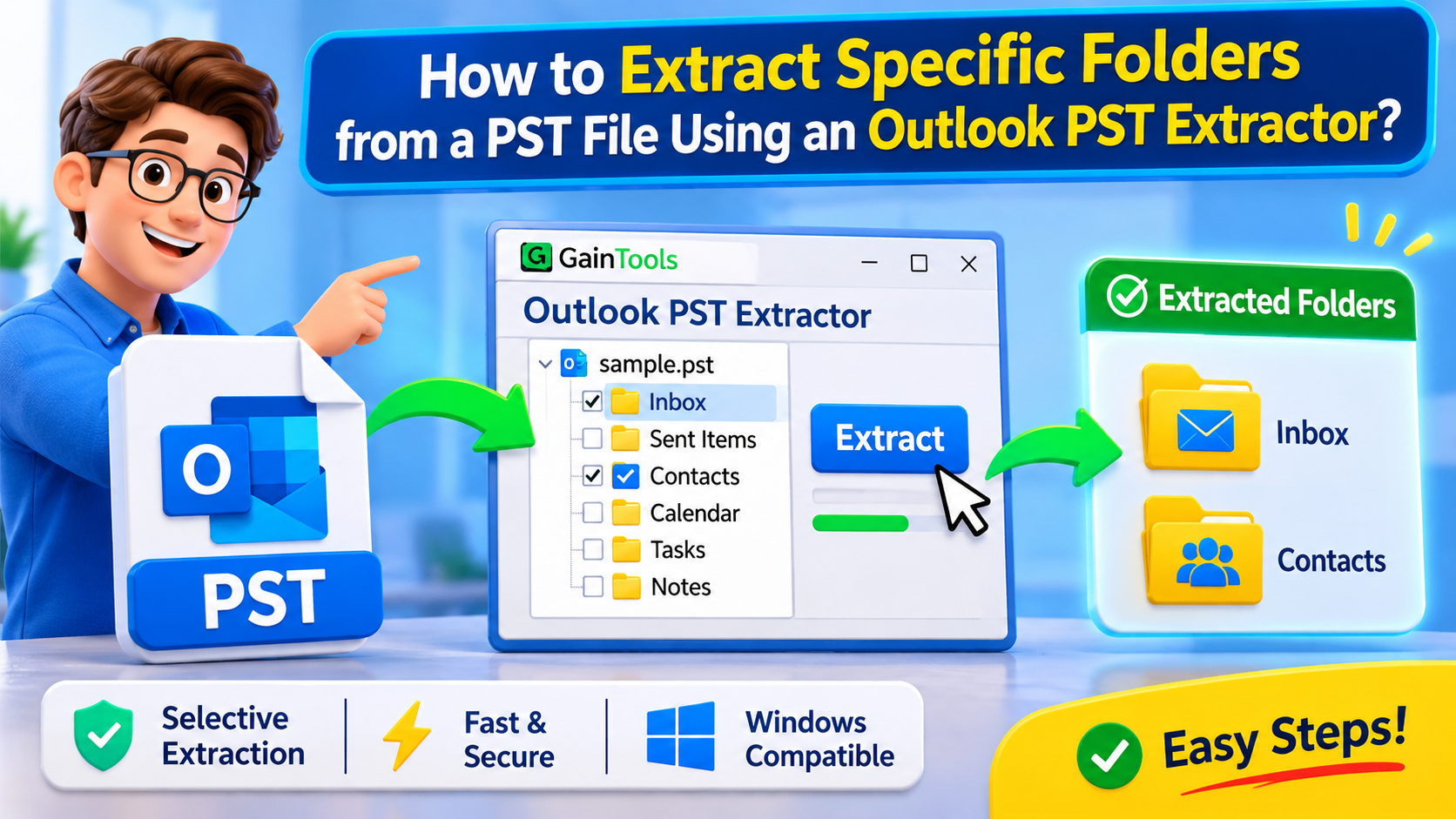
Having folders spread over many branches, or just not wanting to deal with Outlook stalling on a 25 GB file, a specialized program can save you a lot of patience. Just like GainTools Outlook Extractor Software, you may load a PST file on your screen, choose any folders that you want from the whole mailbox, and extract them in a single batch without ever opening Outlook.
And this is how the procedure goes using a specialist extractor tool:
1. Run the app and add your PST file
Download and run the software on your Windows PC. Please click on the Browse button and choose the PST file from your hard disk or external storage.
2. View your inbox folders
Once the file is loaded, the program reads the file and gives you your full folder list on the left, including Inbox, Sent Items, and Drafts, Contacts, Calendars and any custom folders you made over the years. You may click through and see the emails within before you export anything.
3. Select the particular directories you need
Drill down the folder tree and tick boxes adjacent to folders you really require. You are not restricted to one branch, unlike the native wizard in Outlook; you may pick five entirely separate folders at a time.
4. Select what you want to extract
Depending on the requirements of your assignment, you have the choice of saving the chosen folders to a new PST file, separate message formats (EML, MSG), or extracting particular things like email attachments and contacts.
5. Select a target folder and begin
Click Browse to select an empty folder on your PC where you want to save the output, and then click Extract. The program processes only the items you ticked, preserving your original folder names, timestamps, and attachments.
Quick Look: Manual Outlook Export vs. Third-Party Tool
If you are attempting to decide which method makes the most sense for your scenario, here’s how they stack up:
Need Outlook. The manual technique needs a functional Outlook desktop application alone. The PST file is read in isolation by a third-party extractor.
Multiple folder selection: Unfortunately, Outlook limits you to export one folder branch at a time. You can click many unconnected folders at one time using a specialized tool.
Heavy archive handling: When dealing with big PST files with thousands of attachments, Outlook will frequently stall or freeze. Dedicated extractors are designed to chew through multi-GB files effortlessly.
First, previewing data: The Outlook wizard exports blindly without exposing what is within. Third-party programs will initially provide you with a complete preview pane.
Manual export is only available for PST or simple CSV data formats. Support for native tools like PST, EML, MSG, and direct extraction of attachments.
A Few Quick Tips before You Begin
Keep a backup copy: Always make a copy of the original file to another folder before doing any export or extraction on an essential PST file, just in case.
Check your free drive space: Make sure the disk where you are saving the extracted folders has enough space – double the size of the files you are extracting would be ideal.
Close Outlook fully if you are using a third-party extractor on a PST file that is attached to your active Outlook profile, so that Windows does not lock the file while the program is trying to read it.
Frequently Asked Questions FAQs
Can I extract folders from PST file without installing Microsoft Outlook on my PC?
Yes. Both of the manual export processes clearly require Outlook to be operating on your computer, but third-party PST extractors read the PST file structure on their own. You may search and copy the folders from a clean Windows PC without Office.
When I pull out a folder, does it erase the emails from my original PST?
Not a bit. The Outlook export wizard and third-party extractor programs simply read and transfer the data you chose to a new file. Your original PST stays intact until you remove the folders yourself later.
Is it possible to export 3 or 4 separate folders at once?
Not with Outlook’s own wizard, which allows you to capture only one folder (and its subfolders) every session. If you wish to select numerous individual folders at the same time, you’ll need a specialist extractor tool with multi-folder checkboxes.
Will my email attachments and formatting be kept intact?
Yes, as long as you export to PST, MSG, or EML format. All the formatting for PDFs, pictures, timestamps, and email threads is preserved. If you care about attachments, just don’t export to CSV as CSV just stores plain text.
What if my PST file is password protected?
If the PST file had a password established on it before, Outlook will prompt you to enter it before allowing you to open or export anything from the file. Third-party PST programs will also need that password before they provide you a glimpse of the folder.
What size would you consider separating folders off of your PST?
Technically, recent Outlook versions support PST files up to 50 GB; however, performance often becomes slow when a file becomes larger than 15 GB to 20 GB. When your file reaches about 10 GB, a simple strategy to keep Outlook working smoothly is to pull out older project folders.
Visit Website: https://www.gaintools.com/outlook-extractor/