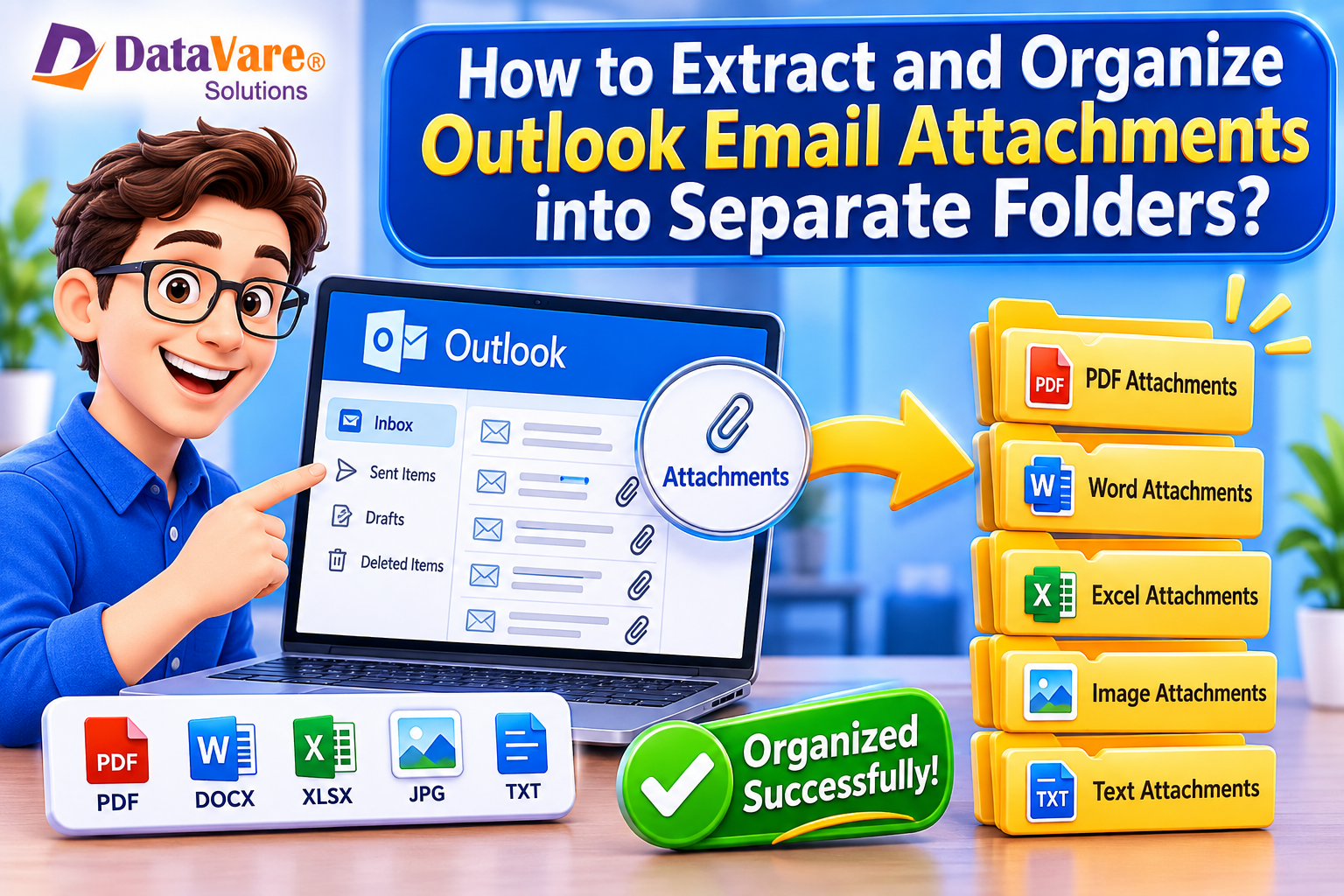
A messy inbox may rapidly turn into a daily annoyance, especially when essential papers, invoices, photos, and spreadsheets get lost in hundreds of email threads. Microsoft Outlook is a workhorse for corporate communication, but it lacks native file management when you need to extract files from your inbox and neatly stash them on your computer. Over time, thousands of large files accumulate within your Outlook data files (PST or OST). This doesn't just make locating a single PDF tedious, but it also bloats your mailbox capacity, slows down search speed, and raises the chance of file corruption.
If you’re getting ready for a financial audit, archiving project deliverables, backing up client information, or just attempting to clear some space in your email profile, putting attachments into their own local folders is one of the best habits you can develop. In this post,t we’ll look at why separating attachments is important, how you may do this manually within Outlook, how a specialized third-party solution makes light work of bulk extraction, and the answers to the most frequent queries users have along the way.
Why You Should Extract and Organize Outlook Attachments?
Before we get into the how-to’s, it’s useful to consider the practical benefits of moving attachments out of your email client and into organized folders on your hard drive or cloud storage:
Don’t let PST and OST files get too big: Attachments to emails usually make up the lion’s share of the overall size of a mailbox. If an Outlook data file becomes too big, the application may slow, freeze, zip, or even damage data. Extracting attachments quickly reduces your mailbox footprint.
Faster File Retrieval: To find a particular spreadsheet or contract in Outlook, you need to remember who sent it to you and roughly when you got it. Saved in clearly named folders (Invoices 2026, Client Contracts, Project Assets, etc.), Windows File Explorer can find them in seconds.
Easier Sharing and Collaboration: Your project files still need to be accessible to team members who might not have access to your inbox. Then drop the extracted papers in a shared network drive or synced folder, and everyone can work away without having to forward old email chains.
Reliable Offline Backups: Having all your key company papers trapped within an email database is a single point of failure. Export attachments and you have clean copies of files, standalone, that are easy to back up to cloud archives or external disks.
Reduce Redundant Clutter: Reply-all email threads can quickly lead to several copies of the same presentation or document. You can sort attachments remotely, so you can delete duplicates and preserve only the final version.
Method 1: Manual methods to extract attachments in Microsoft Outlook
For those who must handle only a few emails every week, Microsoft Outlook has built-in choices for manual file saving. These are the two main ways to accomplish this without installing anything additional.
Option A: Save All Attachments from One Email
If all attachments are in one message, you do not need to download five or ten of them individually. Outlook can store all of the attachments from that one email, all at once:
Launch Microsoft Outlook on your desktop. Go to the email that contains the files you wish to save.
Click on any attachment in the reading window and the Attachment Tools tab will appear on the top ribbon, or click the little downward arrow next to one of the attached files.
Click on the submenu and choose Save All Attachments.
A dialog box will be displayed with a list of all attachments in that message. Confirm by clicking OK.
Browse to the destination folder on your PC – or choose New Folder to establish a dedicated directory for that project or sender – and hit OK.
Best for: saving several files sent in a single email.
Option B: Semi-Automated Organization using VBA Macros and Outlook Rules
There is no built-in button in Outlook to remove attachments from hundreds of distinct emails all at once. But more technically comfortable users sometimes connect a VBA (Visual Basic for Applications) macro with an Outlook Rule to automatically store attachments from incoming messages.
In Outlook, press Alt + F11 to enter the Visual Basic editor.
Create a new module and paste a customized VBA script that is set to process the chosen emails or new incoming messages and save the attachments to a local folder (for example, C:\OutlookAttachments\).
Save the macro and activate Macros in the Trust Center settings in Outlook.
File > Manage Rules & Alerts. Create a custom Outlook Rule that runs the script whenever you get emails from certain senders or containing certain keywords.
Best for: Tech-savvy individuals who wish to automatically route incoming files as long as Outlook is open and functioning.
Drawbacks of the manual approach
However, manual extraction is free and built-in; it runs into major stumbling blocks as your email traffic grows:
No Mass Multi-Email Extract: You have to open each email individually and repeat the Save All Attachments operation. If you do this for 500 emails or 5,000 emails, it can take hours or days.
No automatic folder hierarchy – the user has to manually create distinct folders for each sender, date, or file type and keep doing this regularly.
Risk of Overwriting Files: If two distinct clients send a file titled Invoice.pdf, putting them in the same folder will compel you to manually rename files or risk overwriting previous data.
VBA Security & Complexity: Writing and maintaining VBA scripts may be daunting for non-technical users, and corporate IT policies often ban macros due to security concerns.
Active Outlook Access Required: The manual techniques will only work if you have Microsoft Outlook installed, correctly configured, and able to open your mailbox without issues.
Method 2: Automatically Bulk Extract Using a Third-Party Tool
If you need to extract attachments from thousands of archived emails, old PST backups, or a bunch of mailbox folders in minutes, rather than days, the most practical way is to use a specialized desktop program. For this task, you can select for the DataVare Outlook Attachment Extractor Software that helps you extract all attachments from Outlook data files and save them in local folders straight without any manual sorting or sophisticated scripts.
Main benefits of automated extraction
There's a specific utility for practically every aggravation of saving manually:
Actual Batch Processing: Select an entire PST file or many mailbox folders and extract thousands of attachments in one go.
Keeps Folder Structure Intact: Automated programs do not dump all files in a single messy directory. They keep your original Outlook folder structure (Inbox, Sent Items, custom subfolders) intact on your local computer.
File-Type Filtering: Need just PDFs and Excel spreadsheets, not email signature logos (PNG/JPG)? Built-in filters allow you to target certain file extensions.
Duplicate Prevention: Intelligent filtering features allow you to skip duplicate attachments by file name and size, keeping your destination folders clean.
Independent of Outlook: The application reads PST files directly on your Windows PC, so you don’t even need Microsoft Outlook installed or configured to recover your attachments.
100% Local Privacy: Desktop extraction operates fully offline on your PC, unlike web-based uploaders, so confidential client contracts and financial information stay absolutely secret.
Bulk Attachments Extraction Step-by-Step Guide
When you follow a workflow, your files will be well organized from the very beginning:
Download and Start the Utility: Install the desktop extractor on your Windows PC (compatible with Windows 11, 10, 8.1, 8, and 7) and launch the software.
Load your Outlook Data File: Click on the Browse button to choose the target PST file from your PC. If you have several archive files in various folders, you can load them as required.
Preview and Select Folders: After scanning, your mailbox folders will be shown in a neat tree layout on the interface. Uncheck folders that you do not want to extract from, such as Junk Email or Deleted Items, and check the exact folders that you want to extract from, such as Invoices, Client Projects, or Inbox.
Apply Attachment Filters (Optional): Decide if you wish to extract all file formats or solely filter .pdf,.xlsx,.docx, .zip, or image files. You may also turn on duplicate elimination to reduce clutter.
Select Your Destination Folder: Click the Browse button next to the output path option and select or create a dedicated folder on your local disk (for instance, D:\Extracted_Outlook_Files\).
Hit the Extract or Process button to start the extraction. All matching attachments are saved in nicely organized folders on your hard disk for instant access in a few moments.
Best Practices for Organizing Extracted Attachments
Once your files are securely exported to your computer, a few easy practices will keep them neat for years to come:
Use a consistent folder naming convention. Organize top-level folders by year and category (e.g., 2026 > Vendors > Invoices) for straightforward navigation by anybody on your team.
Identify Signature Images vs. Real Documents: Email footers typically feature tiny social media symbols or corporate logos. Filtering tiny picture files or sorting by file type keeps your folders focused on actual content.
Archive and Compress Your Outlook PST: Once you have verified that your attachments are safely saved on your disk and backed up, you may delete large files from older emails inside Outlook to maintain a fast and responsive inbox.
Backup Your Destination Folder: Sync your extracted attachment folder with OneDrive, Google Drive, or an external backup disk so you’ll never have to worry about local hardware difficulties threatening your papers.
FAQ’s (Frequently Asked Questions)
Q1. Can I remove attachments from numerous emails at once using Outlook itself?
No. Microsoft Outlook’s built-in Save All Attachments function only works on one chosen email at a time. If you want to bulk extract attachments from hundreds or thousands of emails, you will have to make a new VBA script or utilize a dedicated third-party attachment extractor.
Q2. Do I need to install Microsoft Outlook on my PC to extract attachments from a PST file?
Yes, if you use the manual technique, you need to have Outlook installed, and your profile must be active. However, a standalone desktop extractor can read PST files directly on Windows and lets you extract your contents even on a PC where Outlook is not installed.
Q3. Will downloading attachments change or erase my original mail?
No. Standard extraction tools will read your Outlook data file in a non-destructive fashion. Your original emails, folder structure, and attachments inside the PST file are totally unaltered.
Q4. Is it possible to extract certain file formats like PDFs or Excel files?
Yes. You may apply filters for file extensions so that the extraction application extracts only PDF, DOCX, XLSX, ZIP, or picture files and ignores undesired attachments.
Q5. What versions of Windows and Outlook are supported?
Most of the contemporary desktop extractors handle PST files generated across all major versions of Microsoft Outlook, including Outlook 2021, 2019, 2016, 2013, 201,0 and 20,07 and function smoothly on Windows 11, 10, 8.1, 8, and 7.
Q6. How can I prevent duplicate attachments from populating my folders?
Check for a duplicate-handling setting before extracting. If you use duplicate filtering on file name and file size, identical files sent over long reply chains will only be preserved once.
Conclusion
Storing crucial attachments in a growing Outlook inbox slows your workflow and puts your data at risk of file bloat. Outlook’s built-in Save All Attachments option is fast for infrequent mail. However, whether you’re working with years of archived email, massive PST files, or have stringent organizational demands, an automatic desktop extractor may save you hours of repetitive clicking while retaining your folder structure and keeping your data fully offline and secure.
Visit Website: https://www.datavare.com/software//outlook-attachment-extractor.html