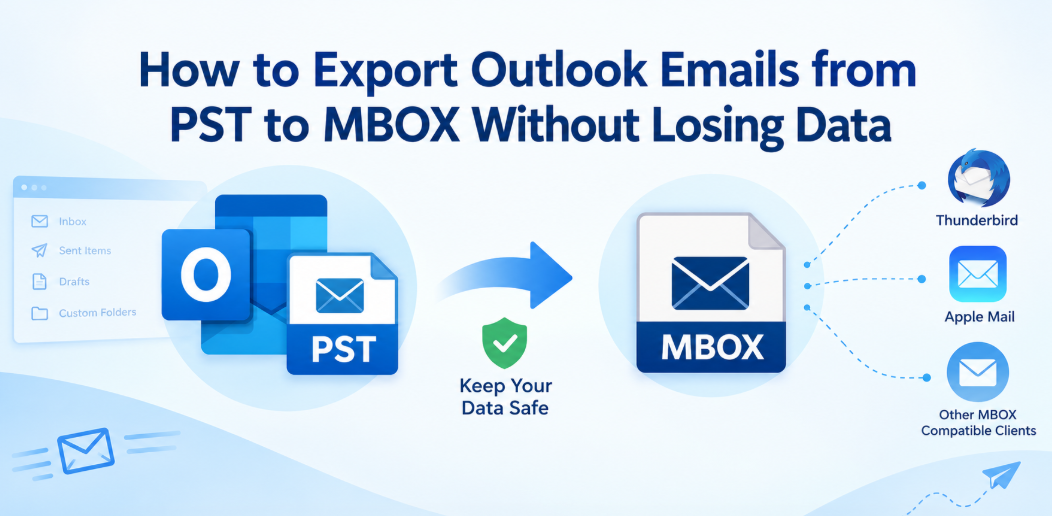
Transferring Outlook emails from PST to MBOX can be a little difficult if the mailbox contains years of messages, attachments, folders and important email properties. It’s not as simple as a conversion. The real question is if the converted MBOX file has the same emails, attachments, dates, recipients and folder information as the original PST.
This is especially true when migrating from Outlook to an MBOX-compatible email client such as Thunderbird or Apple Mail. A bad conversion method can result in lost emails, broken attachments, changed formatting, or an incomplete mailbox.
The good news is that you can reduce these risks by properly preparing the PST file, selecting the right conversion method, and verifying output after the conversion. One such option is TrustVare PST to MBOX Converter, which is specially created for this type of migration.
Common Causes of Data Loss During PST to MBOX Conversion
PST and MBOX are two separate mailbox storage formats. MBOX is used by many email applications to store messages and other information in the mailbox. Outlook uses PST.
Data problems can arise when:
The PST file is too large.
The source file is corrupt or contains errors.
Attachments are not processed correctly.
Export of only selected folders.
The manual method does not support the conversion needed.
Email metadata is not preserved.
Process several PST files.
The user does not validate the converted MBOX file.
Therefore, it is better to think of the migration as a data transfer process rather than simply changing one file extension to another.
Best Practices to Export PST to MBOX Safely
1. Always make a copy of the original PST
Before you begin the conversion, make a backup copy of the PST file. Do not do anything that might change or replace the original source.
Store the backup somewhere else, ideally on a different drive or storage device. You have the original mailbox in case of any problems with the conversion.
2. Check the PST before the conversion
If you can, open the PST to see if important folders such as Inbox, Sent Items, Drafts, and custom folders are there.
Check some emails with attachments too. This provides you with something to compare the converted MBOX against later.
3. Don’t Just Rename the Extension to Convert
Converting PST to MBOX does not convert the mailbox. The two formats have different internal structures.
The conversion process should read the PST data and generate an MBOX file including the real email messages.
4. Preview Before Exporting
The preview feature is very useful when working with a large PST. It enables you to browse through folders and email items before you actually begin to export.
This is especially useful if you do not want to download the whole mailbox, but only a specific folder or emails.
5. Provide sufficient free space
Additional Storage Space Required for Converted MBOX File Conversion of large mailboxes with thousands of messages and attachments can require considerable space.
Store the output on a location with sufficient free space, and not on a system drive that is almost full.
6. Verify MBOX After Conversion
A successful conversion message does not mean that all email has been transferred correctly.
Open the resulting MBOX in a compatible application and see:
Amount of email
Mail folders and Inbox
Attachments
Information about sender and receiver
Date of email
Subject lines
Format of the body of the message
Important custom folders
Using PST to MBOX Converter
If you have a large PST (or multiple PSTs) to migrate, or want to do it without Outlook, dedicated conversion software can make life easier.
TrustVare PST to MBOX Converter (https://www.trustvare.com/pst/mbox/) supports single and multiple PST files and preview before conversion. According to its product page, it supports ANSI, Unicode, password-protected, and encrypted PST files. It can also preserve email properties like To, CC, BCC, dates and attachments during conversion.
The software is built as a standalone Windows application, so you don’t need to have Microsoft Outlook installed to perform the conversion. It can save the generated MBOX data to a location specified by the user and also creates a conversion log to review the process.
Real-Life Example
Suppose you've got an Outlook PST file that contains several years of business correspondence, including important PDF and Word attachments in the Inbox and Sent Items folders.
The user can add the PST in the converter, preview the mailbox, select the required data and export it to MBOX rather than manually moving thousands of messages.
The converted MBOX file can then be imported into any email client that supports MBOX files. The user can then compare a number of original Outlook messages and their converted versions (including messages with attachments) to ensure that the migration has preserved the information they need.
This step of verification is important as it confirms the actual output and not just the completion message of the software.
Step-by-Step Guide: How to Convert PST Files to MBOX Format
Step 1: Software installation
Download and install the PST to MBOX converter software on any compatible Windows system.
Step 2: How to Import a PST File
Run the application and add the Outlook PST file you want to convert. The software supports loading a single PST or multiple PST files.
Step 3: View Your Mailbox
Let the application scan the PST. Use the preview pane to examine folders, emails and their contents before conversion.
Step 4: Select MBOX as Output
Select MBOX as the file format for your export and choose a destination folder on your computer.
Step 5: Begin Conversion
To start the process of transferring the selected PST data into MBOX format, click on the conversion/export option.
Benefits
There are several practical advantages when using a dedicated PST to MBOX conversion approach:
Supports single and multiple PST files.
Supports ANSI & Unicode PST files.
Supports password-protected & encrypted PST files.
Offers mailbox preview before conversion.
Enables selective email conversion.
Maintains important email properties and attachments.
Folder and subfolder structure is maintained according to product documentation.
Conversion does not require Microsoft Outlook.
Supports Large PST File.
Stores output to a local directory of choice.
Creates a conversion log.
Can convert mailbox data for Thunderbird, Apple Mail and other MBOX compatible clients.
FAQs
Can PST be converted to MBOX without Outlook?
Yes. The dedicated converter mentioned on the product page works independently and does not require installing Microsoft Outlook for PST to MBOX conversion.
Will the attachments be converted along with emails?
The product documentation says that attachments are transferred with the email data. However, it is still advisable to check important attachments after the conversion.
Will the conversion change my original PST?
The export process does not damage the original PST structure, as mentioned on the product page. However, it’s a good idea to keep a separate backup before you migrate.
Where can I use the created MBOX file?
MBOX is a format that is supported by several email applications including Thunderbird and Apple Mail. The import process depends on the email client you are targeting.
How do I check if any critical data has been lost?
Check the original PST against the converted MBOX by folder count, representative emails, attachments, dates, recipients and message formatting. Instead of just checking the conversion completion message, it is recommended to do a sample check for important business archives.
Conclusion
Conversion of Outlook email from PST to MBOX is not enough, there are some crucial data that are lost during the conversion process. Backing up the original PST, diligent source verification, previewing, selective conversion if necessary, enough storage, and post-conversion checks all help in minimizing migration issues.
TrustVare PST to MBOX Converter for Large or Complex Mailboxes offers a dedicated approach with PST preview, batch conversion, selective conversion, attachments support, multiple PST compatibility and conversion reporting.
The safest way is simple: Protect the original PST, inspect the source, convert precisely, and validate the MBOX before calling the migration done.