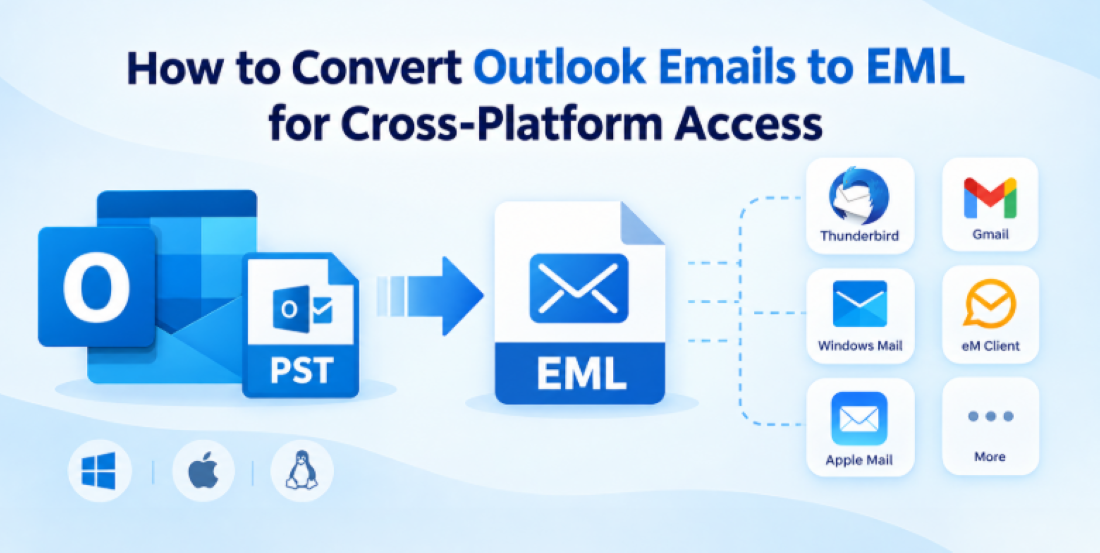
Switching from Microsoft Outlook to another e-mail application can be tricky if your e-mail messages are saved in a PST file. Outlook stores mail as PST but many other email clients work more naturally with EML files. If you try to open or import the file directly into the EML supported application, you may find that the application doesn’t recognize the PST file.
This is where PST to EML conversion comes into the picture. Users can convert Outlook emails to EML to make individual messages accessible in applications such as Thunderbird, Windows Live Mail, Outlook Express, eM Client, and other email clients that support the EML format.
Why Outlook PST Files Don't Open Easily on Other Platforms
A PST file is more than a collection of single emails. It may have messages, attachments, folders, subfolders, contacts, calendars, notes and other Outlook mailbox information.
EML is not the same. This usually means a single email message, plus the email’s content and any attachments.
The two formats differ in their structure, so simply copying a PST file to another computer will not make the emails accessible in an EML based application. Needs a correct conversion process.
This problem often happens when:
• Outlook to Thunderbird switch
• Export emails to another EML compliant app
• Accessing old Outlook archives without using Outlook
• Move email data between different operating systems
• Backing up or archiving individual email files
• Sharing certain e-mails outside of the Outlook environment
How to Export Outlook Emails to EML (Manual vs. Automated Methods)
There are many ways, but which way to go depends on the data volume and the PST file’s condition.
1. Export manually
If your Outlook setup and the application you're moving to have compatible export/import options, you might be able to manually transfer messages.
The problem is that manual methods can become inconvenient when there is a large PST with hundreds or thousands of mails. Additional processing may also be necessary for folder organization, attachments, formatting and individual message files.
2. Use an EML-friendly mail client
Or you can use a third-party email app that’s able to import data from Outlook and work with EML files. This may require additional configuration, however. It may not be practical if you are simply trying to extract emails from a PST.
3. Use Dedicated PST to EML Converter
For large or complex PST archives, a dedicated converter can make the process easier. It can read the PST database, user can view the mailbox and export the emails as EML files to a user specified destination.
If you want to convert and retain attachments, formatting, email headers and folder structures then a dedicated utility is especially useful. According to the product page, its converter retains email components such as subject, sender, recipient, CC, BCC, dates, formatting, hyperlinks, images, attachments and folder/subfolder structure.
Step-by-Step: How to Convert Outlook PST to EML Using a Professional Tool
This conversion process is based on a simple three-step workflow: add PST file, review its contents, and select the location for the converted EML files.
Step 1: Install and Run the Converter
Download the converter on your computer. Launch the application.
The product information currently states that the software is available for Windows, Mac OS X and Linux.
Step 2: Import PST File of Outlook
Select the PST file you want and add it to the application. If you have an archive on another drive, first ensure that the file can be reached from your computer.
Step 3: View Data Files in PST
Add the PST and let the application scan the mailbox.
Review the folders and email information shown before starting the export process. This is an important step to ensure that you can confirm that the data you need from the mailboxes is being read correctly.
Step 4: Choose EML as Output Format
Select EML as the output format.
This is a software developed to export Outlook emails to EML with the attachments and keep important email properties during conversion. Supports Unicode and ANSI PST files as well.
Step 5: Select an output location
Select the destination folder to store the EML files.
For best results, create a separate folder called Converted EML so that the output files are kept separate from your original PST and other documents.
Step 6: Start Conversion
Click the conversion option to begin exporting Outlook emails of your choice.
Do not open or move the resulting EML files until the process is complete.
Real-World Example: Migrating Outlook Archives to Thunderbird
Let's look at the case of an Outlook user who has a PST archive of years of business correspondence that they want to access via Thunderbird.
Opening the PST directly in Thunderbird is not the same as opening native EML messages. Instead, the user can import the PST file to the converter, see the mailbox, select the necessary folders, select EML as the output format and save converted messages to a dedicated folder.
Then user can import/open created EML files in EML compatible email application after conversion. When performed properly, attachments and important email properties can remain associated with their respective messages.
Benefits of Using a Dedicated PST to EML Converter
A dedicated conversion approach offers several practical benefits:
Cross-platform access: EML files are recognized by many email clients.
Attachment preservation: Emails are exported along with the associated attachments.
Retains formatting: Important email formatting and components can be retained.
PST Compatibility: Compatible with ANSI and Unicode PST files.
Unlimited size of PST: On the product page, there is no limitation on the size of PST files.
User-friendly: The workflow is designed for people without advanced technical knowledge.
Custom output location: Users can choose where to save converted EML files.
Original data protection: The converter is supposed to export the data without modifying the source PST.
FAQs
1. How to convert PST email to EML without installing Outlook?
Yes. The dedicated converter is designed to work as a standalone utility so you do not need to have Microsoft Outlook installed for the conversion process.
2. Will the attachments come with the emails?
Yes. The product documentation says that it is possible to export Outlook emails with attachments to EML.
3. How can I convert a large PST file to EML?
The product page claims that the converter is not limited by PST size and can convert large PST files.
4. Does it support Unicode and ANSI PST?
Yes. Supported input types include both ANSI and Unicode PST files.
5. Is it possible to open converted EML files in Thunderbird?
Yes. Thunderbird supports EML and the product page specifically lists Thunderbird as an application that can read exported EML files.
6. Do I need to delete the original PST after conversion?
No. You may keep the Original PST until you have checked the converted EML files and confirmed that all the required emails and attachments are available.
Conclusion
Export Outlook PST Emails to EML is an easy solution to access mailbox data in multiple email clients. Instead of trying to get an incompatible PST file to work in some other platform, converting the messages to a more common email format makes a migration far easier.
WholeClear PST to EML Converter (https://www.wholeclear.com/pst/eml/) is best for users with large PST archives, attachments, multiple folders or who need to preserve email properties: add the PST, review the mailbox, select EML and an output location, and complete the conversion.
Most importantly, always validate the resulting EML files before deleting the original PST file. The success of a migration is determined by more than just the completion of the conversion process. It is measured by the fact that the emails, attachments, formatting, and other critical data are still usable afterward.