Introduction
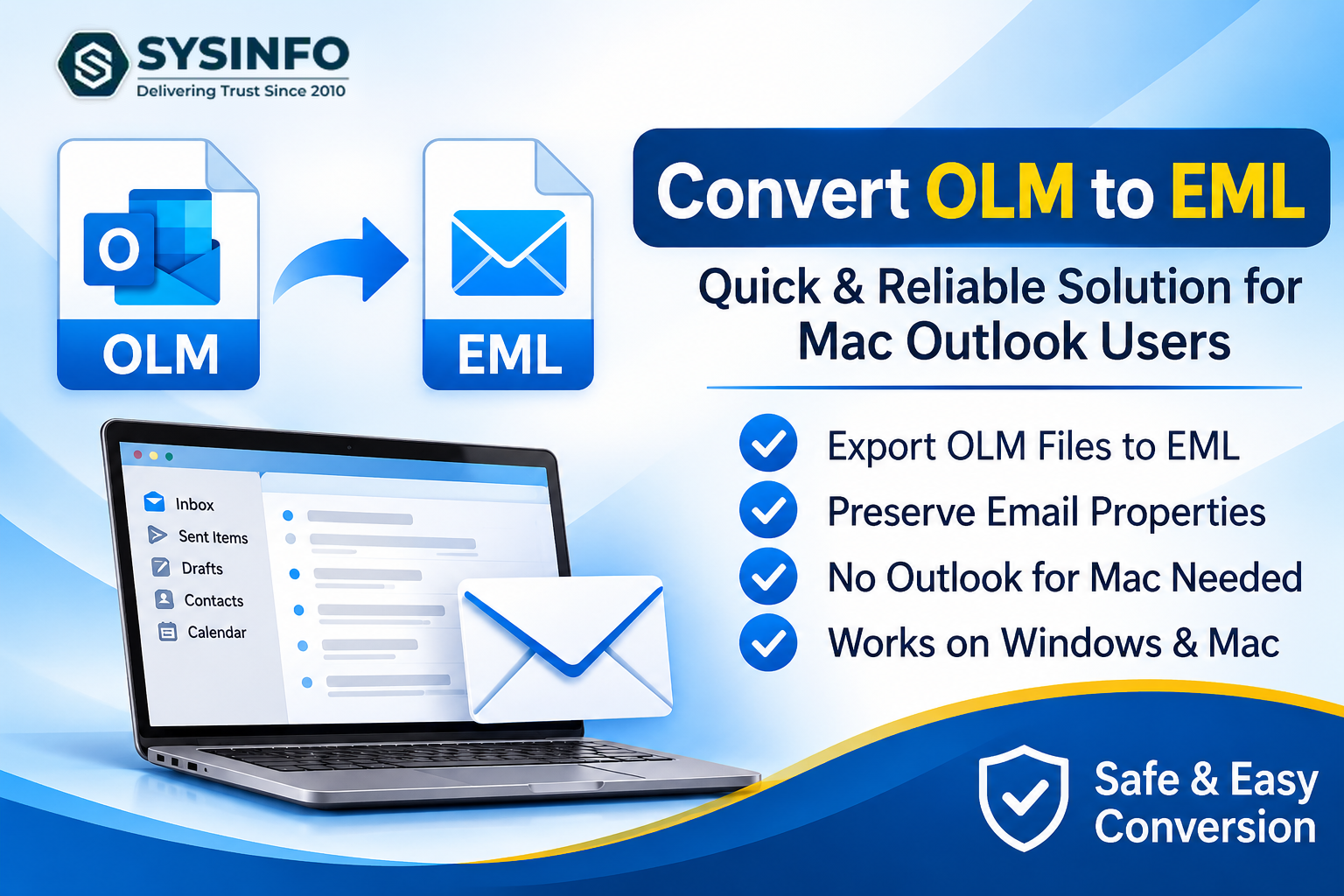
Mac Outlook stores mailbox information in OLM files. They can be inconvenient when users switch email clients or share messages. EML stores messages separately and is supported by many email applications. If you need to Convert OLM to EML, protect message content and attachments. The SysInfo OLM Converter is a practical option because it exports OLM data to EML without requiring Microsoft Outlook for Mac and helps retain the original folder structure.
Why Convert OLM Files to EML?
An OLM file is the data file Outlook for Mac uses to store mailbox items, including emails, attachments, contacts, calendars, tasks, and notes. Access can become inconvenient when users move to another email application.
EML is a message file format supported by many email clients. Each file generally contains one email, including its headers, body, and associated attachments. EML lets users open, share, or preserve selected messages separately.
Common reasons for conversion include:
Accessing messages in an email client that supports EML.
Sharing individual emails with colleagues or support teams.
Keeping separate copies of important correspondence.
Organizing messages for storage, review, or migration.
Challenges of Manual OLM to EML Conversion
Manual conversion takes time with large mailboxes. Users may have to locate and save emails individually. Repeating these steps can lead to missed messages and disorganized folders.
The original Mac Outlook installation may no longer be available. A suitable method should process OLM files directly.
How to Convert OLM to EML with SysInfo OLM Converter
SysInfo OLM Converter processes OLM files and saves email data in EML format. It supports single or multiple OLM files and does not require Outlook for Mac. Follow these steps:
Install and launch OLM Converter on a supported Windows, Mac, or Linux system.
Add the OLM file you want to process. Select the required files if you have multiple archives.
Browse the mailbox tree and review the available folders and items.
Select the email folders or messages you want to export.
Choose EML as the saving format and specify a destination location.
Start the export and wait for the process to finish.
Open the destination folder and verify the resulting EML files.
Test a small selection first.
Benefits of Using an OLM to EML Converter
A dedicated OLM to EML Converter can simplify a task that might otherwise involve repeated manual saving. This tool supports single and multiple OLM files. It can export data without Outlook for Mac.
Maintaining folder hierarchy makes exported messages easier to locate and manage. Always inspect representative output files before relying on a converted archive.
Tips to Convert Mac OLM to EML Safely
When you Convert Mac OLM to EML, first create a backup copy of the source OLM file. Work from the copy so the original remains unchanged. Check that the destination drive has enough free space.
After conversion, open sample EML files in a compatible email client. Check the sender, recipient, subject, message body, dates, and attachments. Keep the original OLM file until verification is complete.
Confirm that the source OLM file is readable and that you have permission to access its contents. Use a clearly named destination folder, and avoid interrupting the computer while the export runs. For business mailboxes, follow your organization's retention and privacy policies. If migrating a shared archive, document the selected folders and who verified the exported messages. These steps make the conversion easier to review later. Identify any missing data before later reuse by administrators.
When Should You Export OLM to EML?
Export OLM to EML when you need portable messages rather than one archive. EML files can be stored separately, shared conveniently, and opened in compatible email applications. IT teams can review conversations, support teams can exchange messages, and individuals can retain correspondence outside Mac Outlook.
EML is an email message format. If your OLM archive also contains contacts, calendars, tasks, or notes, choose a suitable output format for those items.
Conclusion
EML makes individual OLM emails easier to access, share, and organize. Manual saving suits a few messages; larger mailboxes need consistency. SysInfo OLM Converter provides a direct way to select OLM data and export emails to EML without Outlook for Mac, while retaining folder organization and message information. Back up the source file and verify sample output before completing the task. When you need to Convert OLM to EML, choose a method that suits your mailbox and preserves needed information.