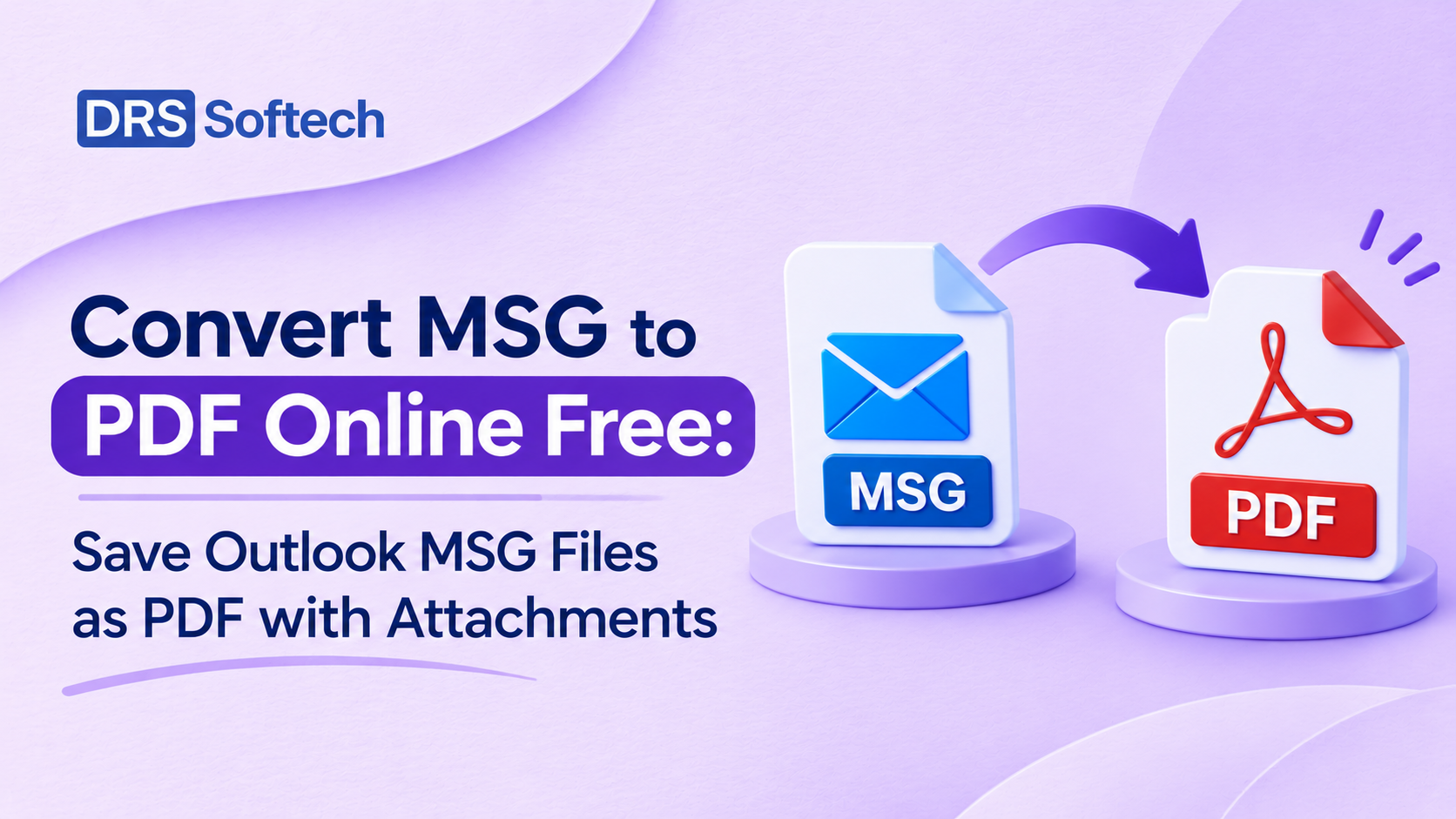
MSG files are great inside Outlook, but they're awkward to share, archive, or open on other devices. PDF is the universal alternative: it looks the same everywhere, is easy to store, and works as legal or business evidence. If you want to convert MSG to PDF online free (or close to it), this guide covers the options, their limits, and the fastest way to save MSG emails as PDF documents with attachments intact.
Why Convert Outlook MSG Files to PDF?
Easy sharing: Anyone can open a PDF without Outlook.
Long-term archiving: PDF is stable and widely supported.
Preserved formatting: Sender, subject, date, and body stay as they are.
Compliance and legal use: PDFs are easier to present as records.
Smaller storage footprint: Large MSG collections become organized documents.
Can You Convert MSG to PDF Online for Free?
Online converters seem convenient, but they have real drawbacks. Many cap file size, struggle with batches, and drop attachments. Uploading confidential emails to a third-party server is also a privacy risk. For business email, a desktop method is usually the safer choice.
Method 1: Free Manual Method (Using Outlook)
Open the MSG file in Microsoft Outlook.
Click File → Print.
Select Microsoft Print to PDF as the printer.
Click Print and choose where to save the PDF.
Limitations:
Works for one email at a time.
Requires Outlook to be installed.
Attachments are not saved separately.
Impractical for hundreds or thousands of emails.
Method 2: Professional MSG to PDF Converter (Recommended)
For bulk conversion with attachments, a dedicated MSG to PDF Converter like the DRS Softech MSG Converter Tool is far more efficient. It works without Outlook and converts MSG files to PDF and 15+ other formats, including PST, EML, MBOX, CSV, HTML, DOCX, JPG, PNG, TIFF, and JSON.
Key Features for MSG to PDF with Attachments
Batch conversion: Convert many MSG files in one go.
PDF attachment extraction: PDF attachments can be saved separately in a dedicated location.
Preview panel: Check emails, attachments, and details before converting.
Selective conversion: Choose only the emails you need.
Date range filter: Convert emails from a specific period.
Remove duplicates: Filter by To, From, Bcc, Body, and Subject.
Naming conventions: Name PDFs by subject and date.
Folder structure preserved: Folders and subfolders stay organized.
No file size limit: Convert MSG files of any size.
Works on Windows and Mac: Supports all Windows versions, including Windows 11 and 10, and major macOS versions.
How to Convert Outlook MSG Files to PDF: Step by Step
Download, install, and run the DRS Softech MSG Converter on your system.
Click Select File or Select Folder, then Open to add your MSG files.
Preview the selected MSG data and click Next.
Choose PDF as the output format and apply any extra features (date filter, duplicate removal, naming convention).
Select a save location and click Convert.
Your MSG emails are saved as PDF documents, with attachments handled as you selected.
Free Demo vs. Full Version
Feature Free Demo Full Version MSG to PDF, PST, EML, HTML, DOC, etc. First 50 email items Unlimited Export to PDF, TIFF, JSON, PNG, DOCX, JPG First 50 email items Unlimited Migrate to Gmail, Office 365, Yahoo, Thunderbird First 50 email items Unlimited Works without Outlook, preview, naming options ✔ ✔ Date filter and remove duplicates Full version ✔
The demo lets you test the conversion on 50 items before buying.
Bonus: Import MSG Files into Email Clients
The same tool can import MSG files directly into Gmail, Yahoo, Thunderbird, IMAP, Office 365, iCloud, Zoho Mail, Opera Mail, and more, so you can migrate emails as well as convert them.
Frequently Asked Questions
Can I convert MSG to PDF without Outlook?
Yes. The DRS Softech MSG Converter works without Outlook installed.
Will attachments be included in the PDF?
The tool can extract PDF attachments and save them separately from the MSG files, and the full version supports migrating with or without attachments.
Can I convert multiple MSG files at once?
Yes. Batch conversion handles large volumes simultaneously.
Is there a file size limit?
No. You can convert MSG files of any size.
Can I convert only specific emails?
Yes. Use the preview panel for selective conversion, or the date range filter to narrow by period.
Conclusion
For a single email, Outlook's Print to PDF will do. For batches, attachments, filtering, and privacy, a dedicated MSG to PDF Converter is the better choice. Download the free demo, convert your first 50 items, and see how quickly you can convert Outlook MSG files to PDF with everything intact.