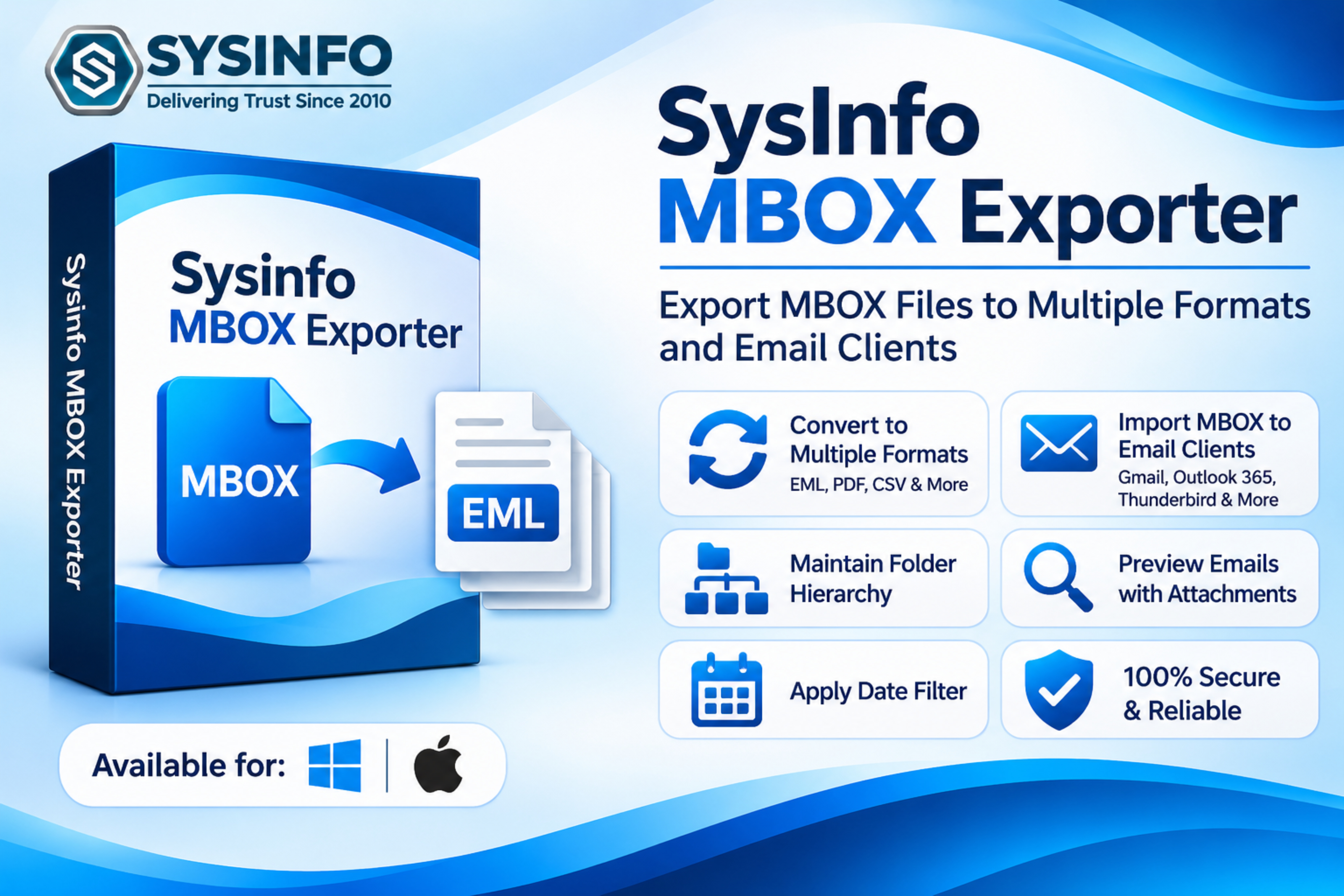
Email management becomes challenging when users need to access archived MBOX emails in applications that support individual EML messages. Whether you are an IT administrator, email migration professional, or regular user, knowing how to Convert MBOX to EML can simplify email organization and accessibility. Since MBOX stores multiple messages in a single file, extracting individual emails requires a reliable approach. You can use Thunderbird for manual conversion or choose the SysInfo MBOX Exporter for a convenient way to convert multiple MBOX files while maintaining their original folder hierarchy.
Why Do Users Need MBOX to EML Conversion?
MBOX is a popular mailbox format supported by email applications such as Thunderbird, Apple Mail, and Google Takeout. However, some email platforms and applications offer better compatibility with individual EML files. Here are the common reasons for conversion:
Individual Email Access: EML stores each email separately, making specific messages easier to open, share, and manage.
Improved Compatibility: EML files are supported by several email applications, including Windows-based clients.
Convenient Email Organization: Users can arrange individual messages into folders according to their requirements.
Selective Email Sharing: Instead of sharing an entire mailbox, users can share specific email messages.
Long-Term Archiving: Individual EML files provide a practical option for storing and accessing important email conversations.
Understanding these benefits helps users choose an appropriate method for their email conversion requirements.
How to Convert MBOX Files to EML Manually?
Mozilla Thunderbird provides a practical way to export MBOX emails into EML format. Users can select individual messages and save them separately.
Method 1: Using Thunderbird's Save As Option
Follow these steps:
Install and launch Mozilla Thunderbird on your computer.
Configure an email account and import the required MBOX mailbox.
Open the mailbox containing the emails you want to export.
Select individual messages using the Ctrl key.
Right-click the selected emails and choose the Save As option.
Select the destination folder and save the messages in EML format.
Limitation: This approach requires selecting and saving messages individually. Therefore, it becomes time-consuming when handling thousands of emails or multiple large MBOX files.
Method 2: Using ImportExportTools NG
Another option is the ImportExportTools NG add-on.
Open Thunderbird and navigate to Add-ons and Themes.
Search for ImportExportTools NG and install the extension.
Restart Thunderbird to activate the add-on.
Right-click the mailbox folder containing the required messages.
Select ImportExportTools NG and choose the option to export all messages in a folder.
Select EML as the output format.
Choose the destination folder and complete the export.
This method allows users to export messages from selected folders. However, managing multiple mailboxes can still require considerable manual effort.
Professional Method to Convert MBOX to EML in Bulk
When dealing with multiple mailboxes, a professional solution can make the conversion process easier. This MBOX Exporter is designed to export MBOX files into several formats, including EML, PST, PDF, MSG, MBOX, and CSV.
It also supports migration to email platforms such as Gmail, Office 365, Thunderbird, Google Workspace, and IMAP. Users can process individual files or add entire folders containing multiple MBOX files.
Steps to Use SysInfo MBOX Exporter
Follow the instructions below:
Download, install, and launch the MBOX Exporter on your Windows computer.
Click Continue and select the required option to add MBOX files.
Use Select Files or Select Folder to load individual files or multiple MBOX files.
Preview the mailbox contents and select the required folders from the directory tree.
Click Next and choose EML from the available saving formats.
Apply the required filters and specify the destination path.
Click Convert to begin exporting the selected emails into EML format.
After completion, navigate to the destination folder to access the exported EML messages.
Key Features of the Bulk MBOX to EML Converter
The software offers several useful capabilities for email conversion:
Batch Conversion: Process multiple MBOX files simultaneously without manually exporting individual messages.
Folder Hierarchy: Preserve the original folder structure during conversion.
Email Preview: Preview email content and attachments before starting the process, with a limit of 5,000 emails per folder.
Date Filters: Select emails according to specific start and end dates.
Attachment Management: Exclude attachments or save them separately when required.
Duplicate Removal: Exclude similar emails from selected folders.
Multiple Formats: Export MBOX data into EML, PST, PDF, MSG, CSV, and other supported formats.
Wide Compatibility: Supports MBOX files created by Thunderbird, Apple Mail, Google Takeout, and other email clients.
The free demo version allows users to convert up to 50 emails per MBOX file to evaluate the software.
Conclusion
Choosing the right conversion method depends on mailbox size, technical requirements, and the number of emails involved. Thunderbird is suitable for exporting selected messages, while professional software offers greater convenience when processing multiple files. With batch processing, preview functionality, date filters, and folder hierarchy preservation, SysInfo MBOX Exporter provides a practical solution for bulk email conversion. Therefore, if you need to Convert MBOX to EML efficiently, select a method that matches your requirements and always verify the exported emails before removing the original mailbox files.
Start writing your content...